
Create or switch organisations
Choose the workplace account you mean to manage.
Before you start
Sign in with the account that owns or was invited to the organisation.
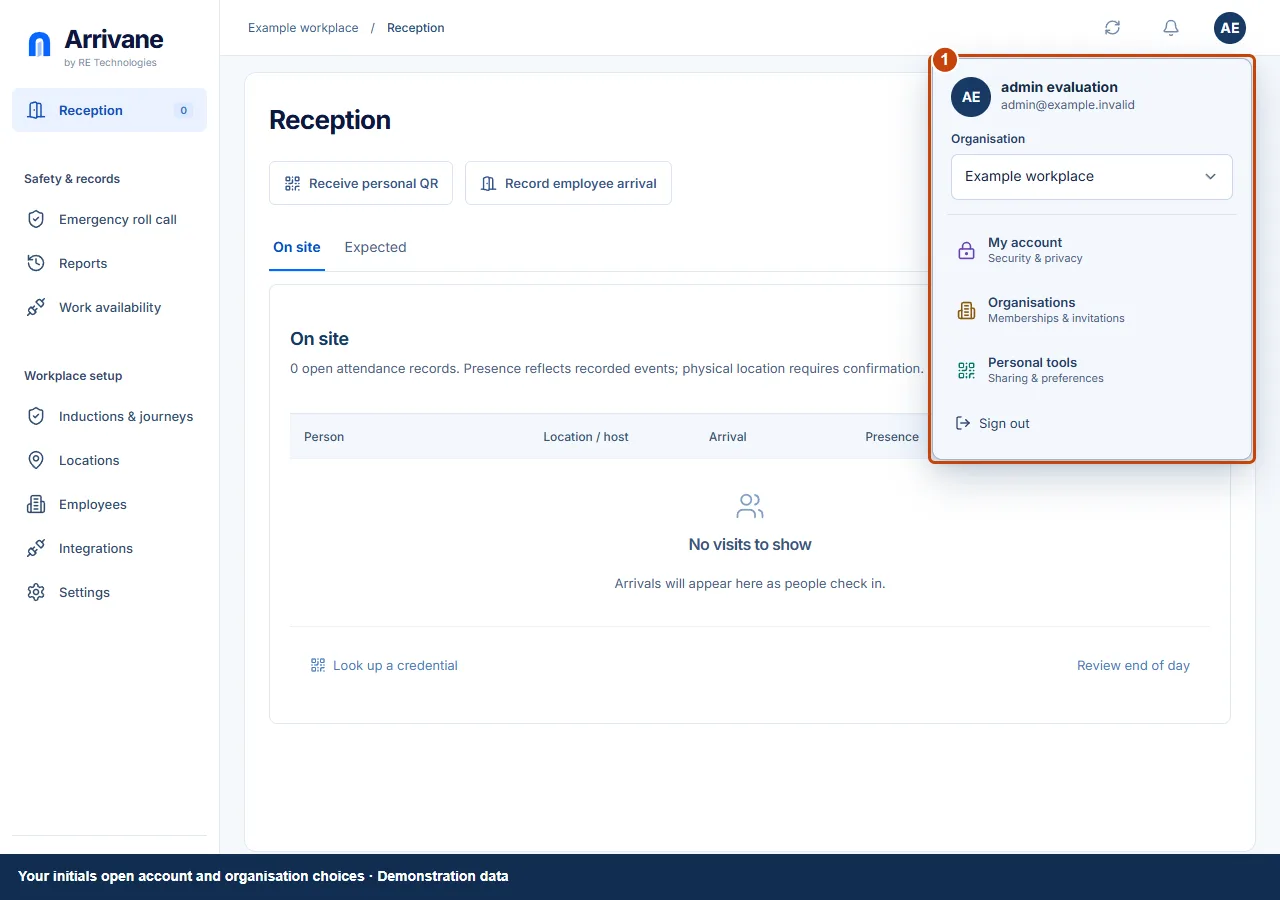
Open the account menu
Select your initials in the top bar. The Organisation selector switches between organisations you can access. Records and permissions belong to the selected organisation.
Demonstration data · Select image to enlarge. Review your memberships
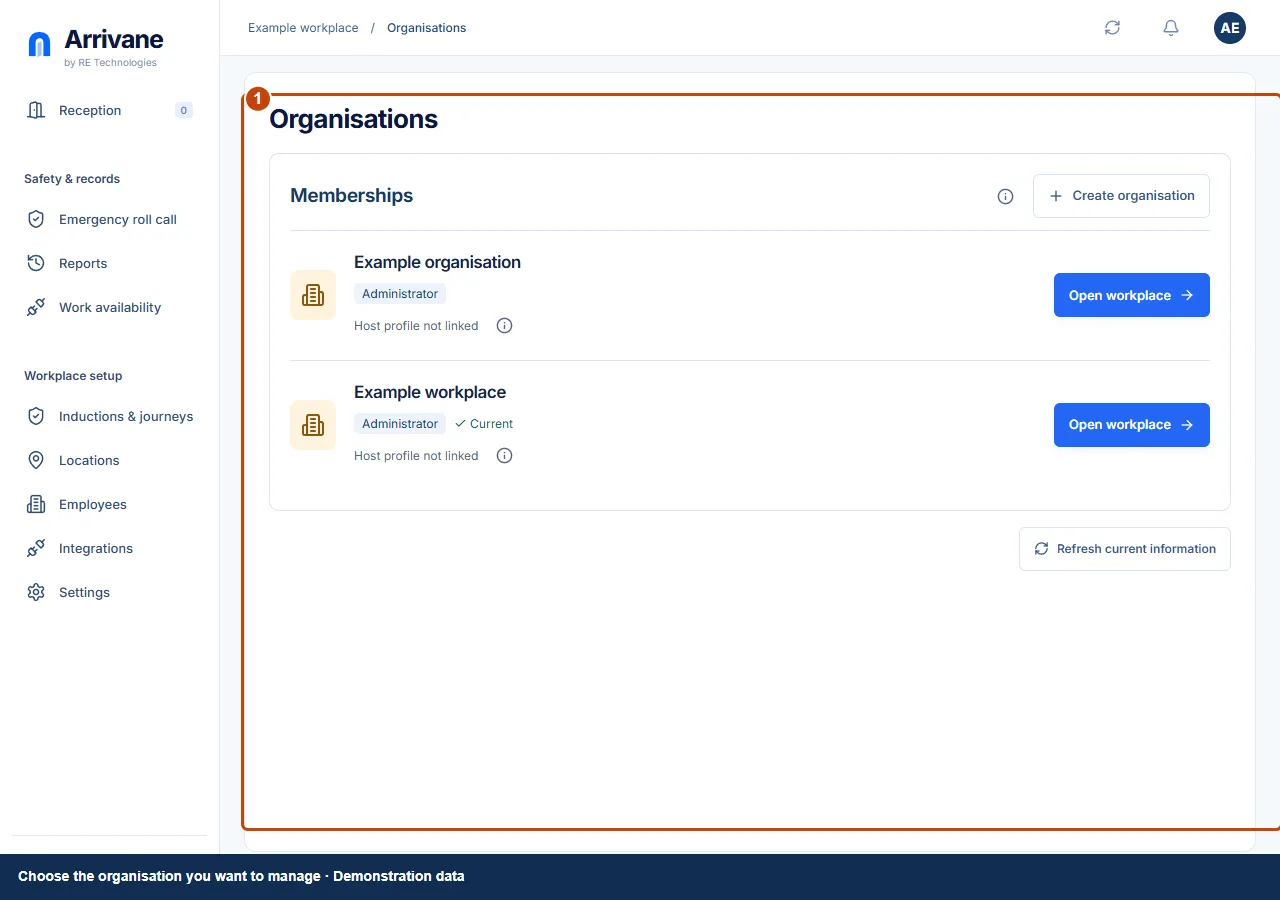
Choose Organisations to see your memberships and invitations. Select Open workplace on the organisation you need. Review invitations explicitly before accepting them.
Demonstration data · Select image to enlarge. Create only when you need a separate organisation
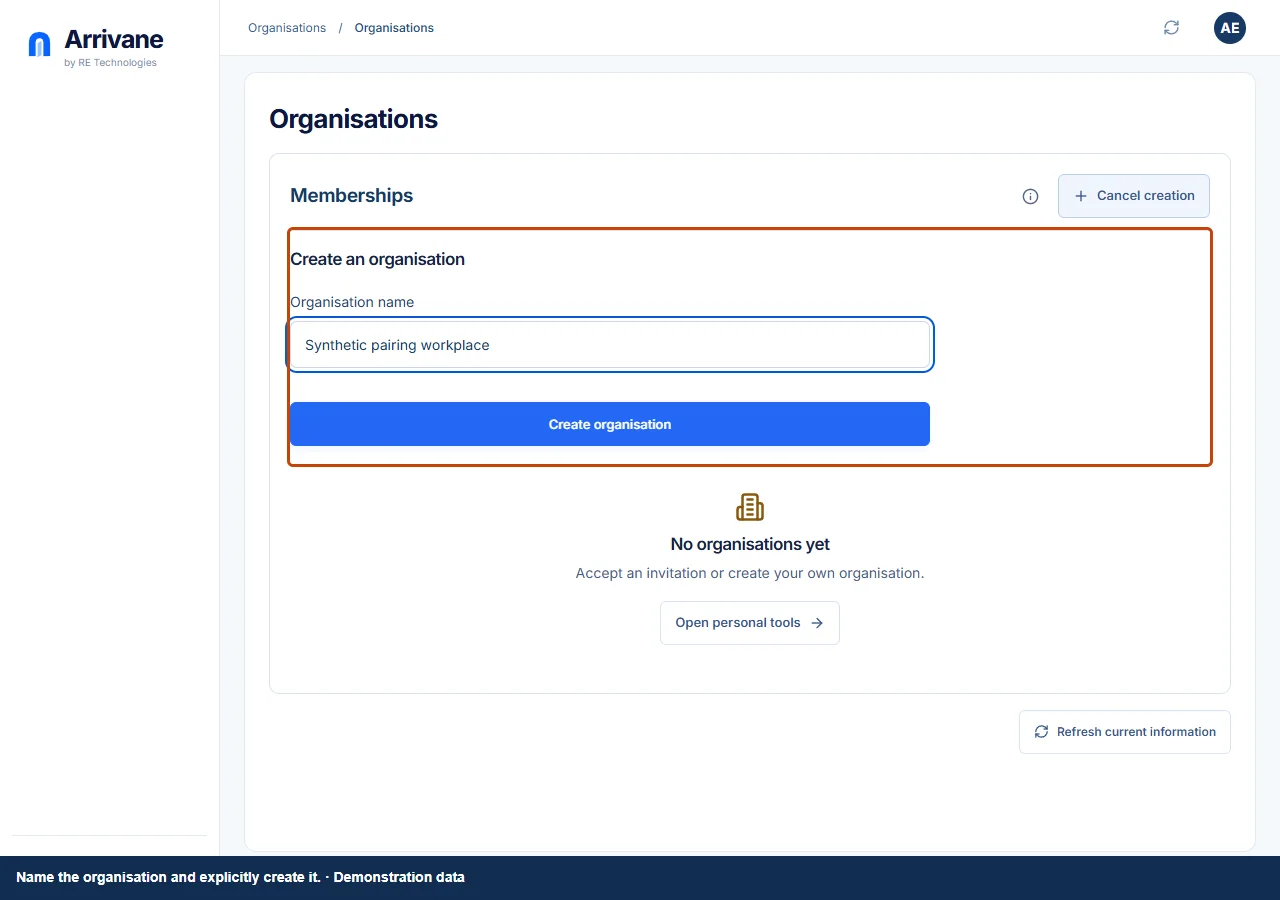
Choose Create organisation and complete its form on desktop. Use Locations within an existing organisation for another physical workplace. A new organisation has separate people, access and records.
Demonstration data · Select image to enlarge.
Check the result
The top bar names the intended organisation before you change any workplace settings.
If something goes wrong
An organisation missing from the list may require an invitation to this exact sign-in email. Ask its administrator to check the invitation.
If a control is missing, check your organisation, location, role and plan. If a save fails, read the error, keep your draft and check the saved state before retrying.
Screenshots use example people and workplaces. Follow the written steps and test your reception tablet, printer and connected services before welcoming visitors.