
Invite users and manage workplace access
Manage each employee’s sign-in account, role and location access.
Before you start
Confirm the intended email, role and location scope. An employee record and an account are separate.
Open Employees
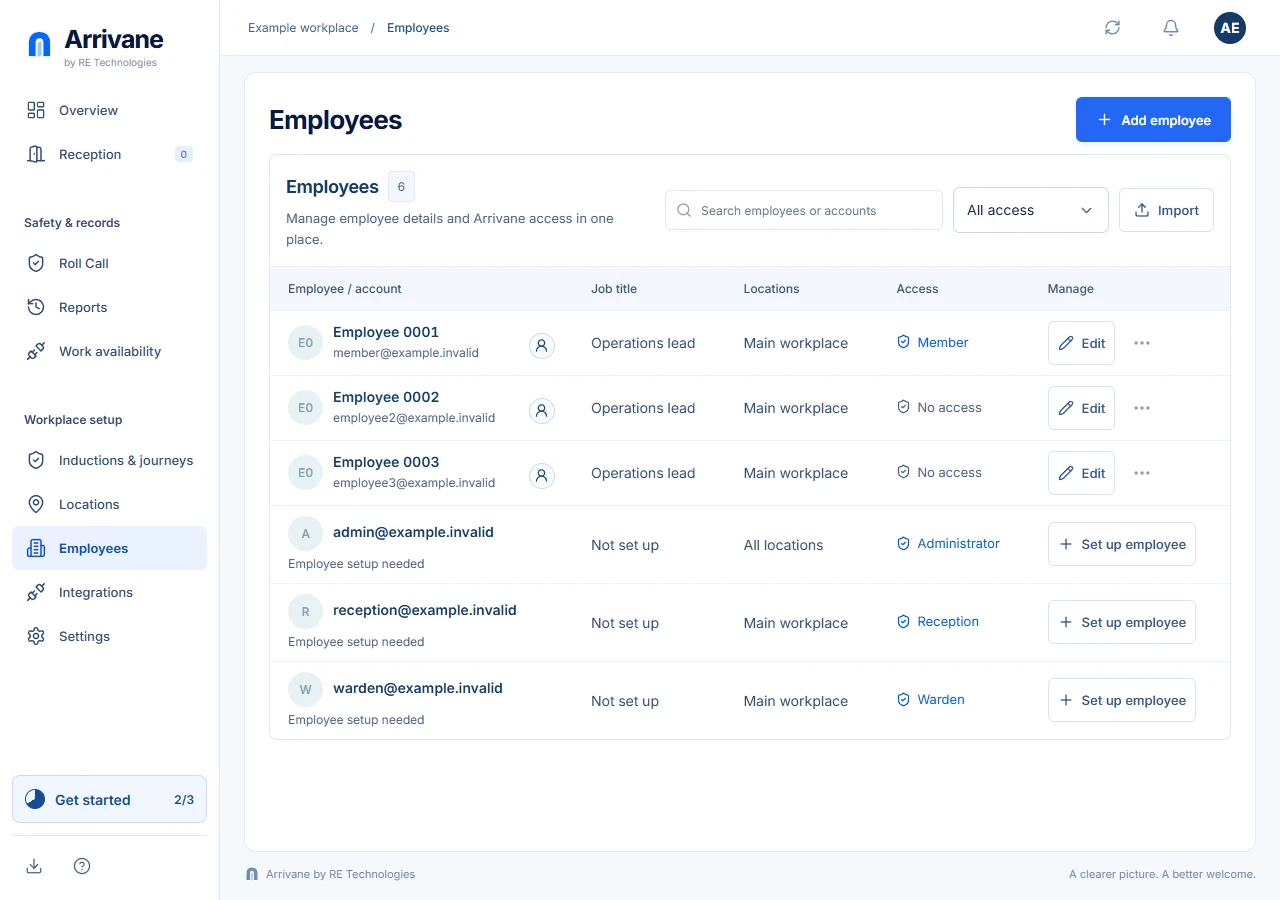
Use the access filter beside Search employees to show All access, With access or No access. Accounts without an active employee appear as rows marked Employee setup needed. Choose Set up employee to complete their directory details.
Demonstration data · Select image to enlarge. Give an employee access
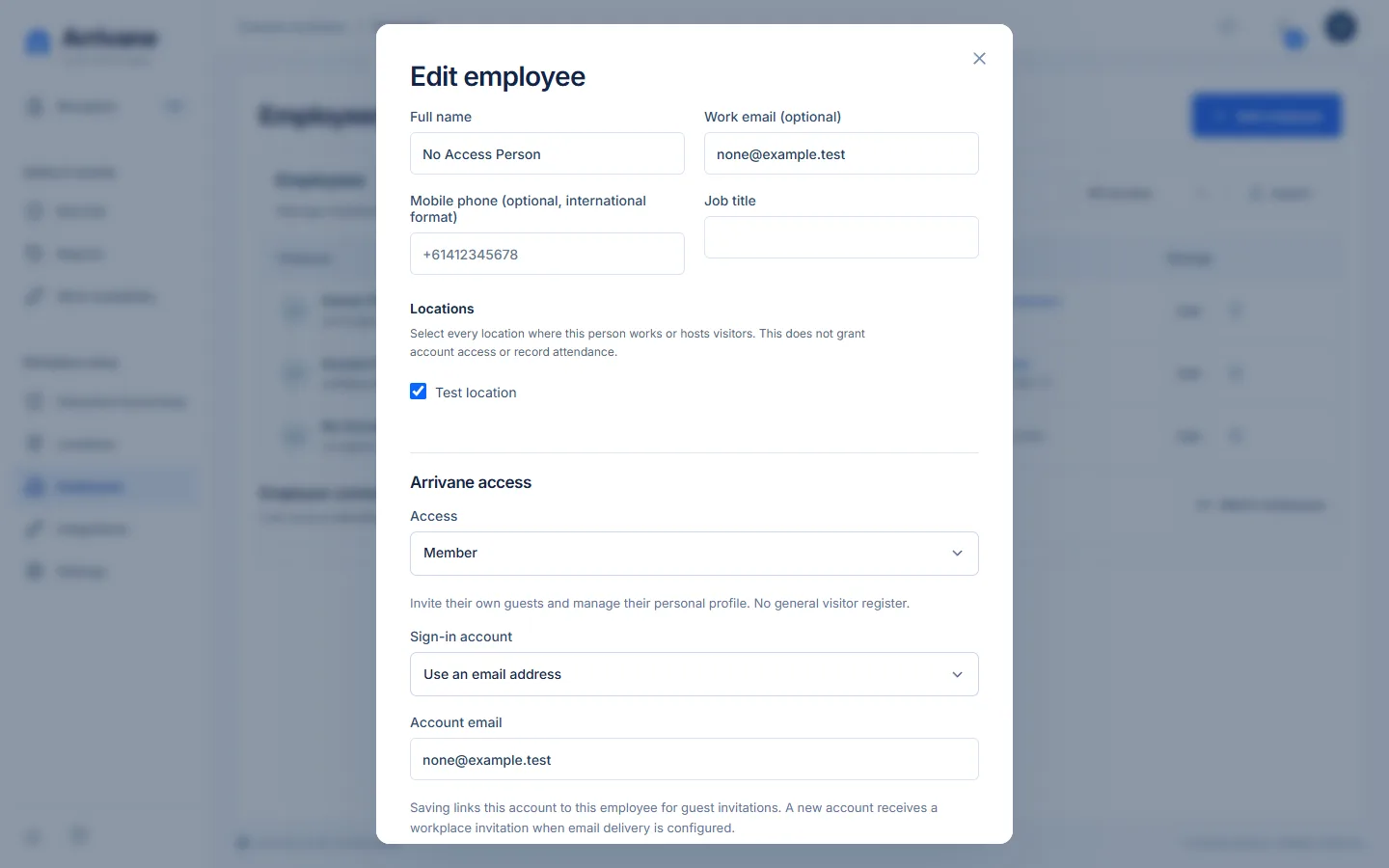
Edit the employee and change Access from No access to the required role. Choose an existing sign-in account or enter the intended account email. Review location access and Save employee. A new account receives a workplace invitation when email delivery is configured; the recipient must sign in and accept it.
Demonstration data · Select image to enlarge. Review or remove access
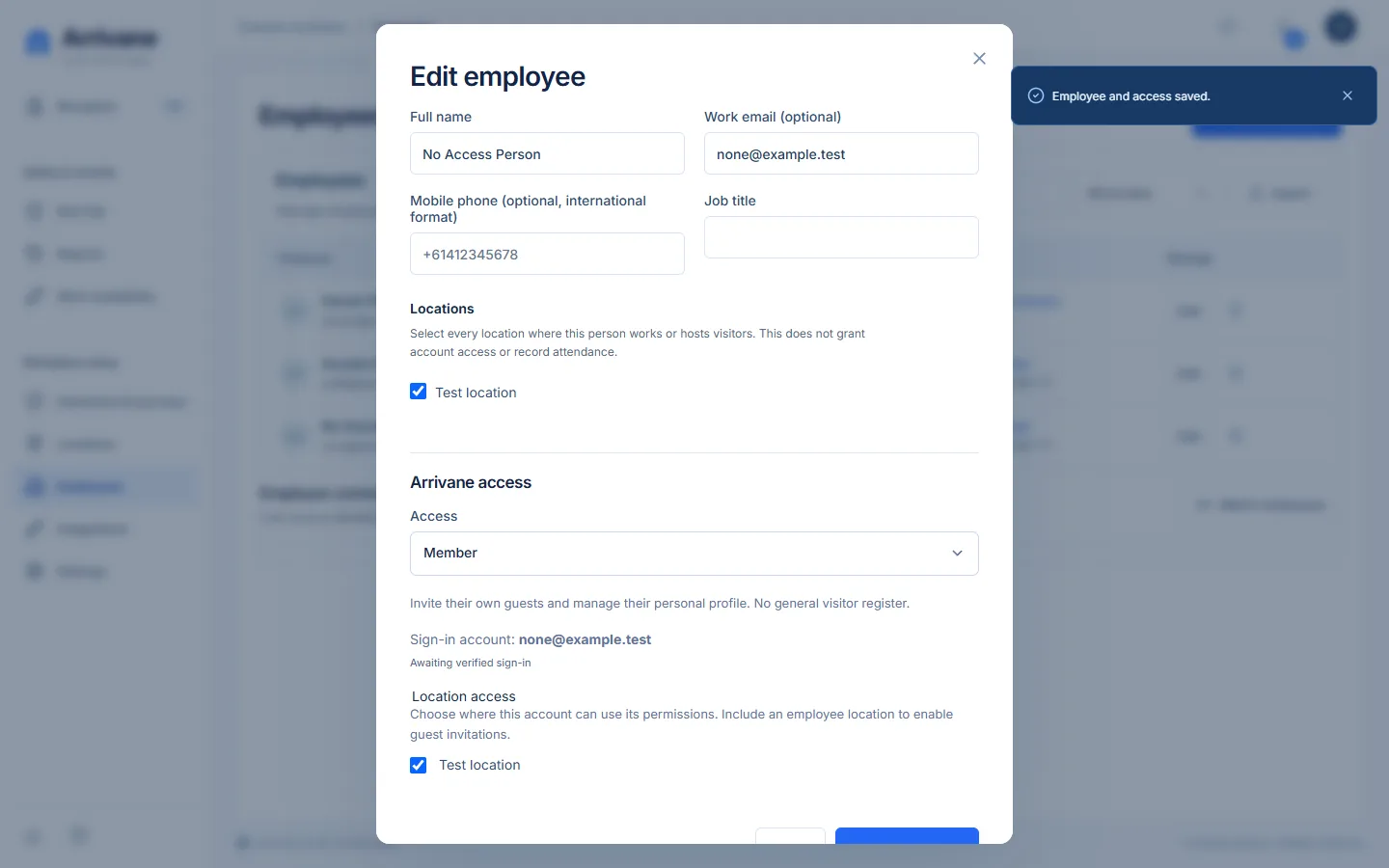
Edit the employee to review their sign-in account, role and location access. To remove access, choose No access and confirm removal before saving. The owner and your own access cannot be removed here. Employee details and access save together; a validation error saves neither.
Demonstration data · Select image to enlarge.
Check the result
The intended account has the correct accepted membership, role, locations and host binding.
If something goes wrong
If an invitee cannot see the organisation, check their sign-in email and invitation state. A directory assignment does not automatically create membership.
If a control is missing, check your organisation, location, role and plan. If a save fails, read the error, keep your draft and check the saved state before retrying.
Screenshots use example people and workplaces. Follow the written steps and test your reception tablet, printer and connected services before welcoming visitors.