
Manage account security and privacy
Review sessions, request a password reset and find account privacy controls.
Before you start
Use My account for your sign-in identity; workplace permissions remain under organisation Settings.
Open My account
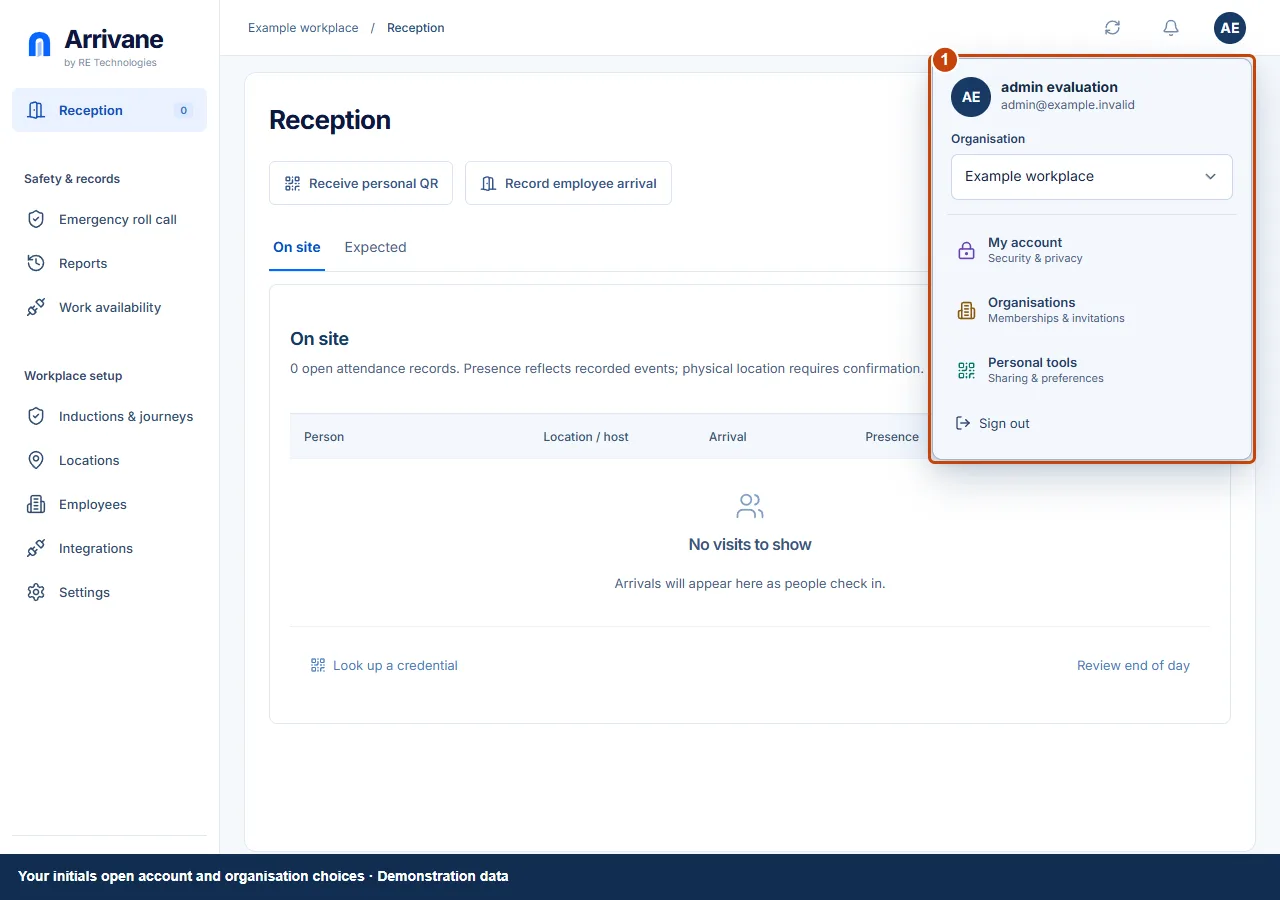
Select your initials → My account. Review the displayed identity and email before making a security change.
Demonstration data · Select image to enlarge. Review sessions or reset your password
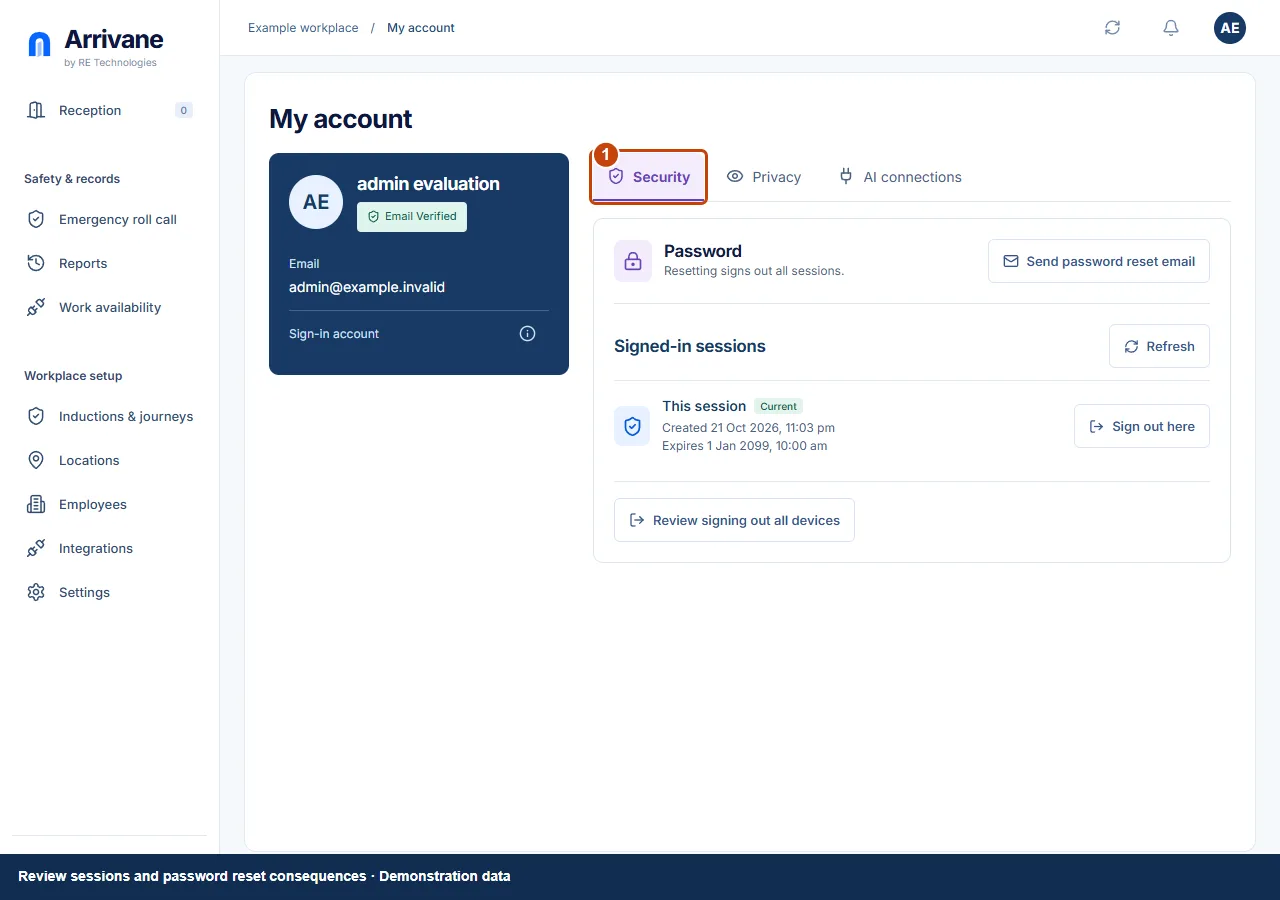
In Security, review signed-in sessions. Sign out here affects this session. Review signing out all devices is a separate action. Sending a password reset email begins a reset flow; completing a reset signs out sessions as described.
Demonstration data · Select image to enlarge. Review personal privacy choices
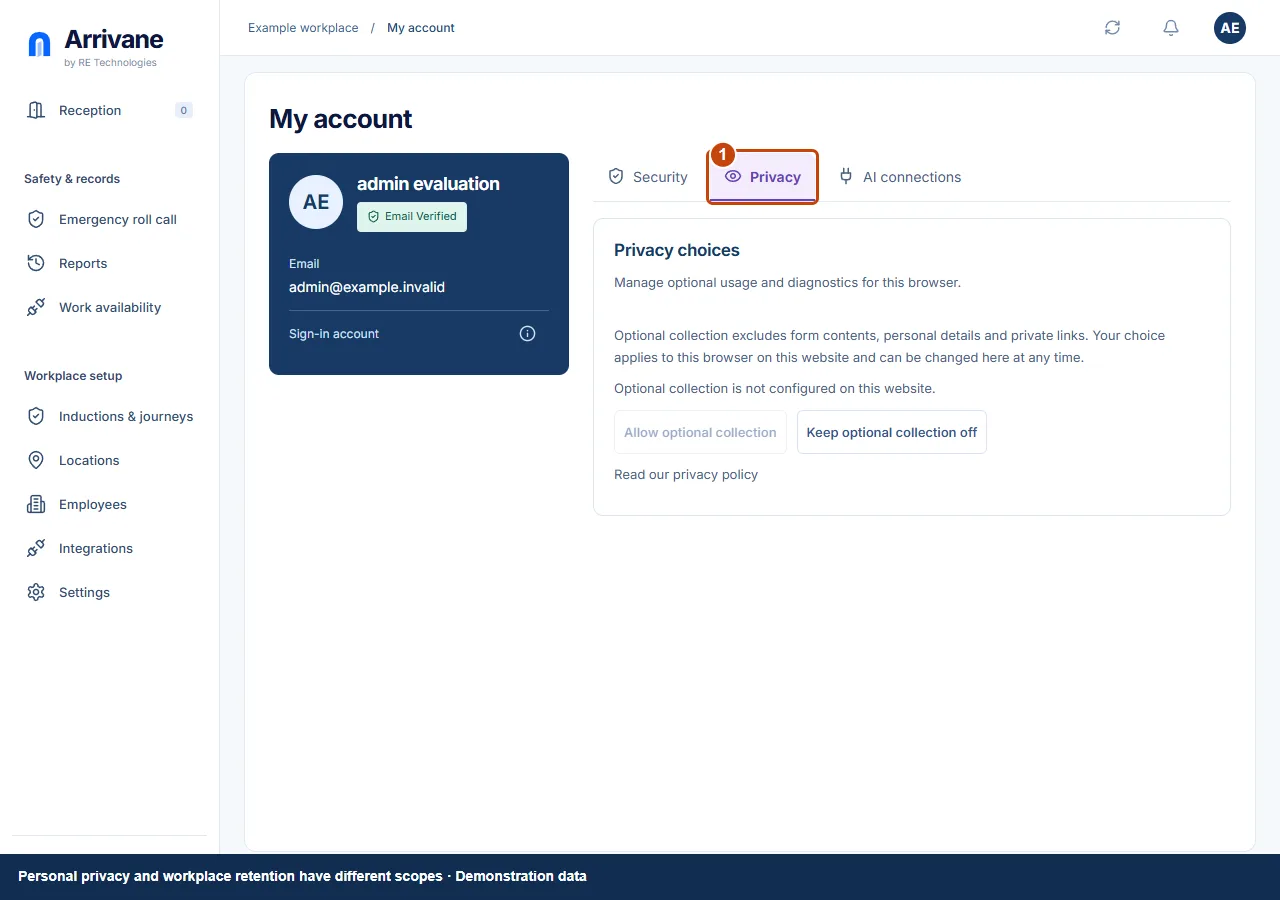
Open Notifications and scroll to Privacy. Use Profile & sharing in My account for reception sharing and Settings → Data & operations for workplace retention; these are separate scopes.
Demonstration data · Select image to enlarge.
Check the result
Only intended sessions and personal sharing choices remain active.
If something goes wrong
Use your organisation administrator for workplace-role problems. A personal password reset does not change a location’s visitor requirements.
If a control is missing, check your organisation, location, role and plan. If a save fails, read the error, keep your draft and check the saved state before retrying.
Screenshots use example people and workplaces. Follow the written steps and test your reception tablet, printer and connected services before welcoming visitors.