
Review workplace data retention
Understand and explicitly save a workplace deletion policy.
Before you start
Confirm your workplace’s approved retention requirements before changing a deletion policy. Deleted records cannot be restored.
Open Data & operations
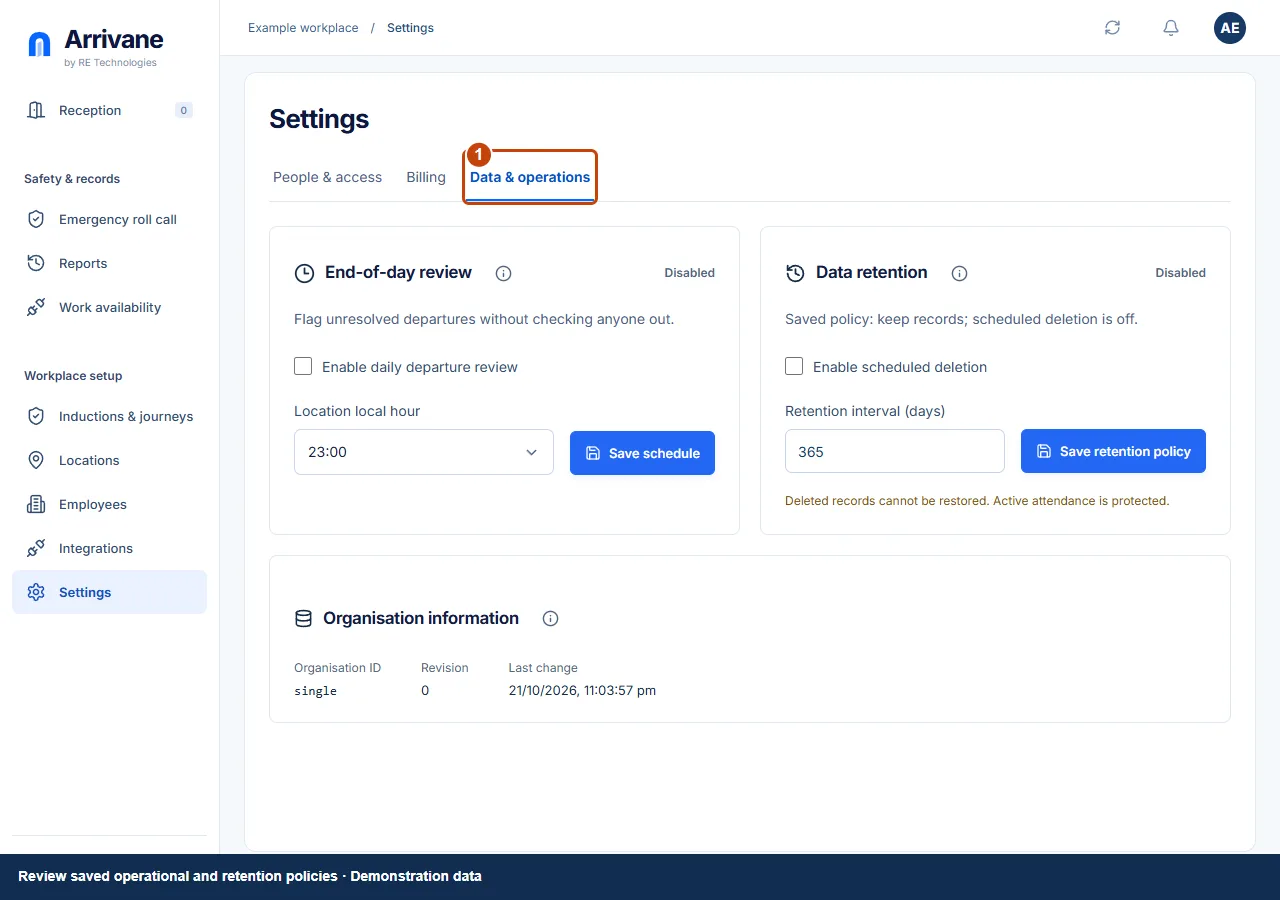
Go to Settings → Data & operations. Locate Data retention and read the saved policy status. Disabled scheduled deletion means the saved policy keeps records.
Demonstration data · Select image to enlarge. Review the proposed interval
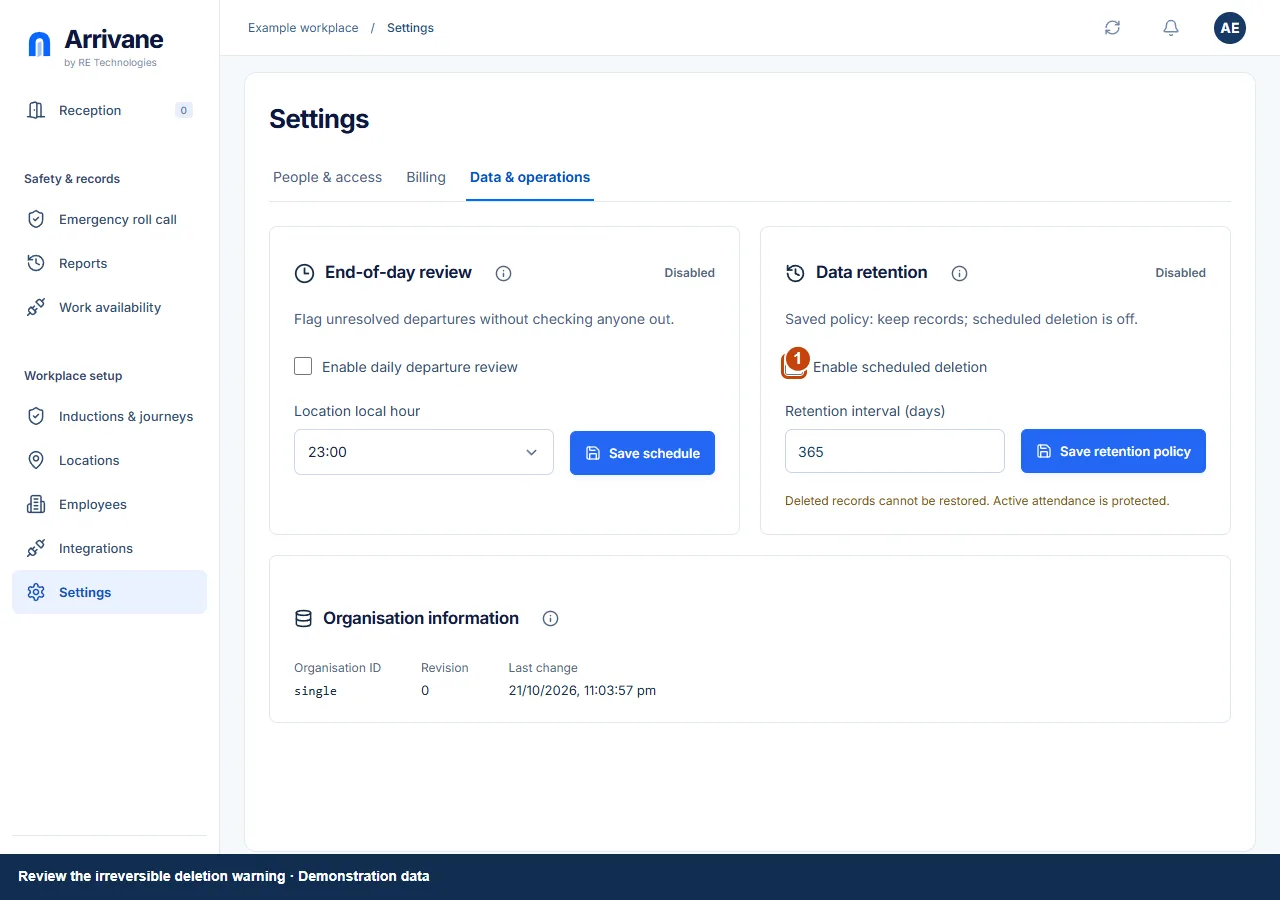
New organisations start with scheduled deletion enabled after 180 days. Existing organisations keep their saved policy. If authorised to change it, review Enable scheduled deletion and enter a whole number from 1 to 1,095 days (3 years). Read the irreversible-deletion warning; active attendance is protected. Do not enable deletion merely to clear a report.
Demonstration data · Select image to enlarge. Save deliberately and verify
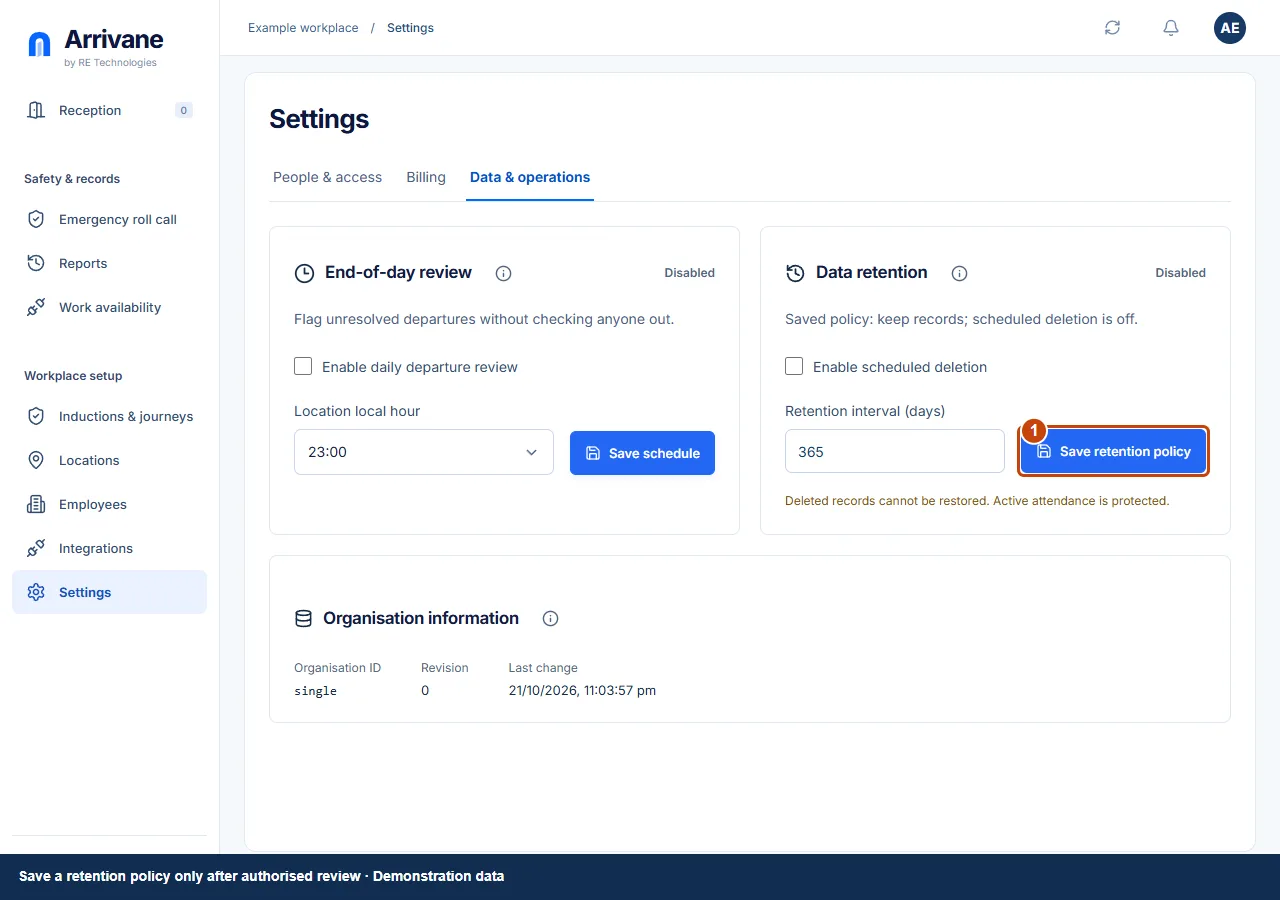
Choose Save retention policy only after reviewing the policy. Confirm the saved state and interval. Personal account privacy and optional product marketing preferences are separate from workplace visit retention.
Demonstration data · Select image to enlarge.
Check the result
The displayed saved policy matches the workplace-approved retention decision.
If something goes wrong
If saving fails, the draft is not evidence that the policy changed. Refresh and check the saved policy before retrying or relying on it.
If a control is missing, check your organisation, location, role and plan. If a save fails, read the error, keep your draft and check the saved state before retrying.
Screenshots use example people and workplaces. Follow the written steps and test your reception tablet, printer and connected services before welcoming visitors.