
Find reports and download records
Choose the right report, scope and dates before exporting.
Before you start
Know which records you need and the location/date range you are permitted to access.
Open Reports and select the report area
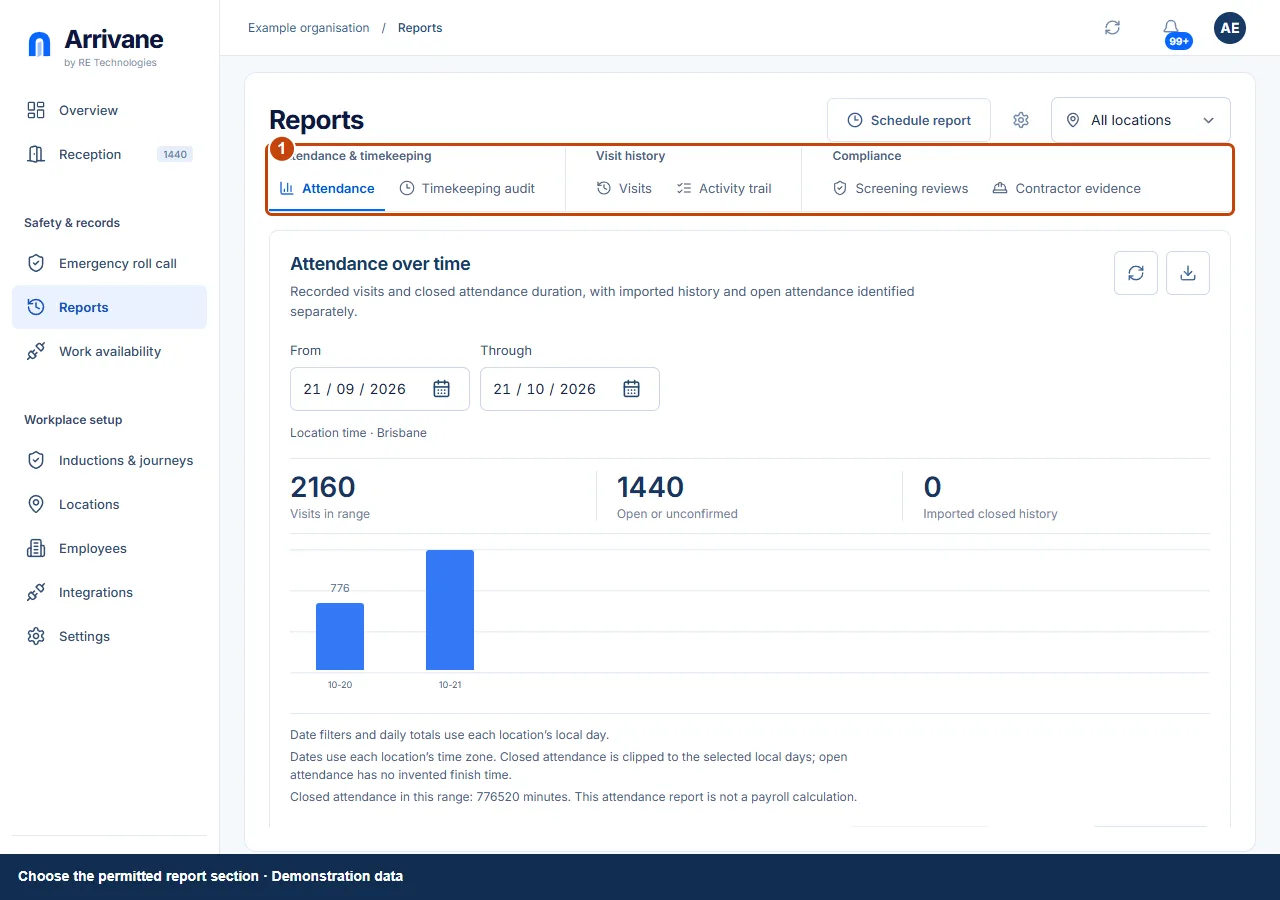
Open Reports. Use the report navigation to choose Attendance, Timekeeping audit, Visits, Activity trail, Screening reviews or Contractor evidence where permitted. The available sections depend on your role and plan.
Demonstration data · Select image to enlarge. Set filters and refresh
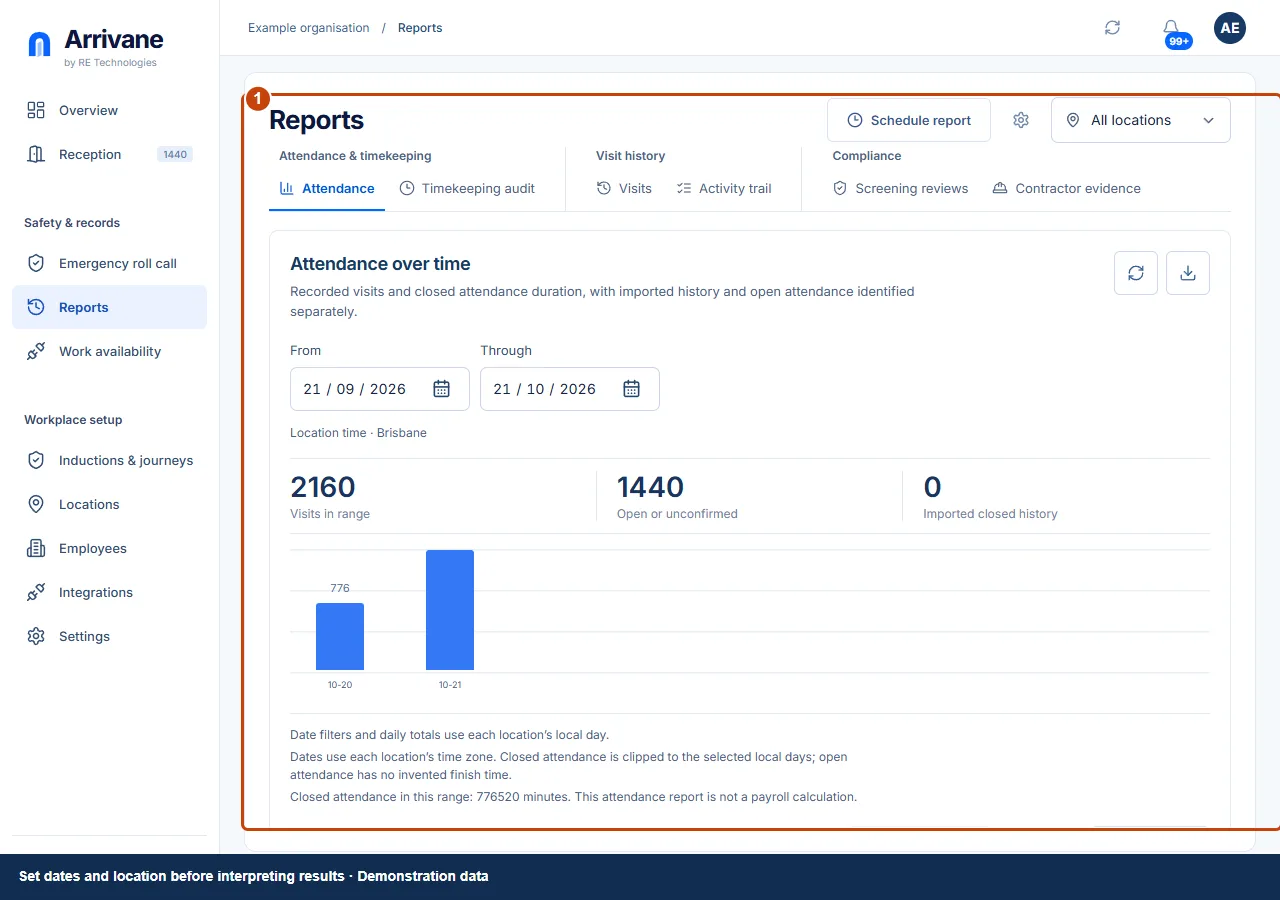
Choose the relevant report tab, dates, location and other filters. Refresh to load current records. Check labels and local time context before interpreting or sharing the result.
Demonstration data · Select image to enlarge. Download or review the permitted result
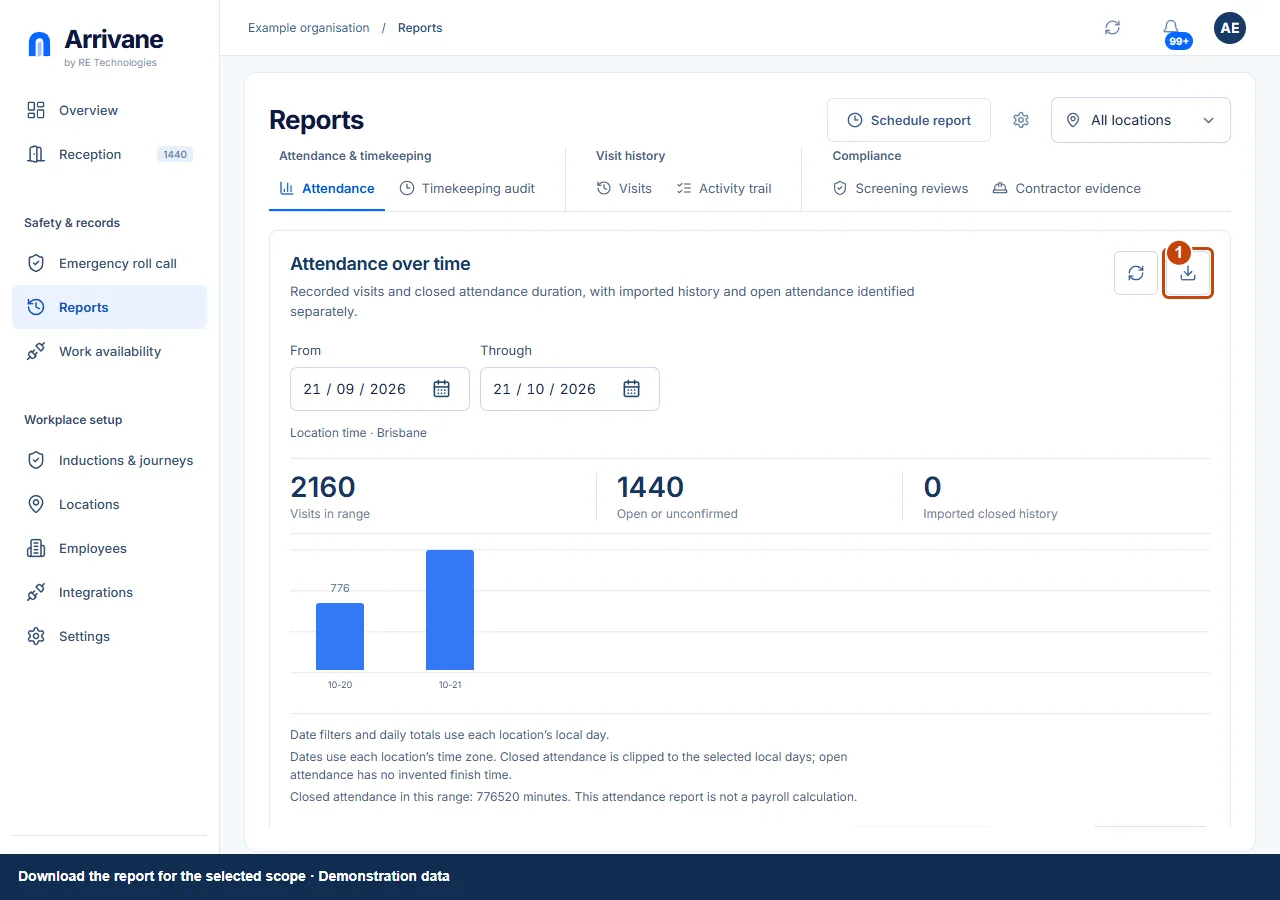
Use the report’s Download action or document controls. Review the output before sharing it. If scheduling is offered, review the recipient and schedule explicitly. Reports can contain personal information; store them in your approved workplace location.
Demonstration data · Select image to enlarge.
Check the result
The exported or reviewed records match the intended report, dates and permitted locations.
If something goes wrong
An empty report and an unavailable report are different states. Check filters for an empty result; use retry/refresh for a provider or retrieval error.
If a control is missing, check your organisation, location, role and plan. If a save fails, read the error, keep your draft and check the saved state before retrying.
Screenshots use example people and workplaces. Follow the written steps and test your reception tablet, printer and connected services before welcoming visitors.