
Add employees and assign hosts to locations
Maintain the workplace directory without confusing it with account access.
Before you start
Have the correct employee contact details and locations.
Open Employees
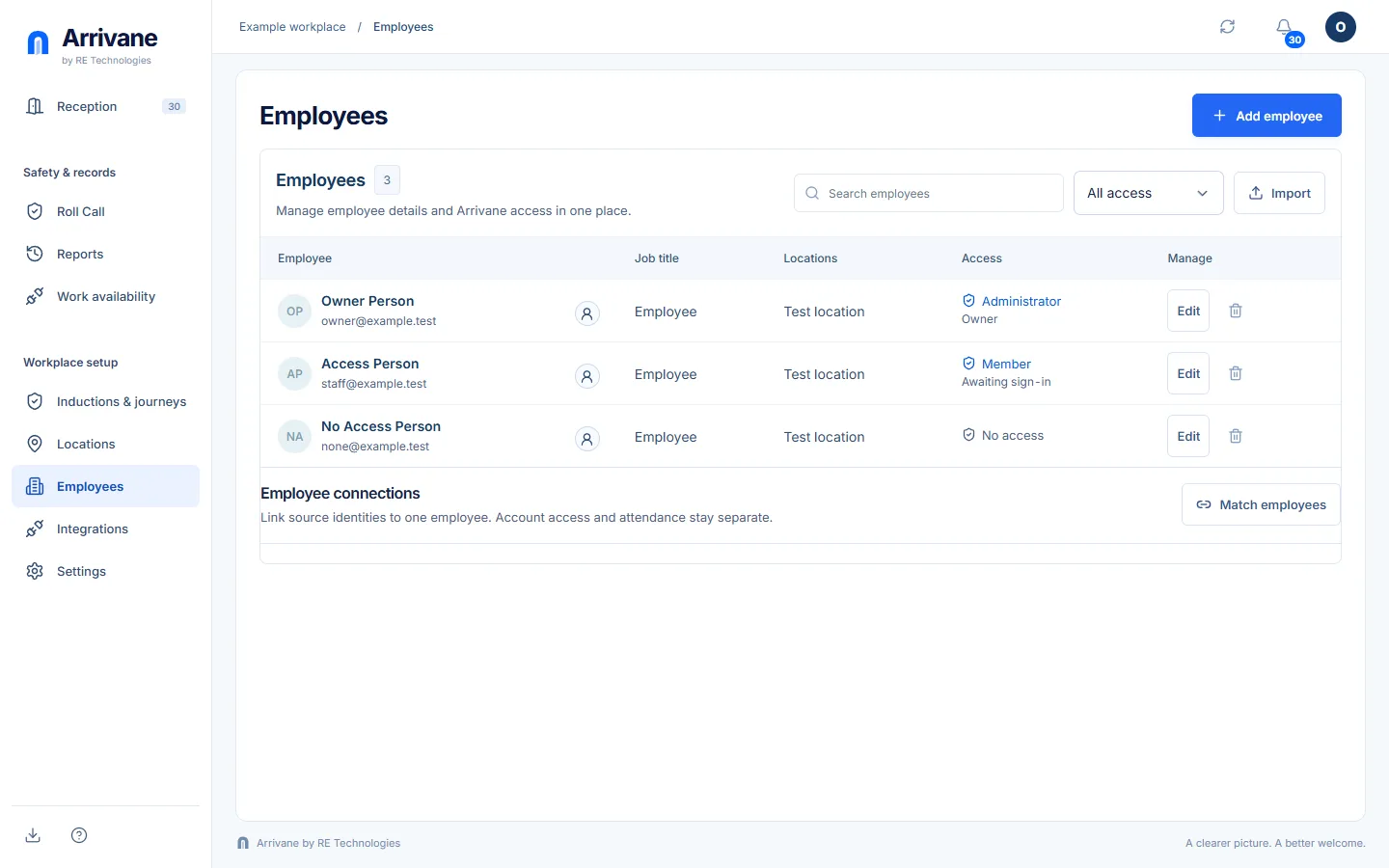
Select Employees in Workplace setup. Search existing people before adding a new record. Use the location filter to review a particular team.
Demonstration data · Select image to enlarge. Add or update the directory record
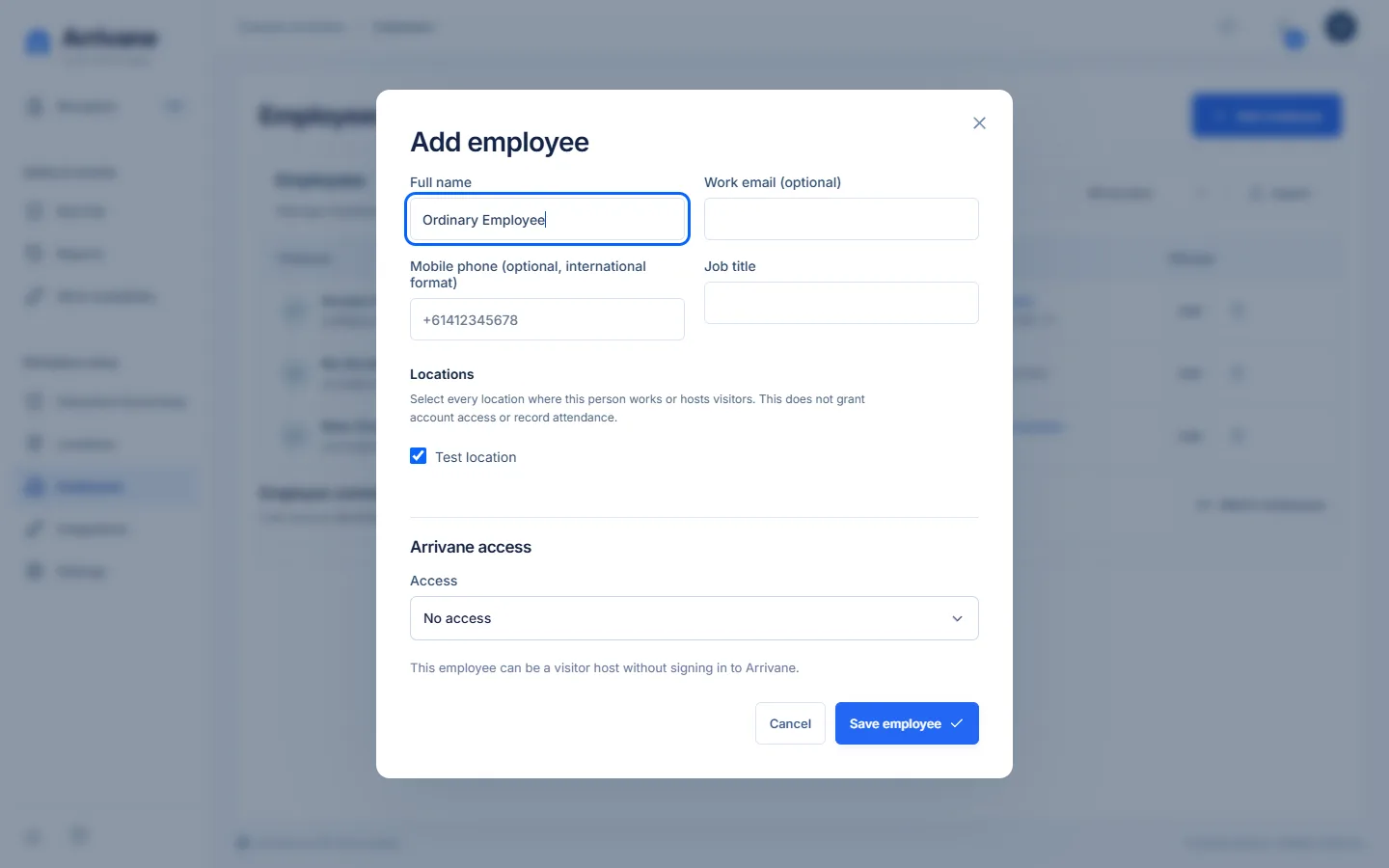
Choose Add employee or open the existing person. Review the name, email and location assignments, then save. A directory location means the person works or hosts there; it does not record attendance.
Demonstration data · Select image to enlarge. Choose Arrivane access if needed
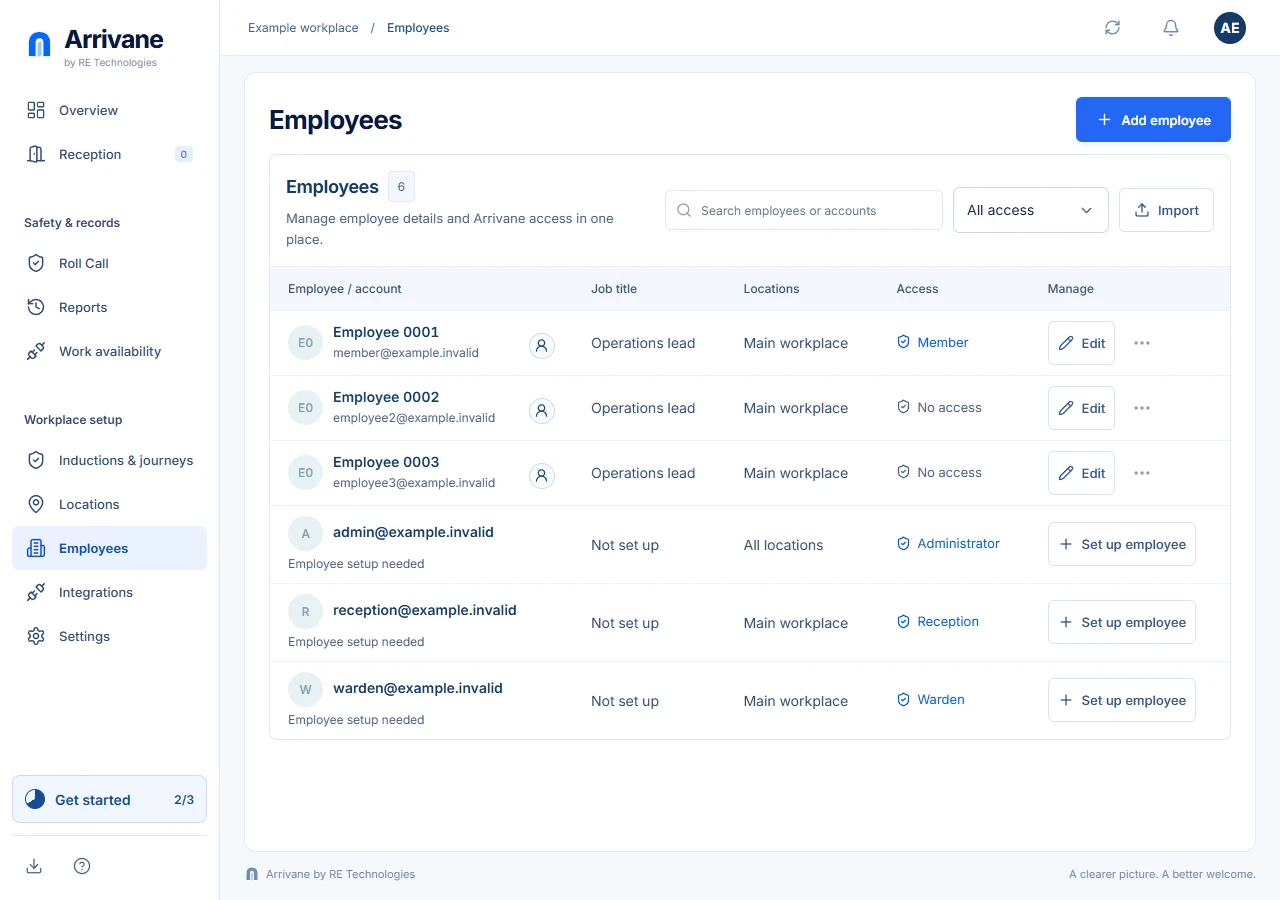
In the employee editor, leave Access as No access unless the person needs to sign in. Otherwise choose a role, confirm the sign-in account and location access, then Save employee. Use the access filter beside search to find employees with or without access.
Demonstration data · Select image to enlarge.
Check the result
The person is listed at the correct locations, with separate account access where required.
If something goes wrong
Archived or unavailable employees may not appear as selectable contacts. Review existing records and access links before creating duplicates.
If a control is missing, check your organisation, location, role and plan. If a save fails, read the error, keep your draft and check the saved state before retrying.
Screenshots use example people and workplaces. Follow the written steps and test your reception tablet, printer and connected services before welcoming visitors.