
Manage expected visitors and invitations
Use the reception calendar and prepare an invitation.
Before you start
Sending invitations requires a linked employee host profile and appropriate access.
Open Reception → Expected
Select Expected to open the arrival calendar. Choose the day or All dates and review the status filter. Calendar counts exclude cancelled and checked-in visitors.
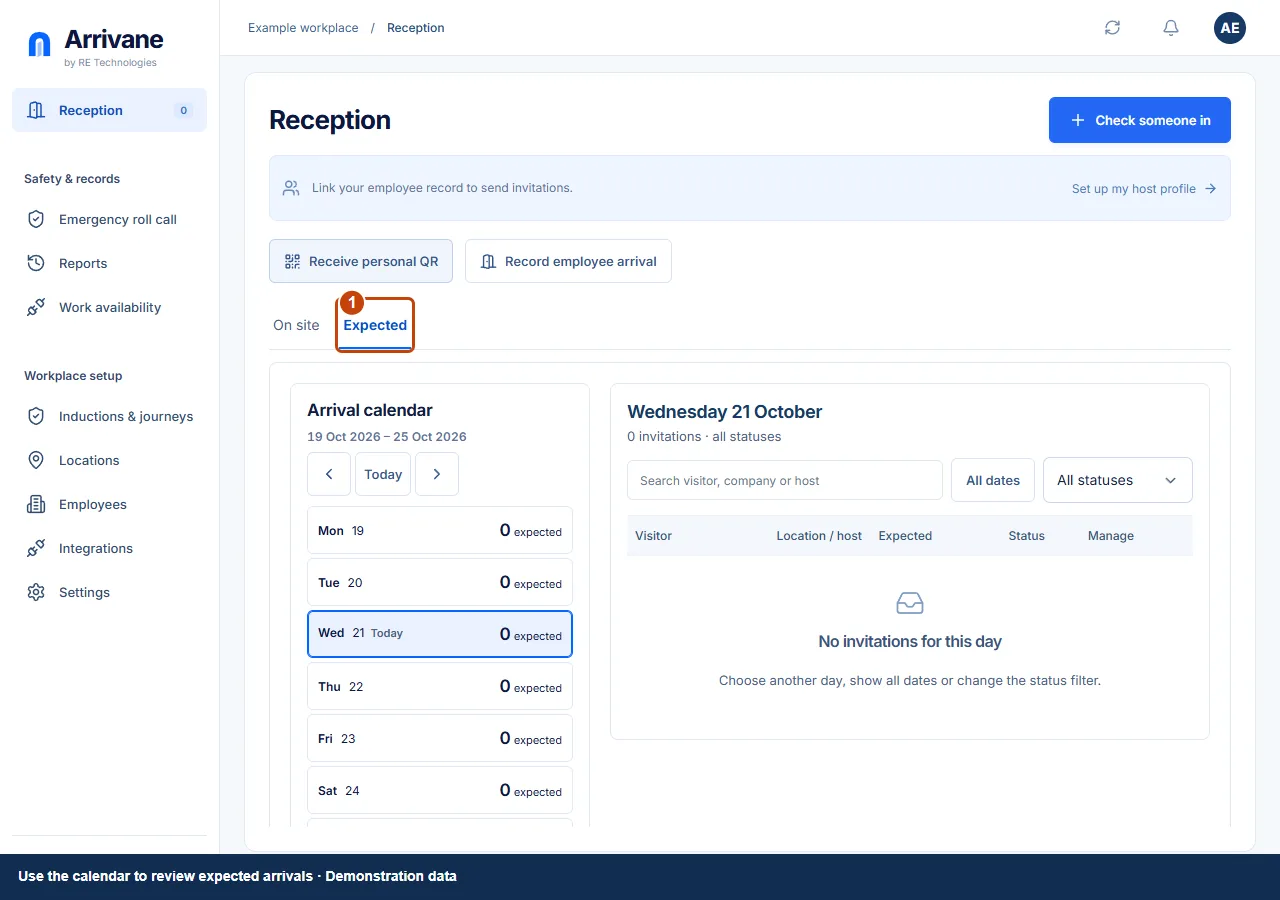
Demonstration data · Select image to enlarge. Set up your host profile if prompted
If Set up my host profile appears, select it to open your employee editor directly. Review your details, locations and sign-in account, then choose Save employee. If your record does not exist, the editor starts a new one with your account details. Ask an administrator if you cannot edit employees.
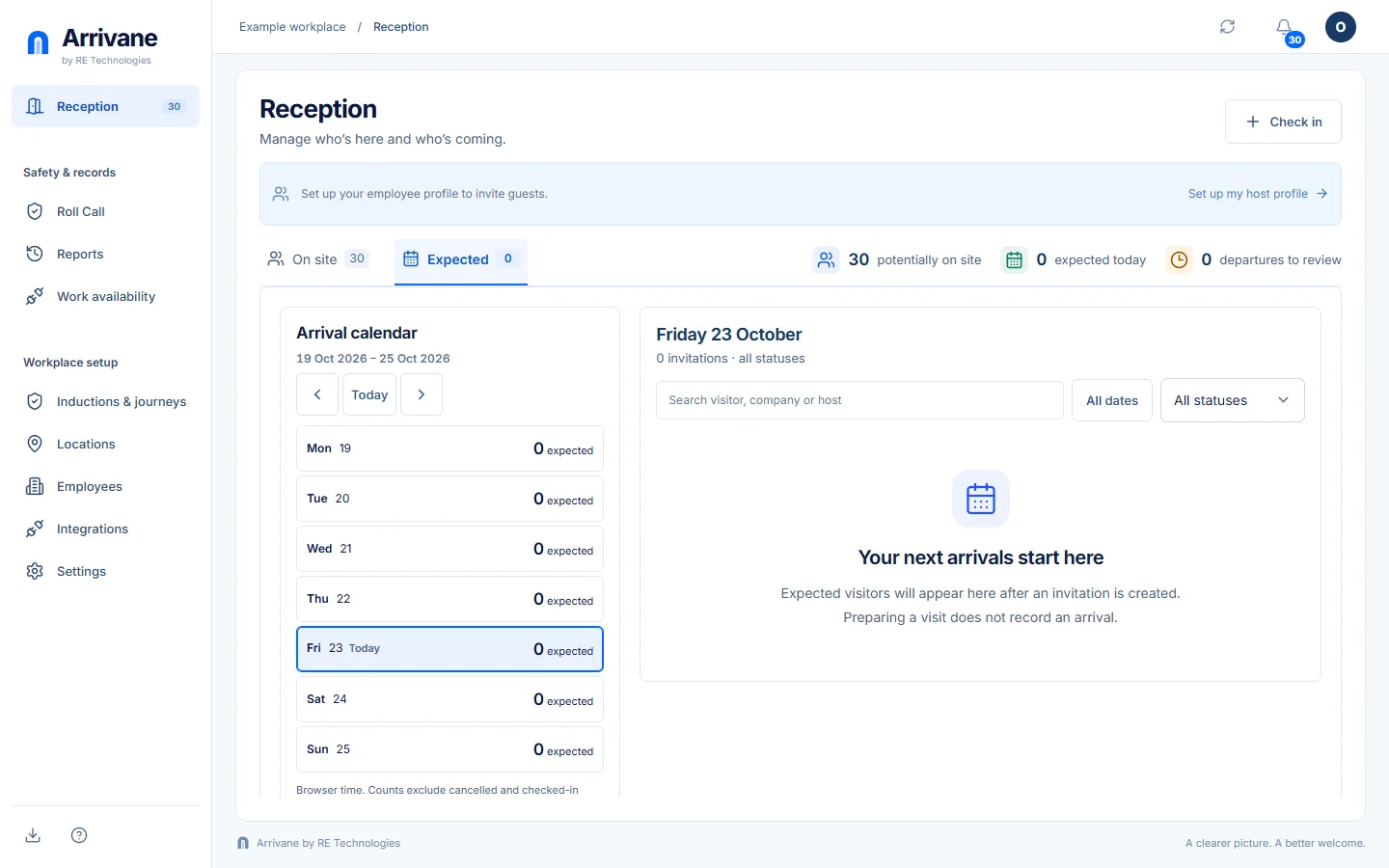
Demonstration data · Select image to enlarge. Create or review an invitation
When permitted, choose Invite a visitor and complete the visitor, host, location and expected time details. Review the saved invitation and its status. Invitation preparation or preregistration is not a physical check-in; arrival still requires confirmation.
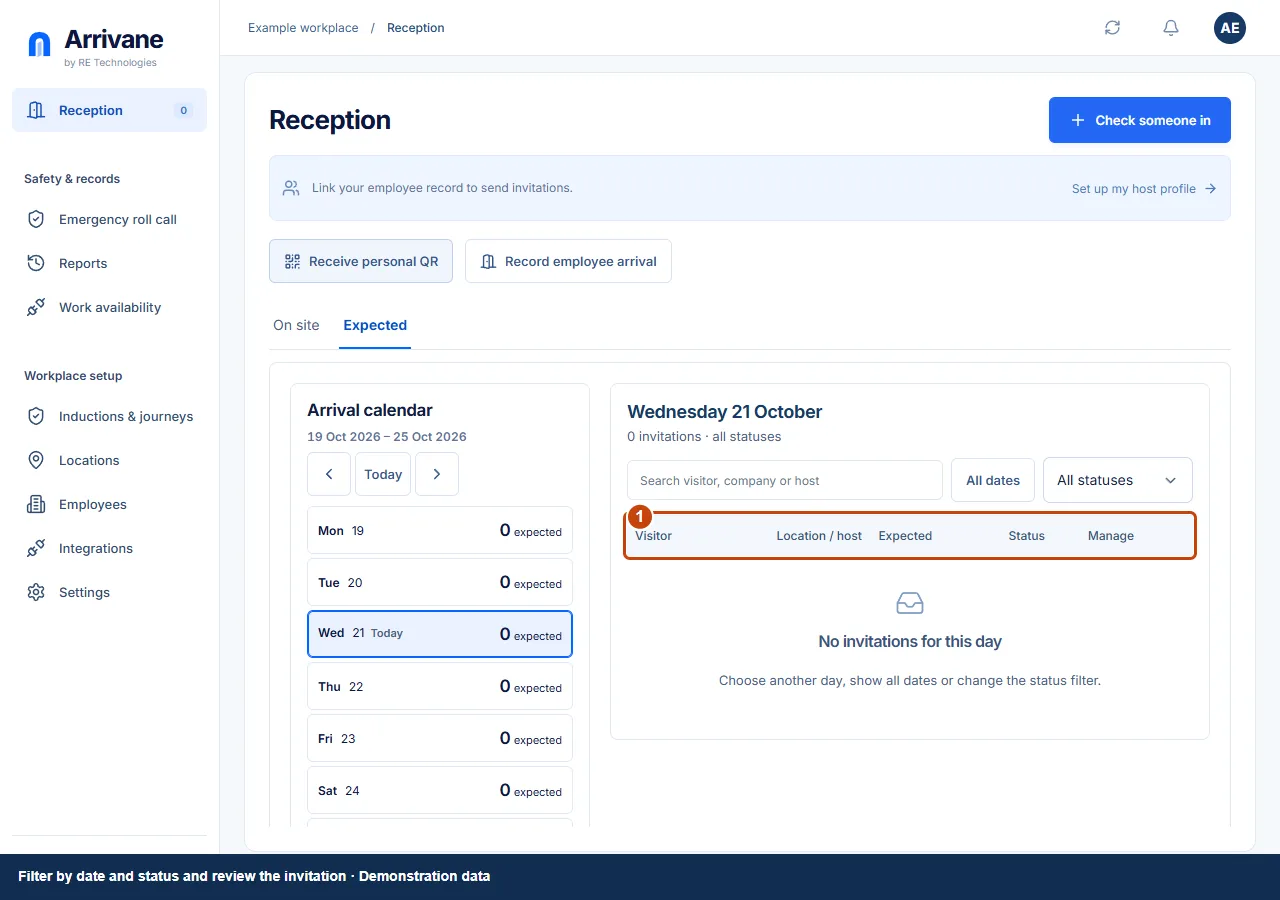
Demonstration data · Select image to enlarge.
Check the result
The correct invitation appears for the intended date, location and host.
If something goes wrong
If sending is unavailable, check the host binding, role, plan and email configuration shown in the interface. A saved or queued item does not prove inbox delivery.
If a control is missing, check your organisation, location, role and plan. If a save fails, read the error, keep your draft and check the saved state before retrying.
Screenshots use example people and workplaces. Follow the written steps and test your reception tablet, printer and connected services before welcoming visitors.