
Check visitors in and record departures
Use Reception for the daily attendance workflow.
Before you start
Select the correct organisation and location. Have permission to manage attendance.
Watch the walkthrough
 Watch on YouTube ↗
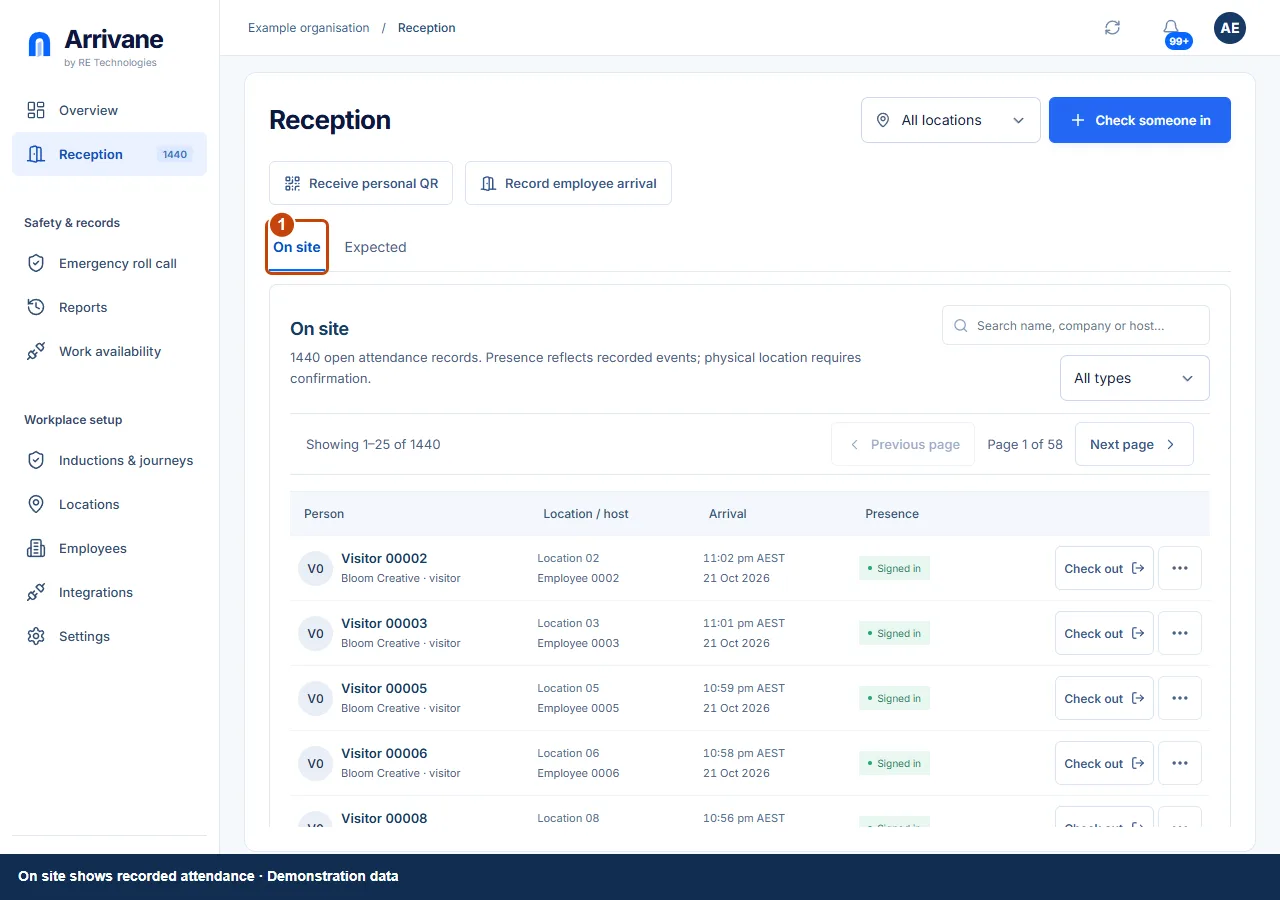
Open Reception → On site
Open Reception and select On site. Search or filter by person type and location where available. The list reflects recorded events; confirm actual physical presence when needed.
Demonstration data · Select image to enlarge. Start an arrival and complete requirements
Choose Check someone in for an assisted arrival, or let the visitor use the kiosk or entrance QR. Enter the visitor details and complete all required instructions, forms and checks. A personal QR only offers selected shared details.
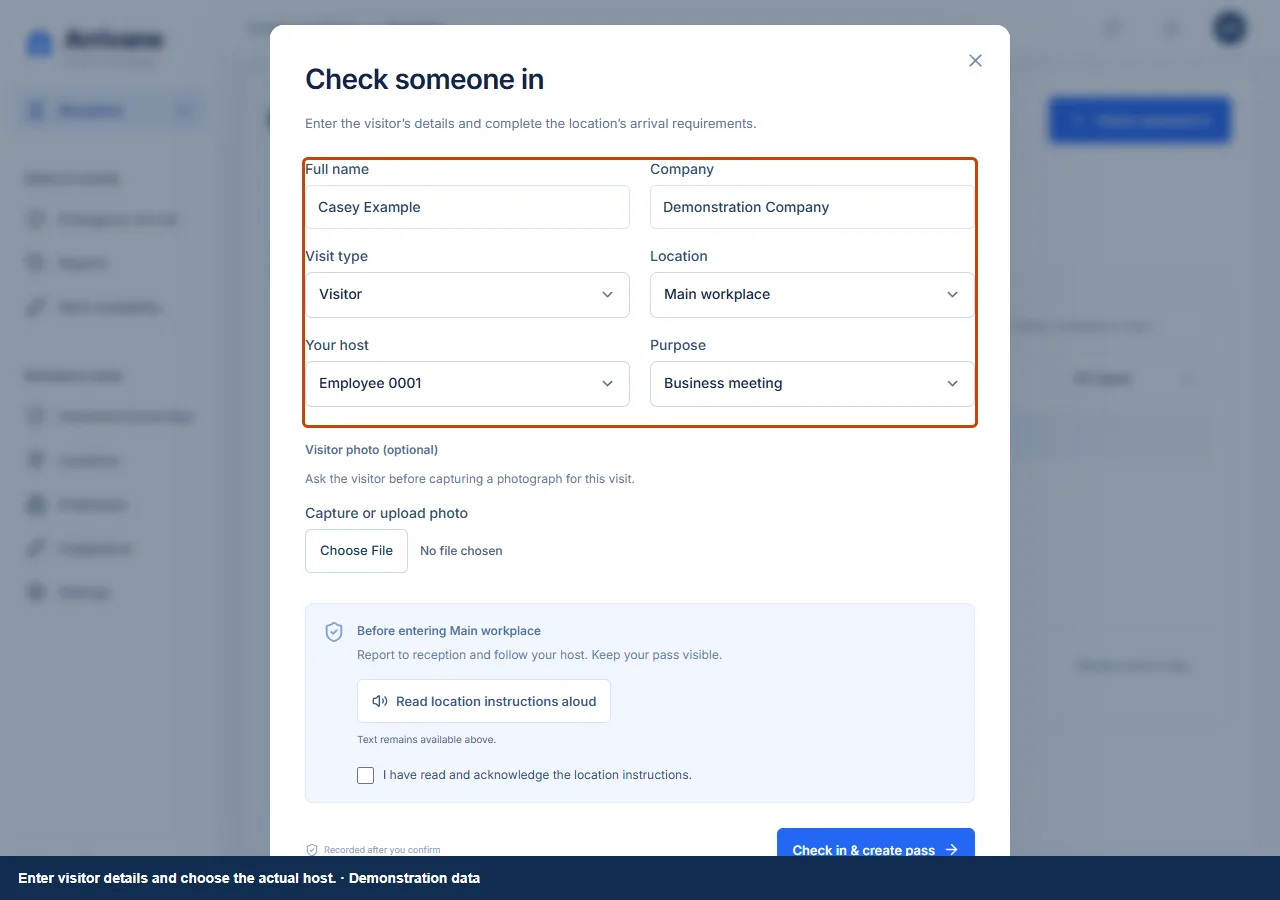
Demonstration data · Select image to enlarge. Confirm arrival and verify the record
Use the final check-in confirmation. Check the resulting record in On site. If a requirement or save fails, follow its recovery action; do not infer a successful arrival from a QR scan or form prefill.
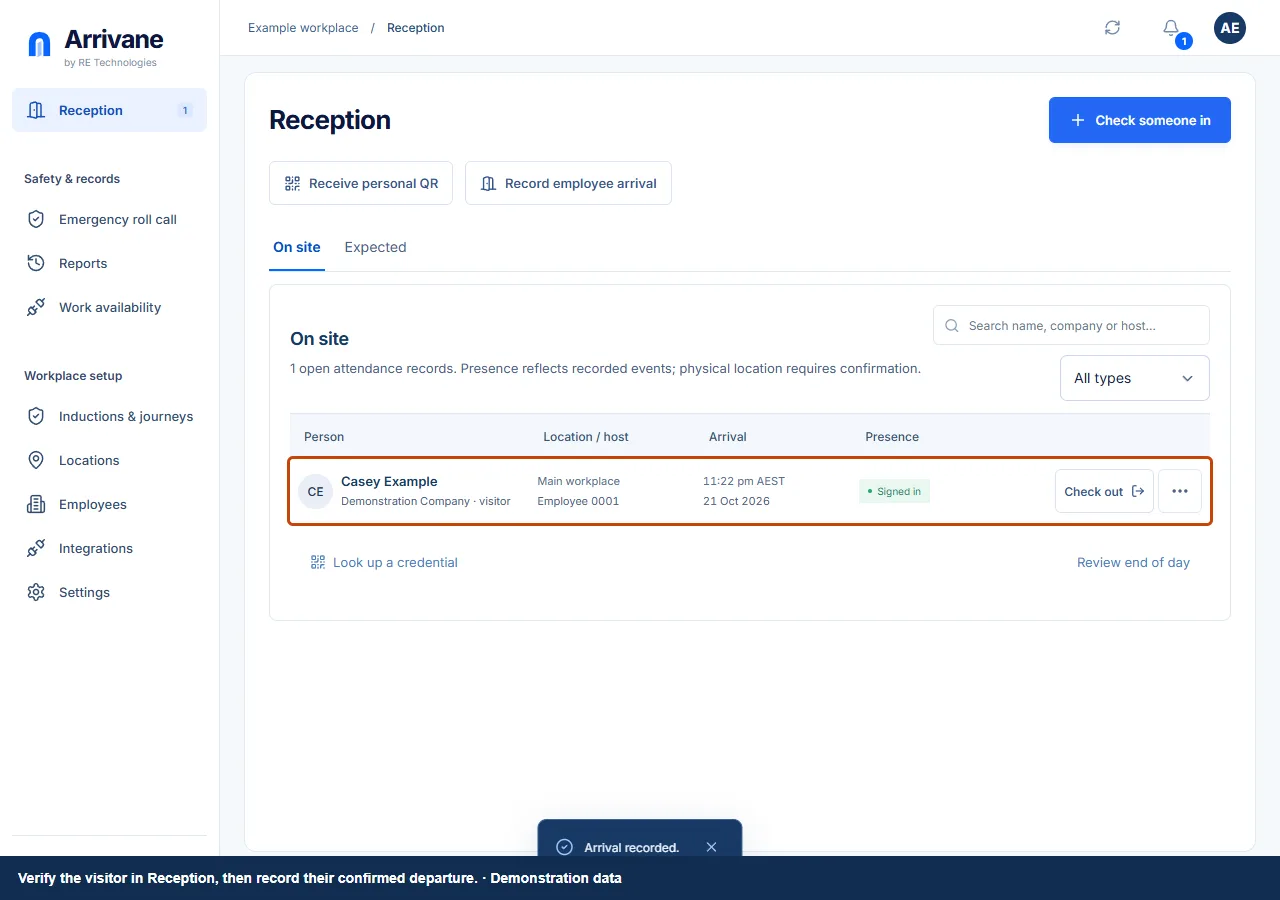
Demonstration data · Select image to enlarge. Record the actual departure
Visitors can use Sign out on their private visit home or app Home, then wait for Signed out at. At a paired reception kiosk choose Sign out, scan the current visit pass or type email/mobile, review the name, company, host and arrival, then explicitly Sign out. Shared contacts require a typed full name; unresolved matches go to reception. USB/Bluetooth keyboard scanners need 2D QR support, with Enter or Tab suffixes; 1D-only scanners cannot read these passes. Camera access is optional. Reception staff can still use the attendance record checkout action. Refresh and verify the confirmed departure; retry the same action after an uncertain response.
Demonstration data · Select image to enlarge.
Check the result
The confirmed arrival and departure are reflected correctly in Reception and permitted history.
If something goes wrong
If the browser is offline or records are stale, refresh when connectivity returns and check for an existing record before retrying. Do not create a duplicate to hide an error.
If a control is missing, check your organisation, location, role and plan. If a save fails, read the error, keep your draft and check the saved state before retrying.
Screenshots use example people and workplaces. Follow the written steps and test your reception tablet, printer and connected services before welcoming visitors.