
Review unresolved departures
Flag attendance needing review without automatically checking people out.
Before you start
Confirm actual departure rather than assuming everyone has left.
Open the end-of-day review
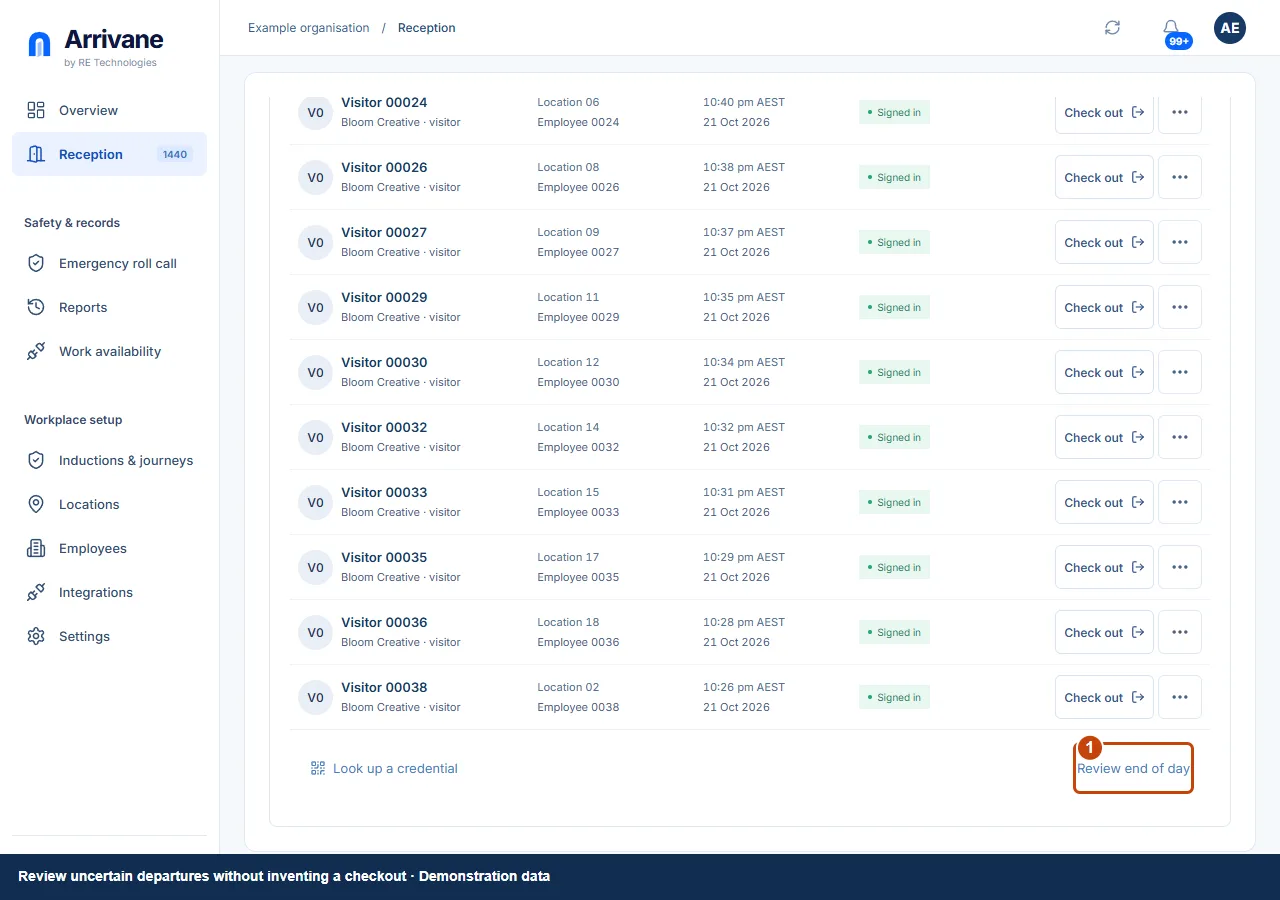
In Reception → On site, choose Review end of day. Review the people whose departure remains unresolved and check the underlying records.
Demonstration data · Select image to enlarge. Resolve using verified information
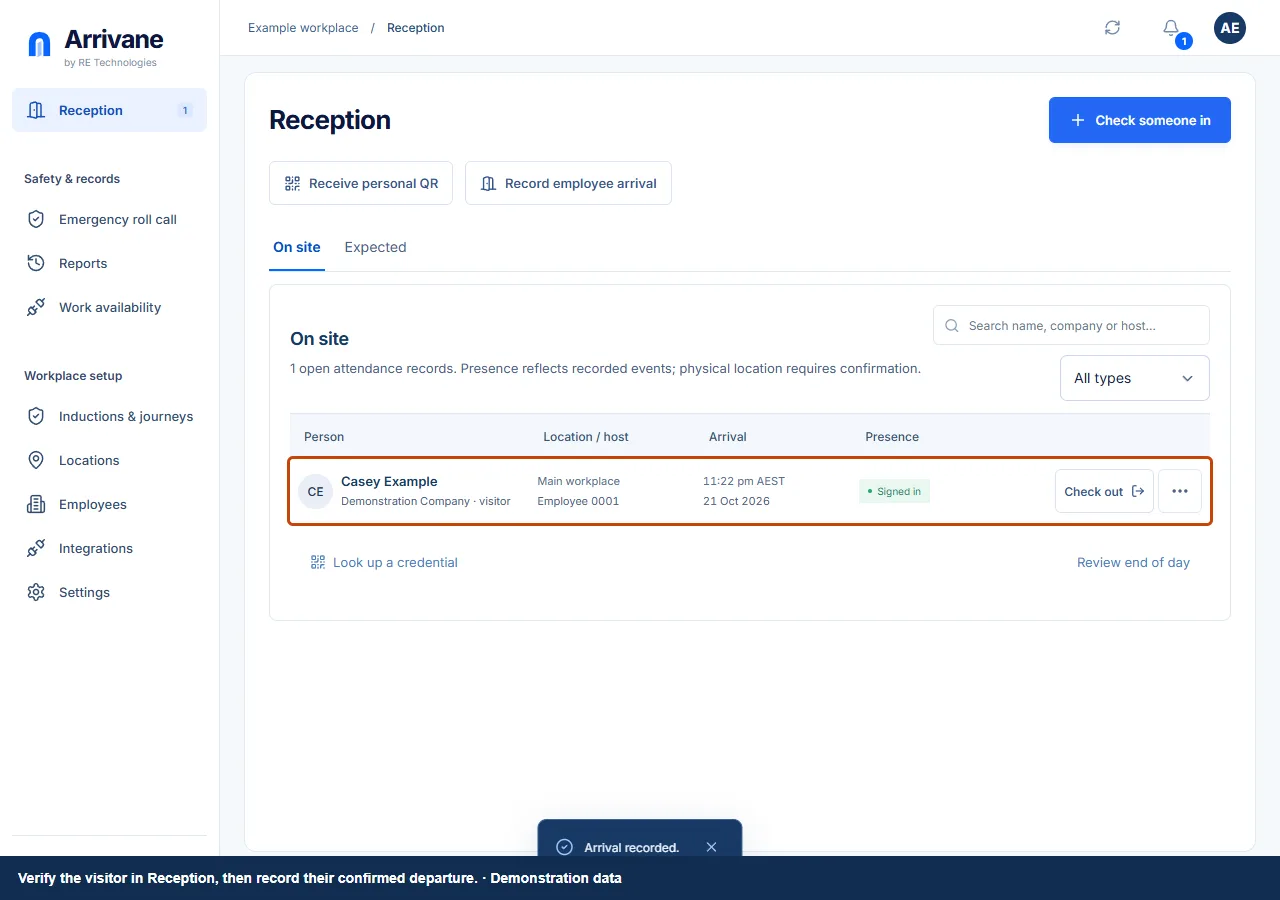
Confirm the actual situation with the person, host or your workplace process. Record the appropriate departure or review outcome through the available controls. A flagged record is not an automatic checkout.
Demonstration data · Select image to enlarge. Configure the review schedule if needed
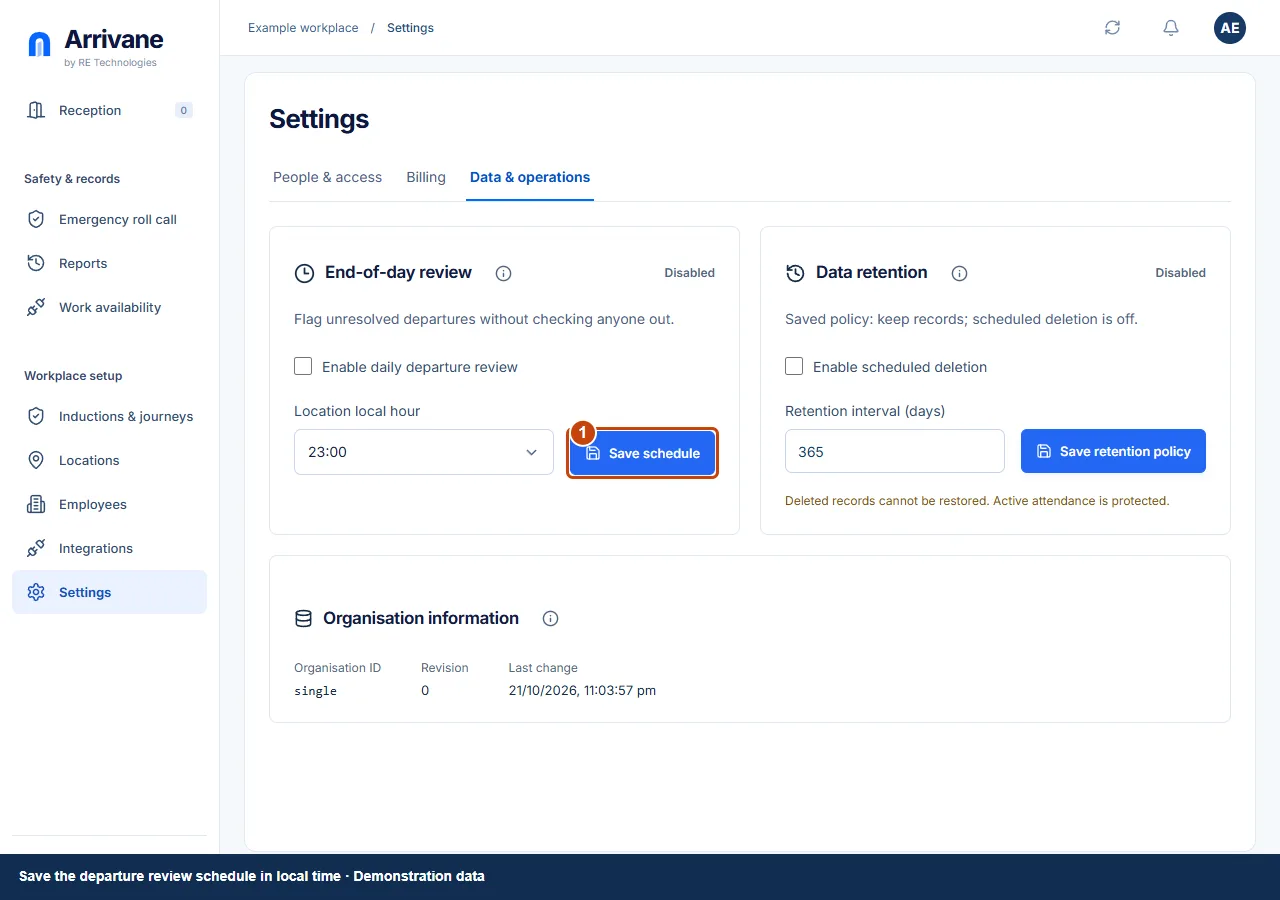
Administrators can open Settings → Data & operations, enable daily departure review, choose the location local hour and Save schedule. Review the saved status.
Demonstration data · Select image to enlarge.
Check the result
Unresolved records have been reviewed and their outcomes reflect verified facts.
If something goes wrong
The schedule flags unresolved departures. It does not establish that a person has left, and it does not replace an emergency headcount.
If a control is missing, check your organisation, location, role and plan. If a save fails, read the error, keep your draft and check the saved state before retrying.
Screenshots use example people and workplaces. Follow the written steps and test your reception tablet, printer and connected services before welcoming visitors.