
Add and edit a location
Set the workplace address, local time zone, contact and arrival journeys.
Before you start
Choose the correct organisation. Additional locations depend on your current plan.
Follow the illustrated steps
Work through the instructions below, with screenshots for every step.
Open Locations
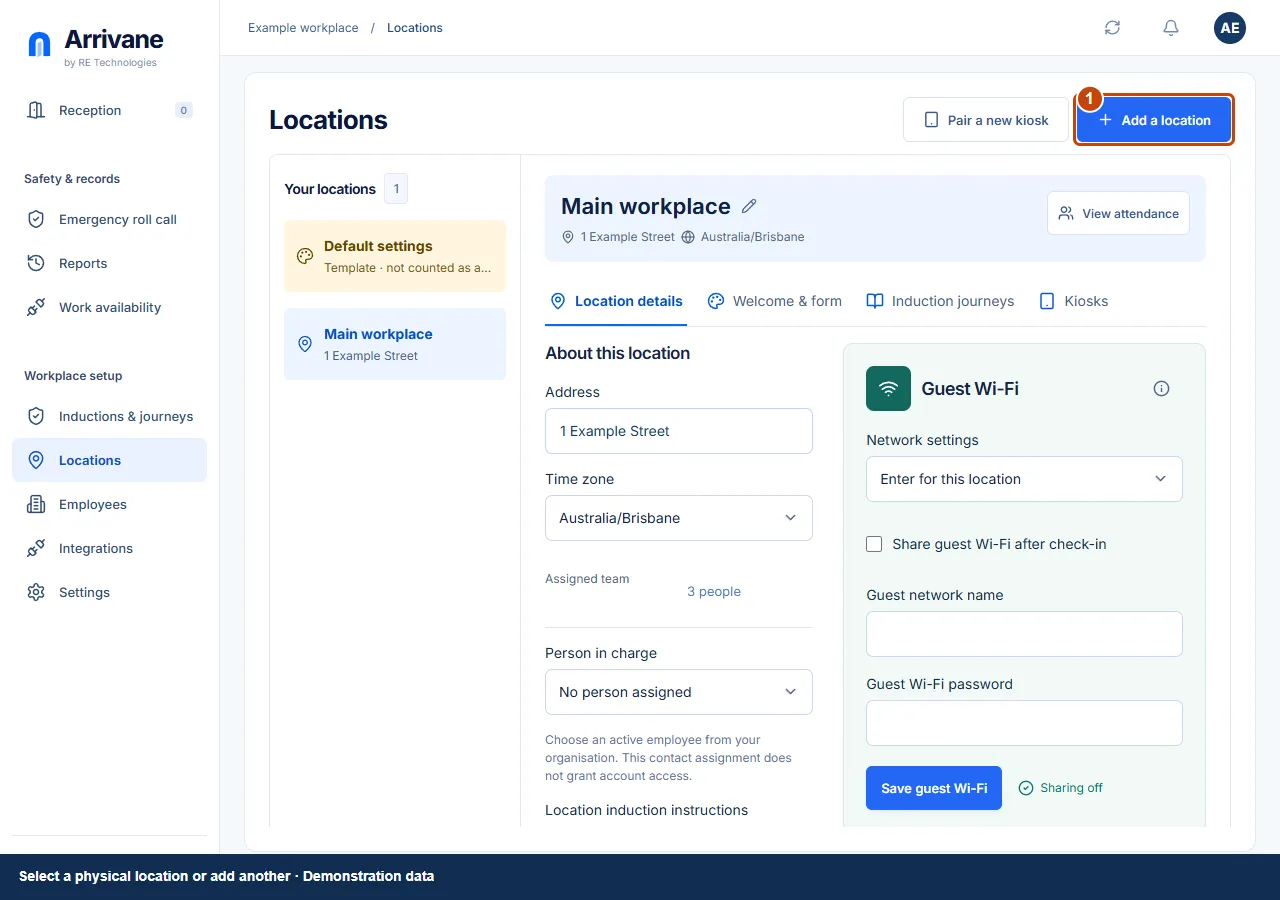
Select Locations in Workplace setup. Choose an existing location or Add a location. Check the location name before editing; Default settings is a reusable template.
Demonstration data · Select image to enlarge. Set the local details
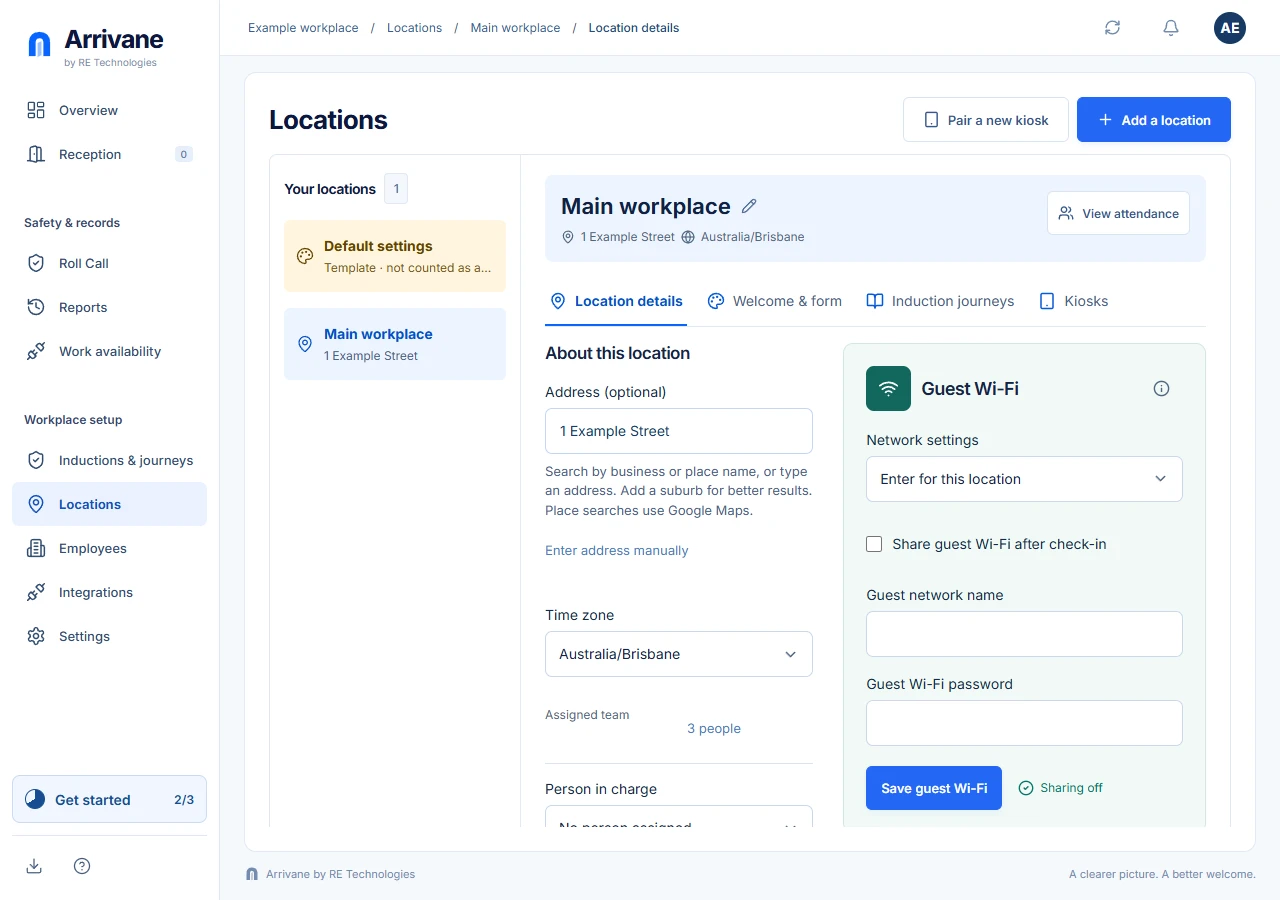
In Location details, set the time zone, optionally enter an address and choose an active employee as Person in charge. Manage induction content through Inductions & journeys and assign it in the location’s Induction journeys tab.
Demonstration data · Select image to enlarge. Save and check the result
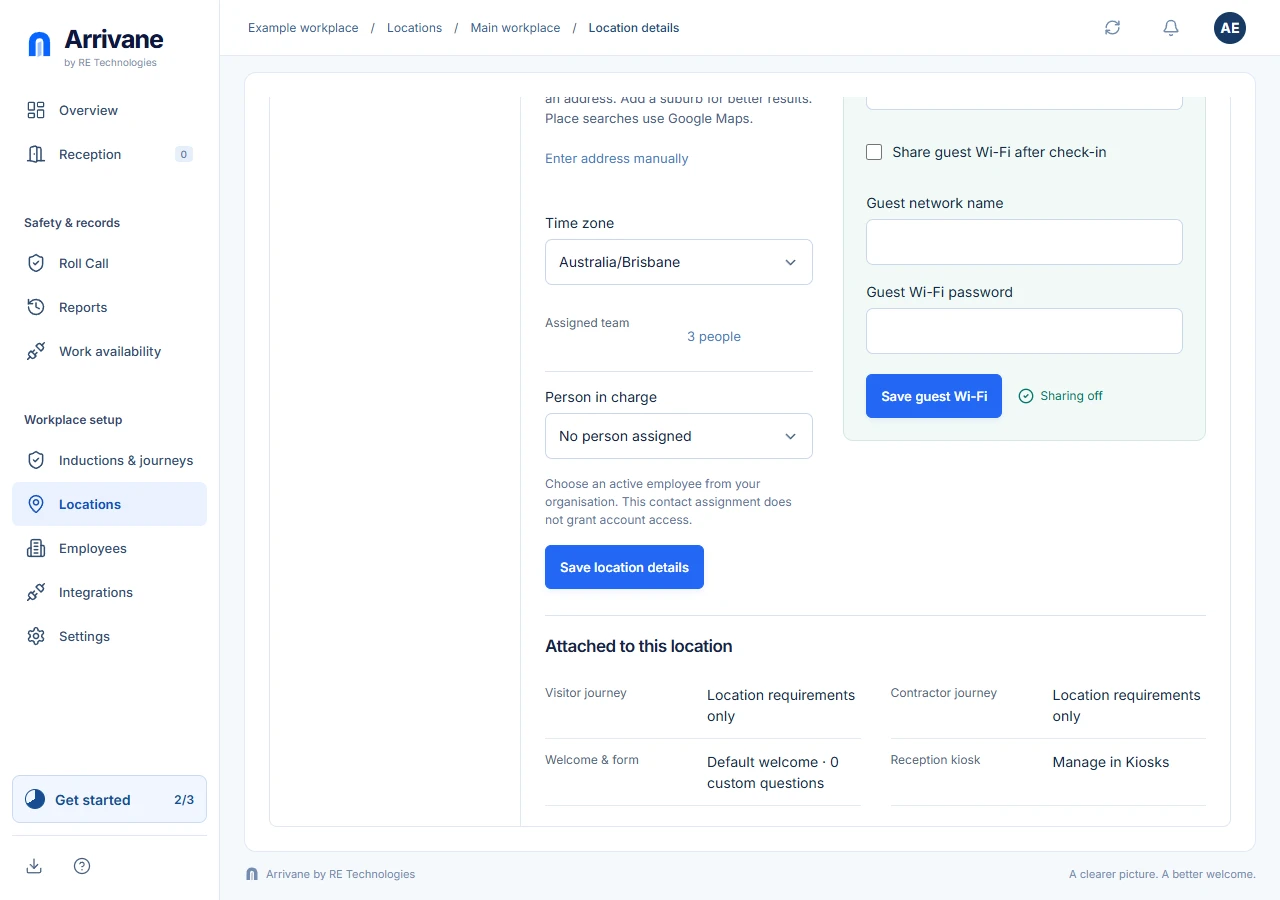
Choose Save location details. Wait for the saved confirmation. To rename a location, select its title or pencil and explicitly save or cancel the rename. Assigned team opens Employees filtered to this location.
Demonstration data · Select image to enlarge.
Check the result
The saved address, time zone, contact and assigned journeys match this physical workplace.
If something goes wrong
If saving fails, retain your draft and read the inline error. A contact must be an active employee. Location assignment does not grant account access.
If a control is missing, check your organisation, location, role and plan. If a save fails, read the error, keep your draft and check the saved state before retrying.
Screenshots use example people and workplaces. Follow the written steps and test your reception tablet, printer and connected services before welcoming visitors.