
Share guest Wi-Fi after check-in
Offer the location’s guest network through an active private visit.
Before you start
Have an approved guest network and password. Sharing is off until explicitly enabled.
Open the location’s Wi-Fi settings
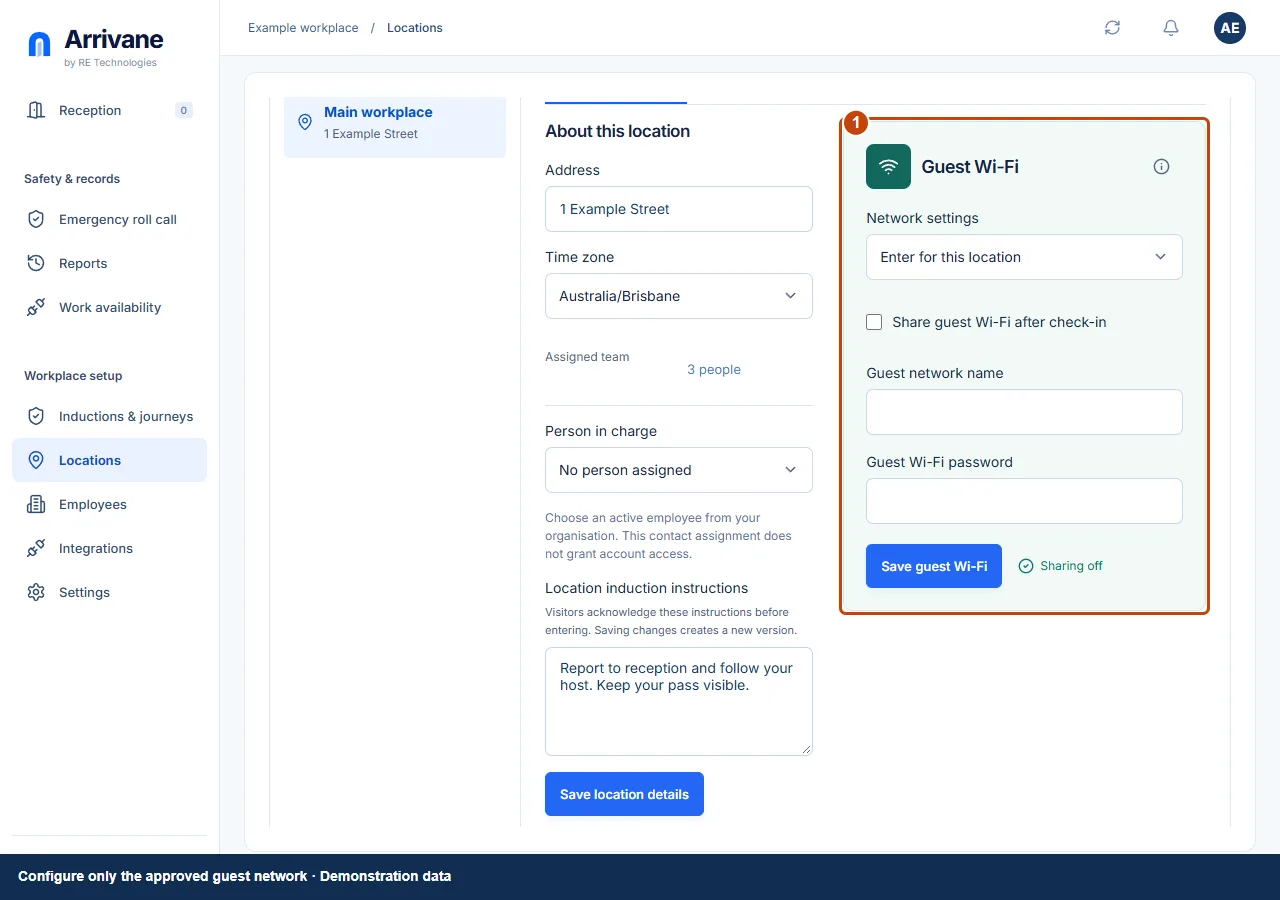
Go to Locations → Location details → Guest Wi-Fi. Confirm the physical location before entering any network information.
Demonstration data · Select image to enlarge. Choose the network source and save
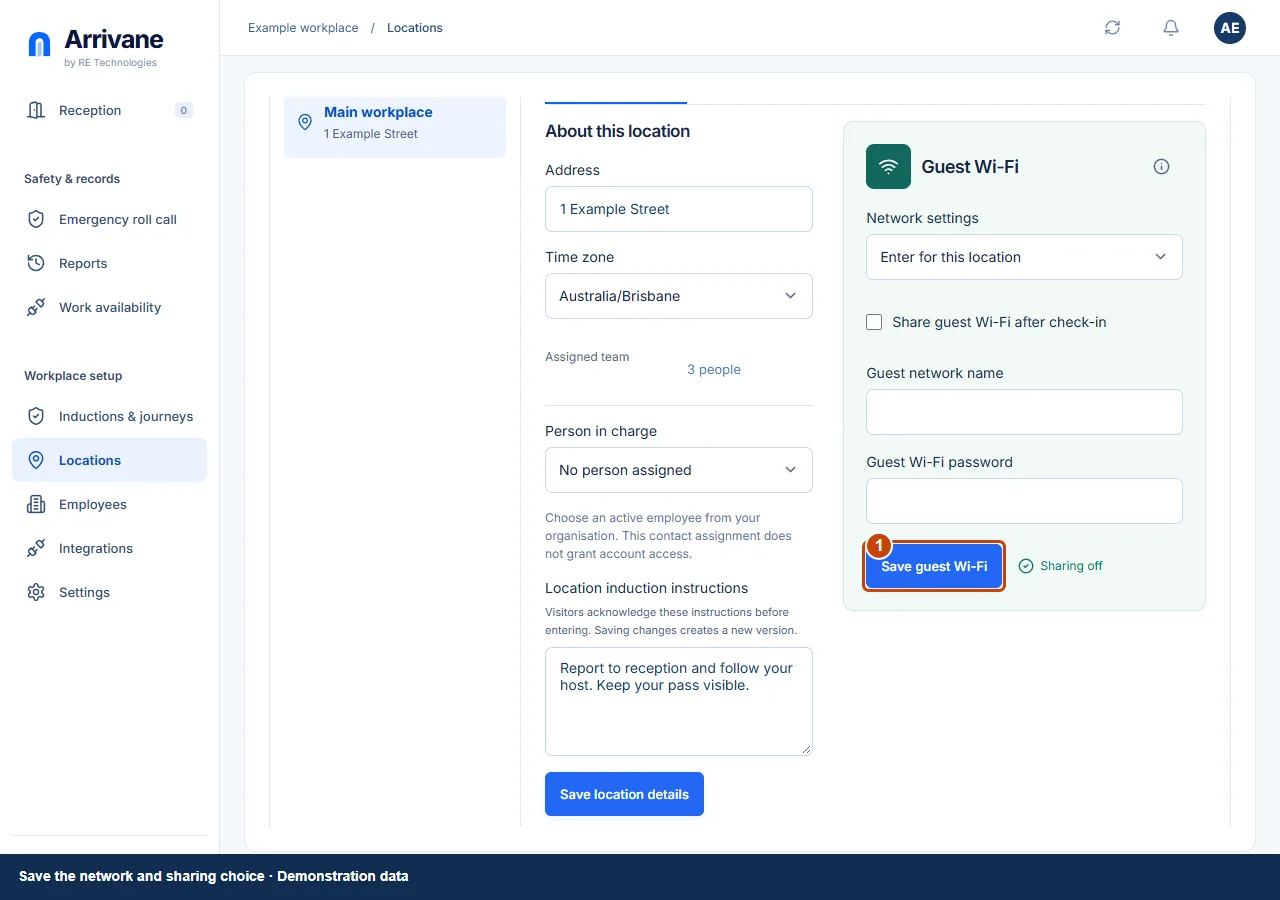
Choose Use default or Enter for this location. For a local network, enter the guest network name and password, enable Share guest Wi-Fi after check-in and choose Save guest Wi-Fi. A blank replacement password keeps an existing saved password.
Demonstration data · Select image to enlarge. Verify with a confirmed test visit
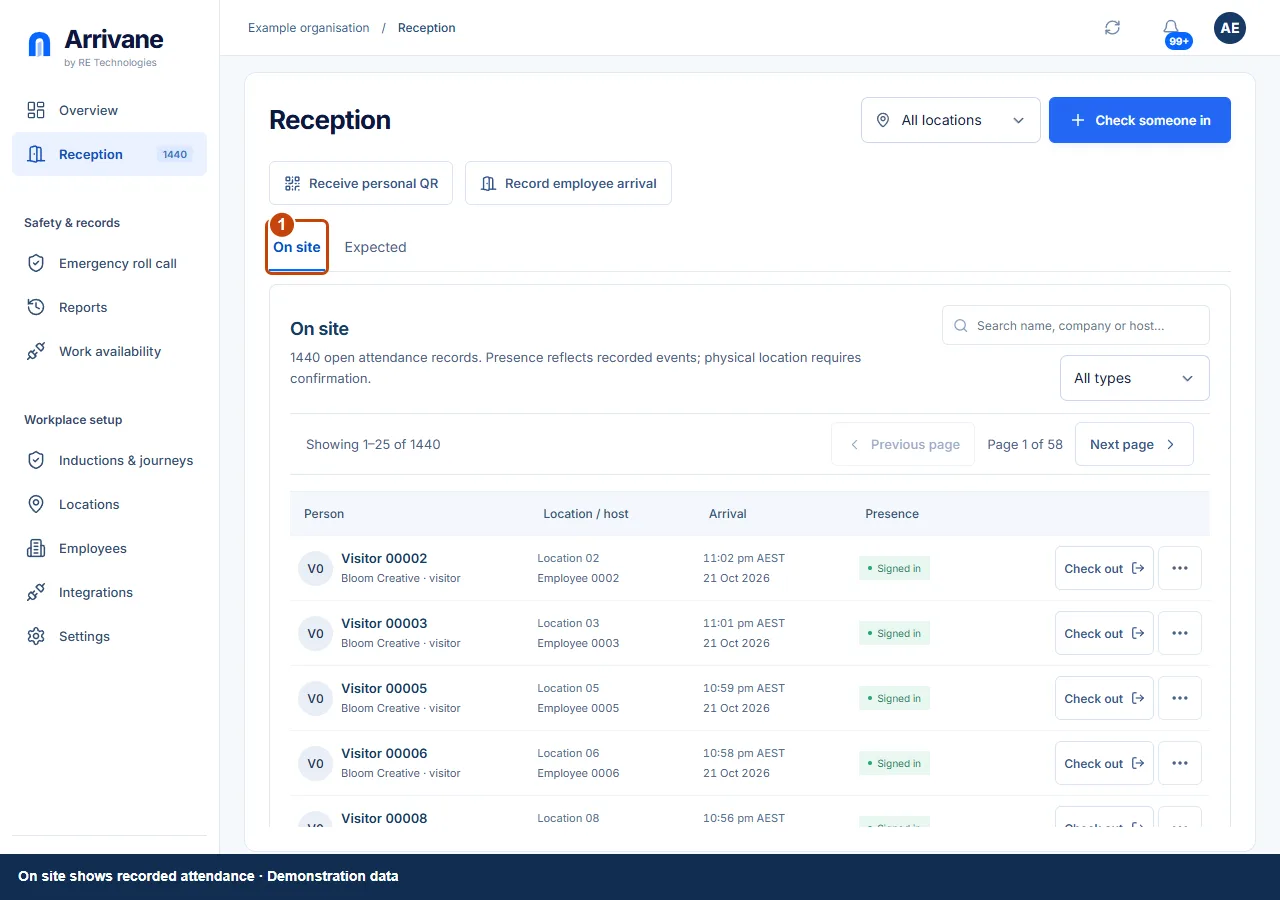
Complete a test check-in, then open its private visit home and the Guest Wi-Fi card. The visitor can reveal or copy the password. Checkout, expiry or disabling sharing prevents later retrieval; disabling sharing does not rotate the router password or disconnect devices already connected.
Demonstration data · Select image to enlarge.
Check the result
Only a confirmed active visit can retrieve this location’s enabled guest Wi-Fi.
If something goes wrong
If secure storage or saving is unavailable, use the visible recovery action. Never paste network passwords into screenshots, public instructions or help requests.
If a control is missing, check your organisation, location, role and plan. If a save fails, read the error, keep your draft and check the saved state before retrying.
Screenshots use example people and workplaces. Follow the written steps and test your reception tablet, printer and connected services before welcoming visitors.