
Set defaults for new locations
Prepare location defaults and choose organisation-wide date and time display.
Before you start
Choose which settings new locations should inherit. Date & time changes display across the organisation; it leaves timezones, stored timestamps, UTC audit exports, billing currency, interface wording and visitor-language options unchanged.
Open the template
Open Locations and select Default settings. It is labelled Template and does not count as a physical location or licensed reception desk.
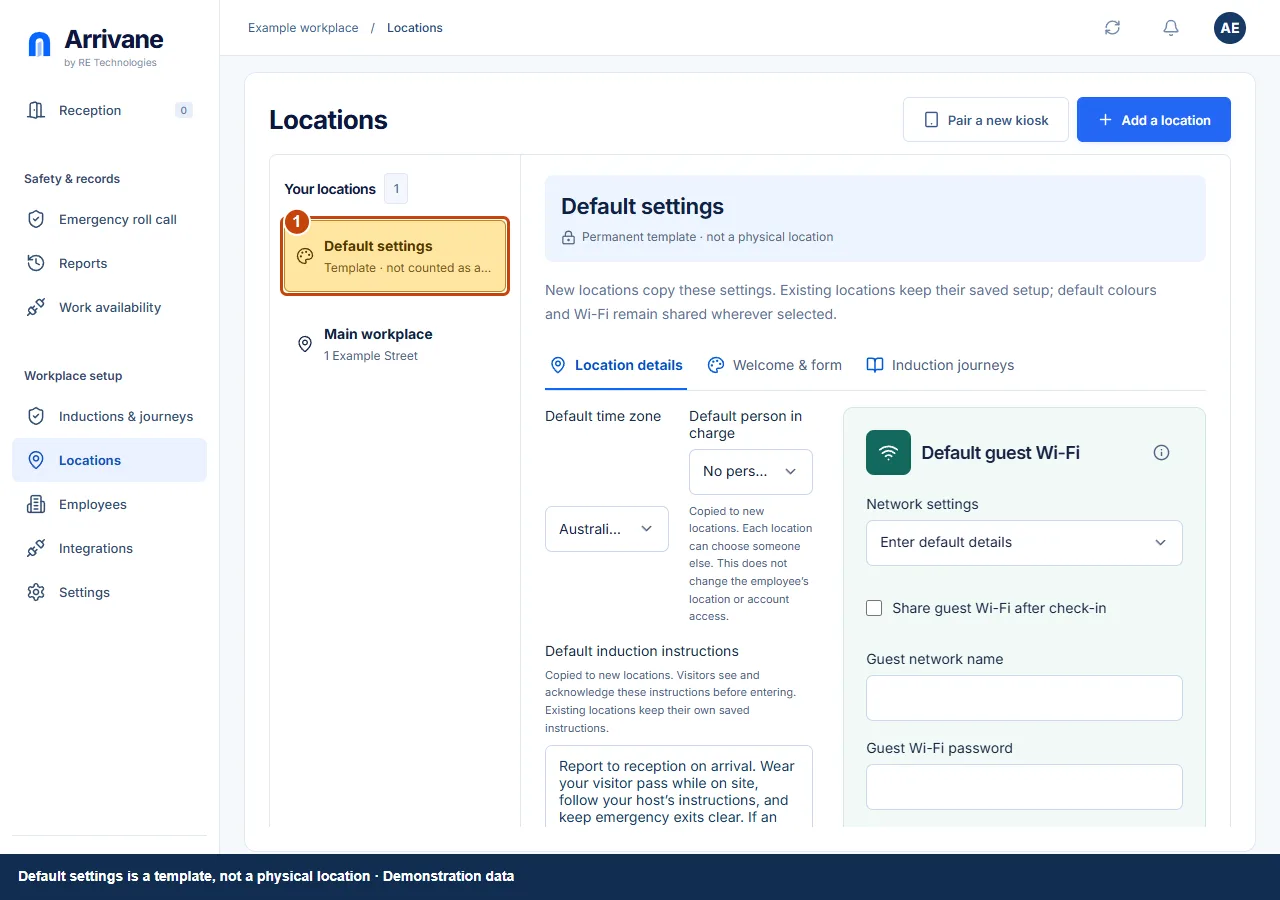
Demonstration data · Select image to enlarge. Review defaults and date & time
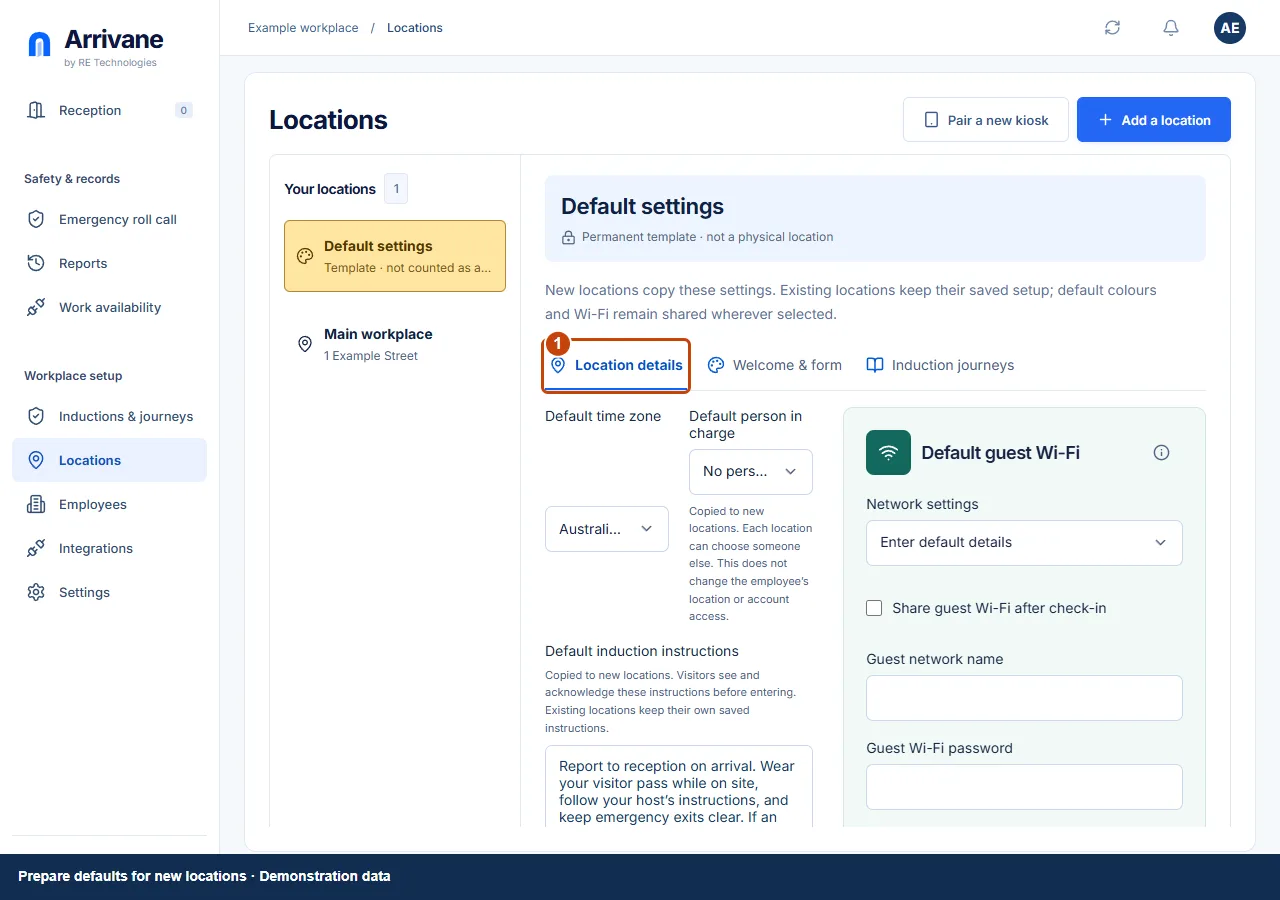
Review Location details, Welcome & form, Induction journeys and Kiosks; save each edited area. These new-location defaults do not rewrite existing locations. In Date & time, choose a supported English Date format region and select Keep existing clock formats, 12-hour or 24-hour under Time format. Review the example, then choose Save date and time preferences. These display preferences apply across the organisation. Keep existing clock formats retains the earlier mixed clock styles.
Demonstration data · Select image to enlarge. Choose Wi-Fi inheritance deliberately
Default guest Wi-Fi is in Location details. Existing locations must explicitly choose Use default to inherit it. A saved local copy and live default inheritance behave differently; review the wording beside the selector.
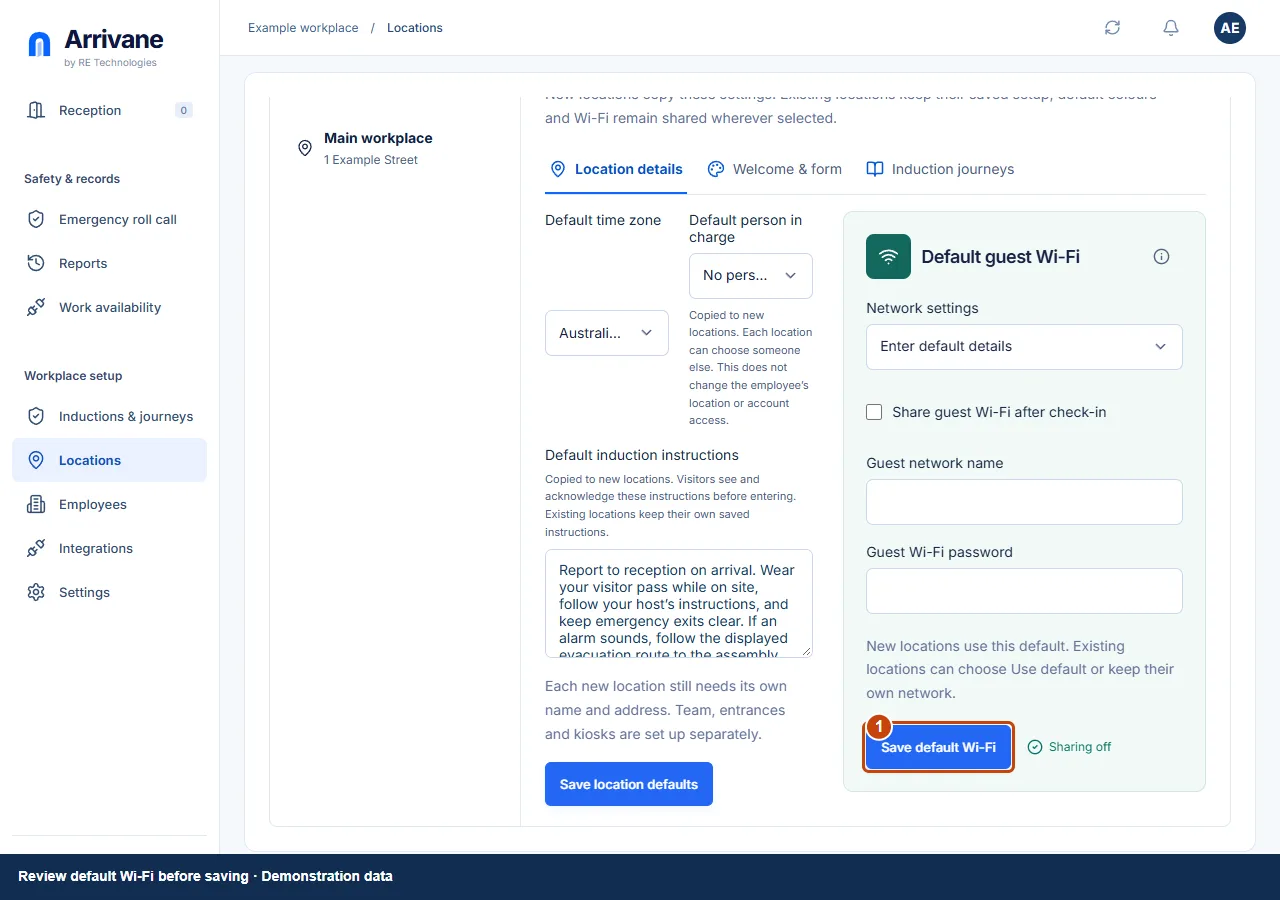
Demonstration data · Select image to enlarge.
Check the result
New locations use the intended template, and organisation-wide date and time display matches the saved preferences.
If something goes wrong
A template does not pair a kiosk or copy a physical address. Review every new location before opening it to arrivals.
If a control is missing, check your organisation, location, role and plan. If a save fails, read the error, keep your draft and check the saved state before retrying.
Screenshots use example people and workplaces. Follow the written steps and test your reception tablet, printer and connected services before welcoming visitors.