
Design the welcome and arrival form
Edit the screen visitors see and choose the basic details you collect.
Before you start
Select the physical location. Use Inductions & journeys for additional custom questions.
Watch the walkthrough
 Watch on YouTube ↗
Open Welcome & form
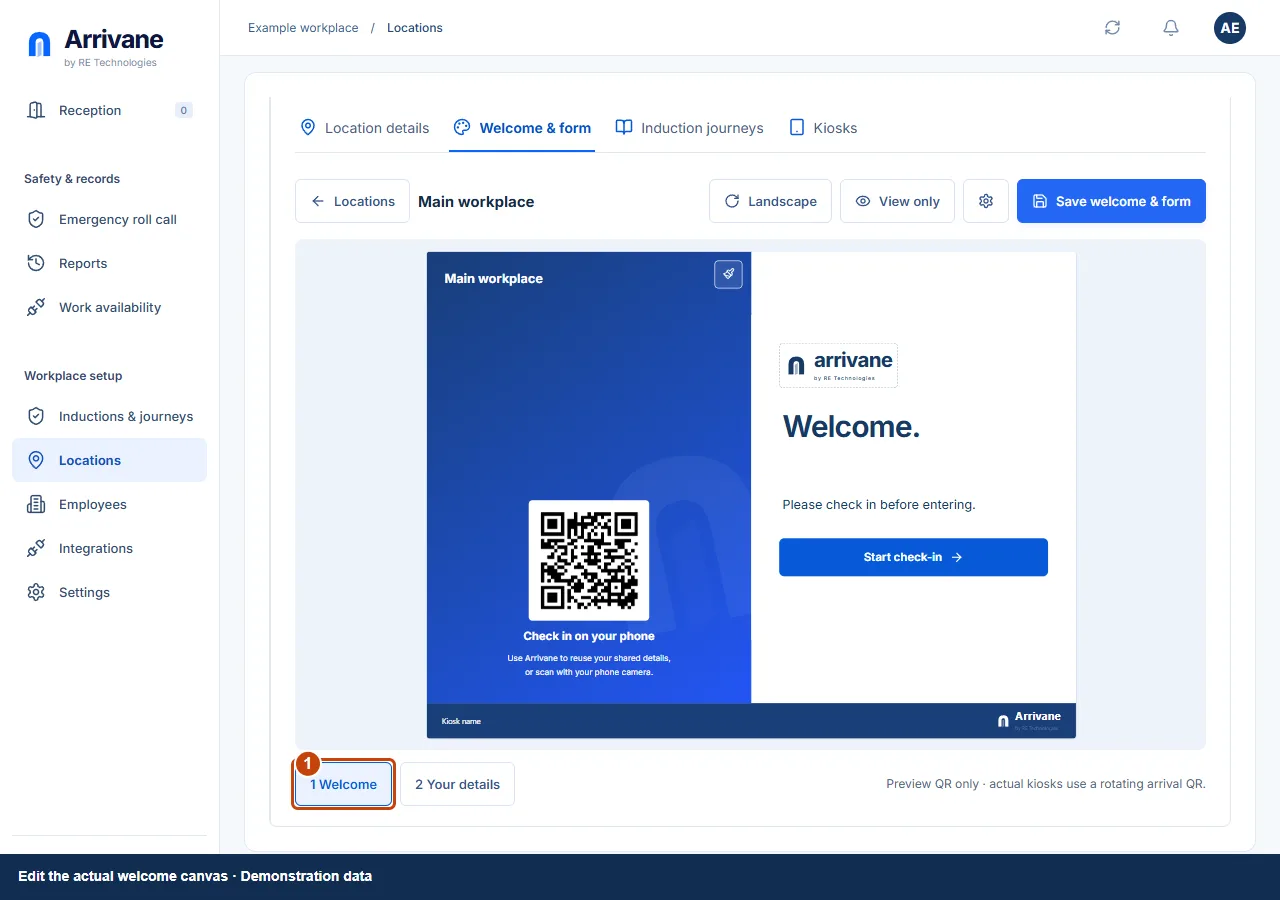
Go to Locations, select the location and open Welcome & form. The canvas uses the visitor renderer. Its QR is a preview; an actual kiosk displays its own rotating arrival QR.
Demonstration data · Select image to enlarge. Edit the welcome on the canvas
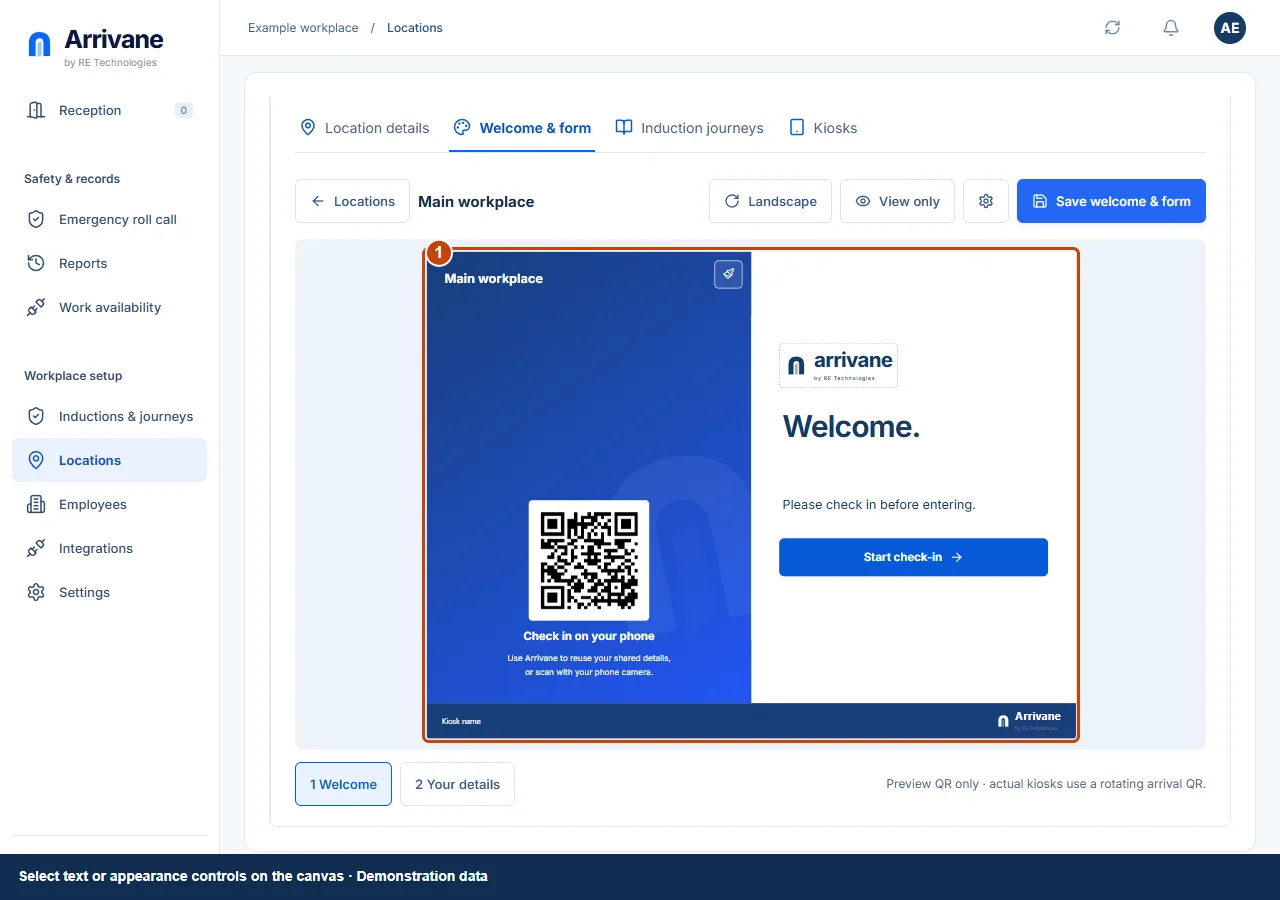
Select editable welcome text or appearance controls on the canvas. Choose Landscape or Portrait to match the device. Physical locations can upload a location logo and a left-hand image, or retain the built-in artwork. The welcome uses the fixed Arrivane blue, white and navy palette.
Demonstration data · Select image to enlarge. Choose Your details fields
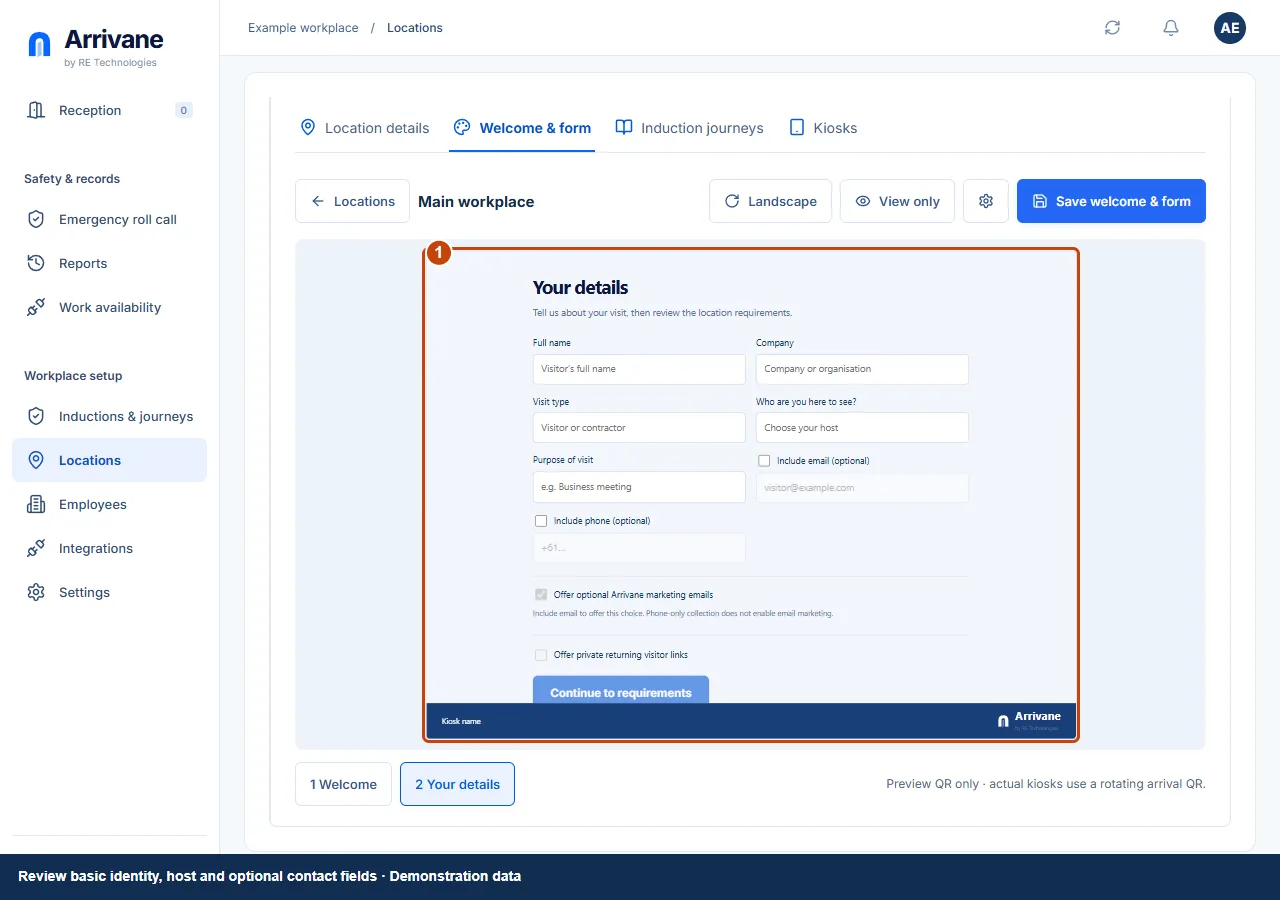
Select 2 Your details. Review the identity, visit type, host and purpose fields. Use Details settings beside the preview to choose Email or mobile, Email required, Mobile required or Both required, and optional Returning visitor links. These requirements apply to future self-service arrivals. Mobile numbers need an explicit country code. Free accounts can save contact requirements in Location details and Default settings. Marketing permission stays optional and separate. Switch between Edit and Preview to check the visitor presentation. Additional questions are created in shared content, then included through a journey.
Demonstration data · Select image to enlarge. Save and test the arrival
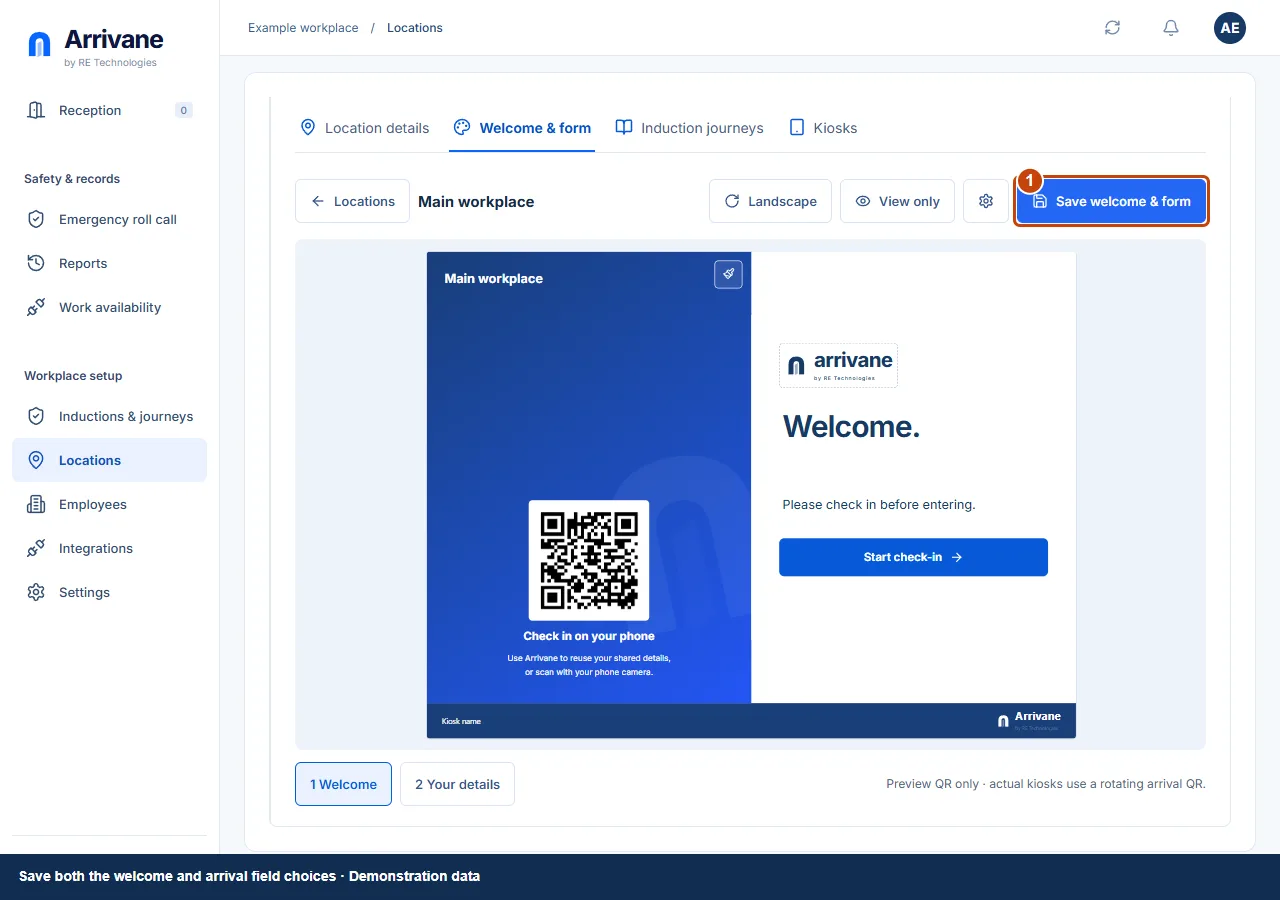
Choose Save welcome & form and wait for confirmation. Test the real reception flow. Kiosk visitors see Welcome before details; people opening the phone arrival QR start at details. Required checks still follow.
Demonstration data · Select image to enlarge.
Check the result
The saved welcome and detail fields appear correctly on your reception device and phone flow.
If something goes wrong
For phone setup handoff, continue on desktop. If an upload or save fails, follow the visible error before leaving the editor. Marketing choices, if offered, remain optional and separate from attendance.
If a control is missing, check your organisation, location, role and plan. If a save fails, read the error, keep your draft and check the saved state before retrying.
Screenshots use example people and workplaces. Follow the written steps and test your reception tablet, printer and connected services before welcoming visitors.