
Pair a reception tablet
Connect a shared Reception device to the correct physical location.
Before you start
Have the tablet online and physically available. A location supports one active kiosk; revoke the old connection before replacing it.
Open the location’s Kiosks tab
In the administrator app, open Locations, choose the reception location and select Kiosks. Confirm you are configuring the intended workplace.
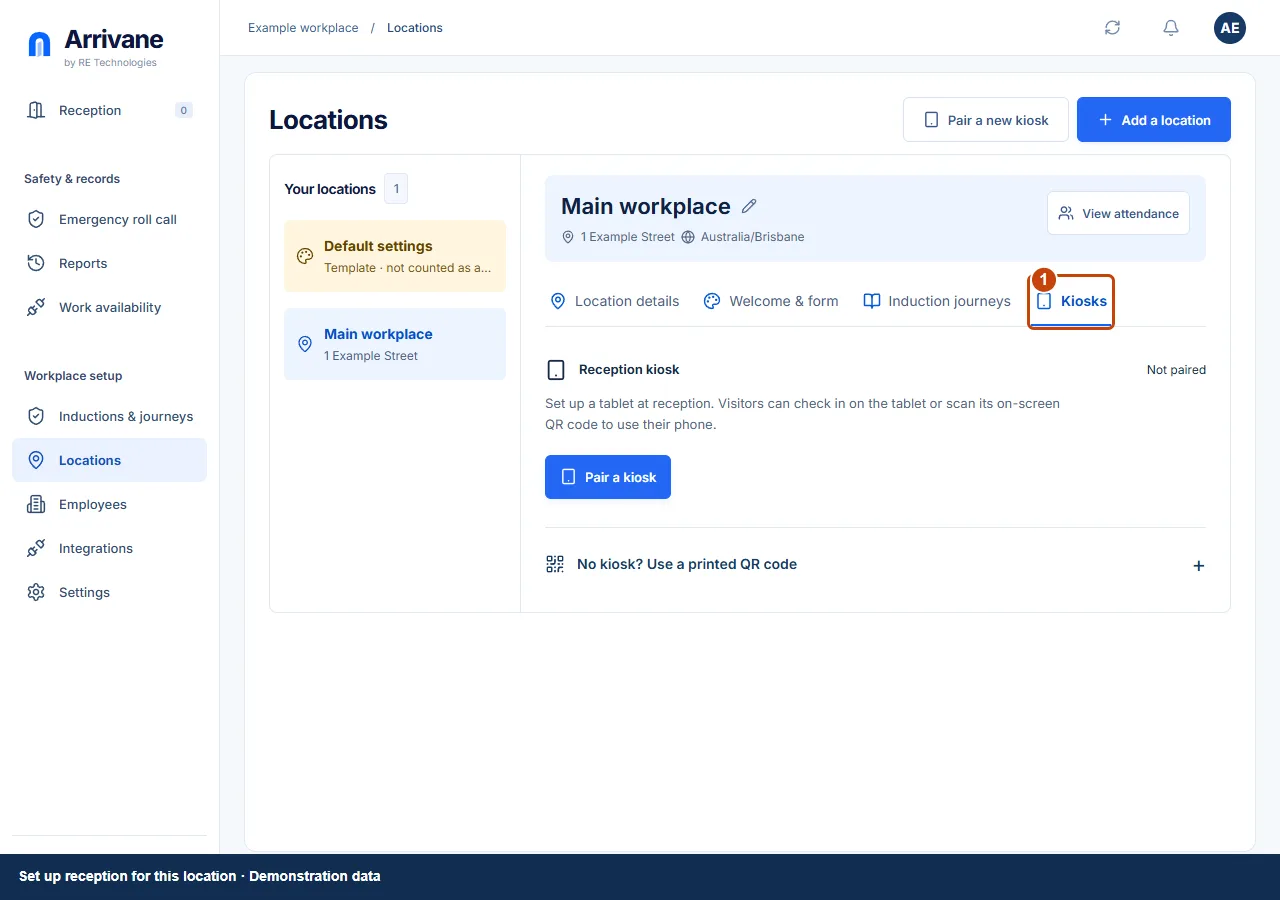
Demonstration data · Select image to enlarge. Scan to start on the tablet
Select Pair a kiosk. Scan the displayed QR code with the shared tablet to open Arrivane Kiosk. If you cannot scan, choose Can’t scan? and type the installation link into the tablet’s browser. The computer moves to code entry when the scanned link opens; if it does not, choose Enter a tablet’s code. Follow the installation steps, then open Arrivane Kiosk in a dedicated browser or installed app with staff management signed out. Open help guide in the connection dialog returns to these instructions.
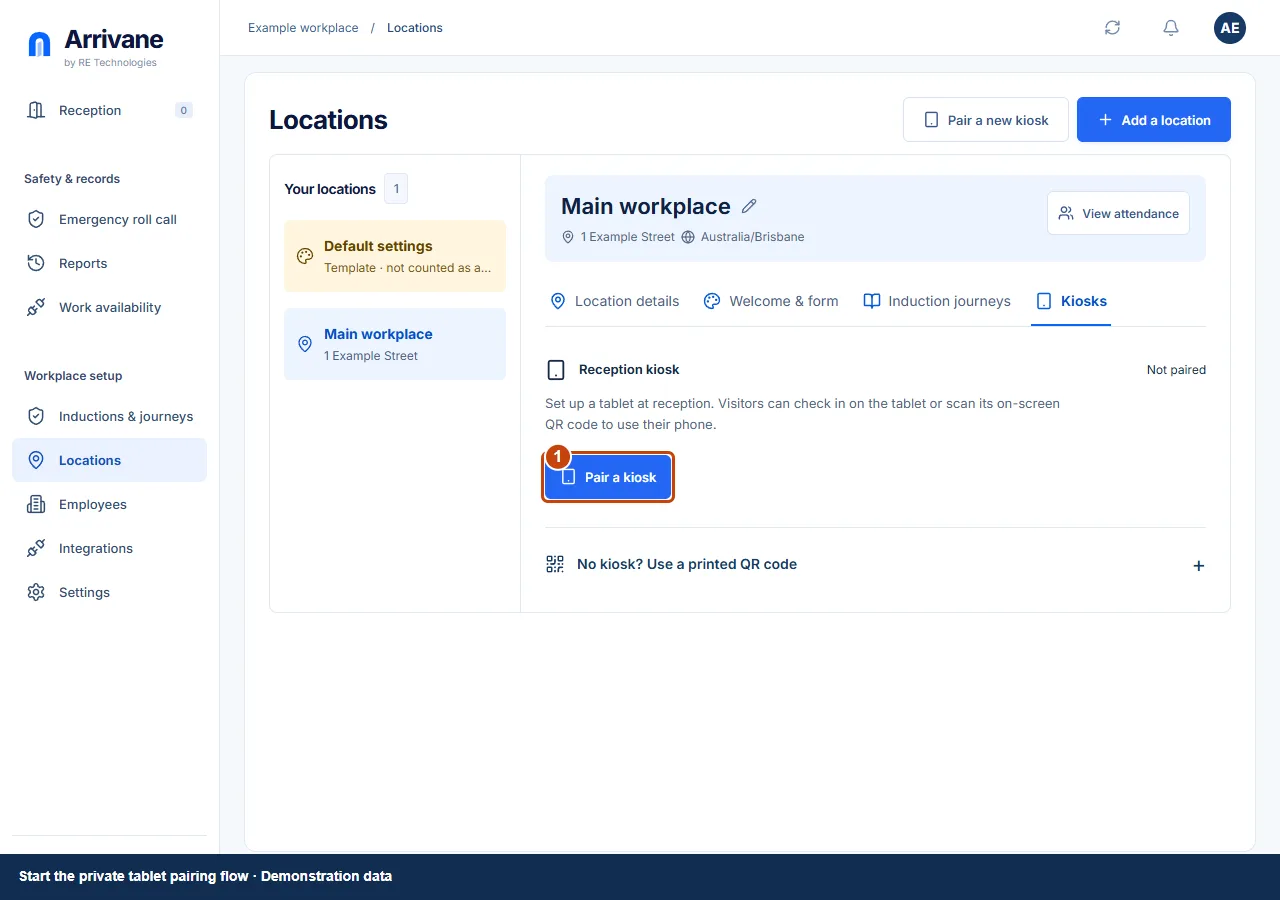
Demonstration data · Select image to enlarge. Show the tablet’s pairing code
When opened from Pair a kiosk in Locations, reception pairing starts automatically after installation. If you opened the general Kiosk link, choose Reception, then Continue. Leave the pairing code screen open. Scan its QR with your staff phone, or choose Enter a tablet’s code in the computer’s connection dialog and enter the code shown on the tablet.
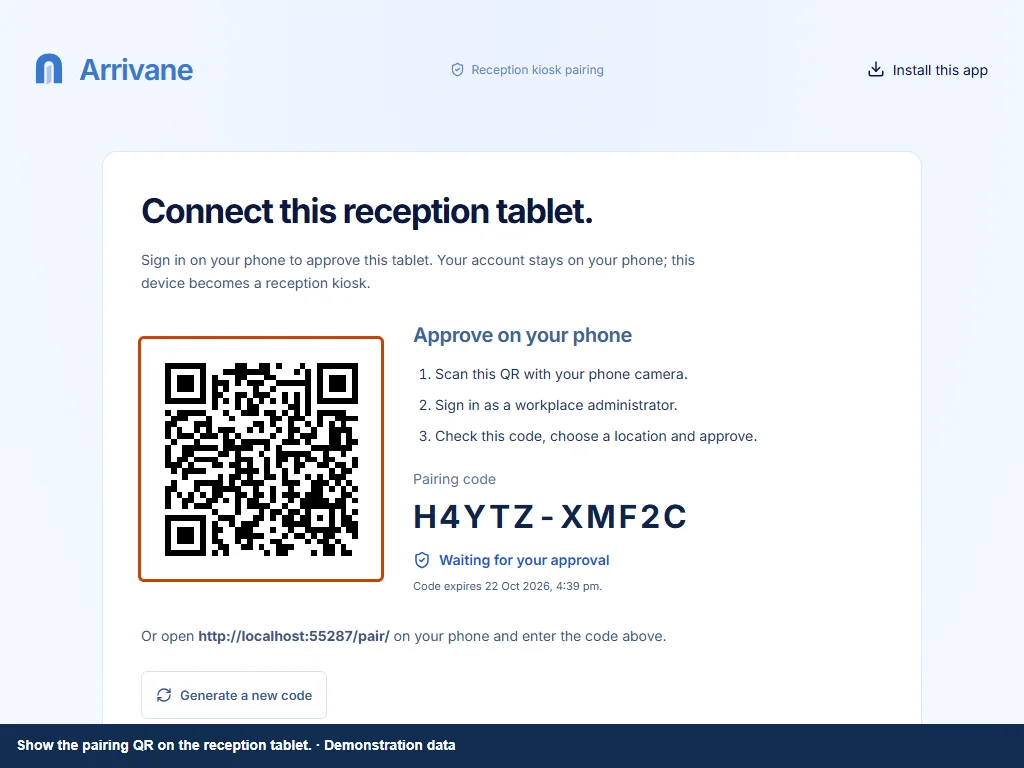
Demonstration data · Select image to enlarge. Compare the code and approve
Sign in as an administrator on the staff device. Compare the displayed code with the tablet in front of you. Choose the correct workplace and available location, review the connection duration, then select Approve kiosk. The kiosk is named automatically. Your administrator account stays on your staff device; the tablet receives kiosk-only access.
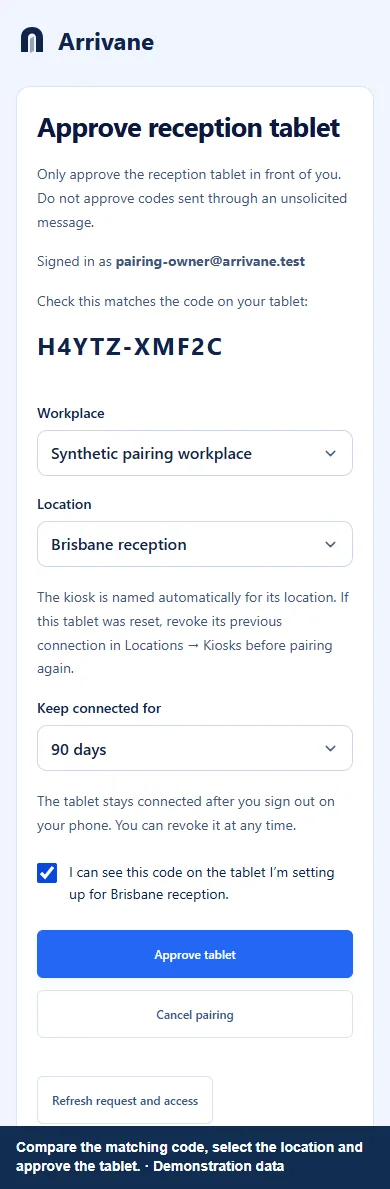
Demonstration data · Select image to enlarge. Finish the tablet’s optional printer setup
In the main app, choose whether this location connects to a printer under Locations → Kiosks. Return to the tablet. On Android, continue without printing when No, or connect and test the printer when Yes. On iPad, continue without printing; the location’s saved choice is kept. Check the location welcome screen and run a test arrival.
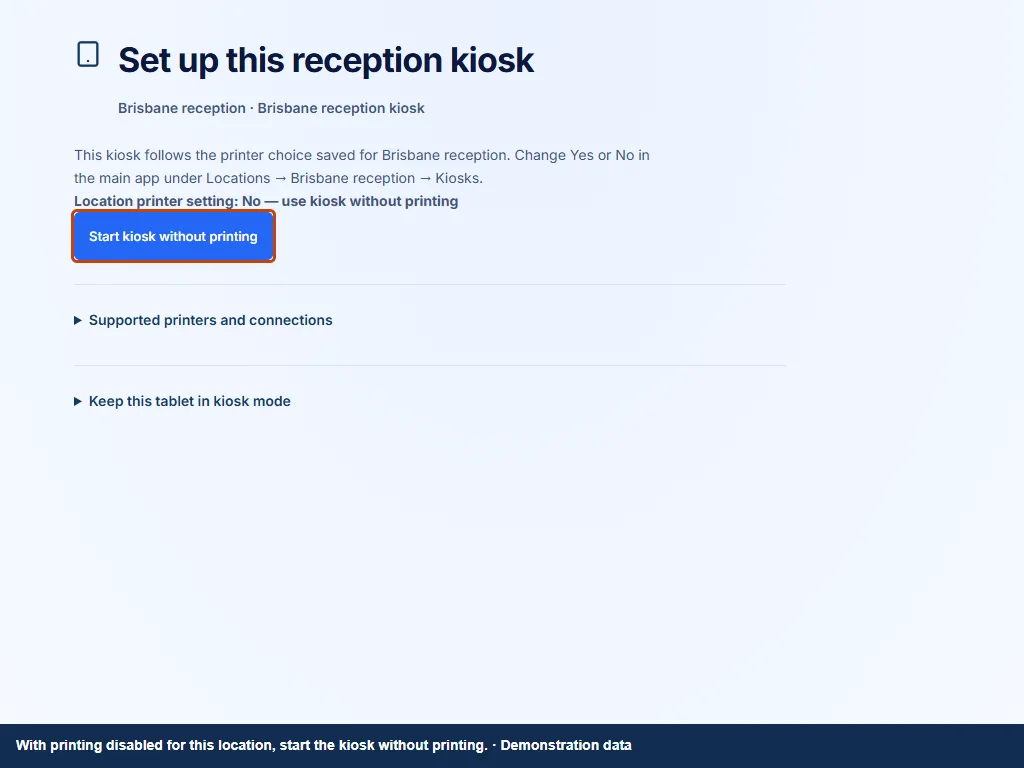
Demonstration data · Select image to enlarge.
Check the result
The tablet shows the intended location and Kiosks reports the active connection and its saved setup.
If something goes wrong
Resetting the tablet or clearing browser data can leave its old assignment active. In Locations → choose location → Kiosks, select Revoke kiosk before pairing again. To change printer setup on an existing kiosk, an administrator selects Allow setup and continues on the tablet within 15 minutes. Consider Guided Access on iPad or managed Android kiosk restrictions after testing.
If a control is missing, check your organisation, location, role and plan. If a save fails, read the error, keep your draft and check the saved state before retrying.
Screenshots use example people and workplaces. Follow the written steps and test your reception tablet, printer and connected services before welcoming visitors.