
Set up automatic visitor labels
Print badges after confirmed check-in without asking visitors to use a print dialog.
Before you start
Complete is required for printing. Check the model and connection before buying hardware. Star mC-Label3/2 use CloudPRNT; Epson TM-L100 uses Server Direct Print with Digest authentication. Brother QL-820NWB/NWBc, QL-1110NWB/NWBc and network Zebra ZD411/421/621 use the installed Android Reception app. Badge printing is available on supported Android kiosks. Physical commissioning is required; screenshots and video show the Star route.
Watch the walkthrough
 Watch on YouTube ↗
Choose printing for the location
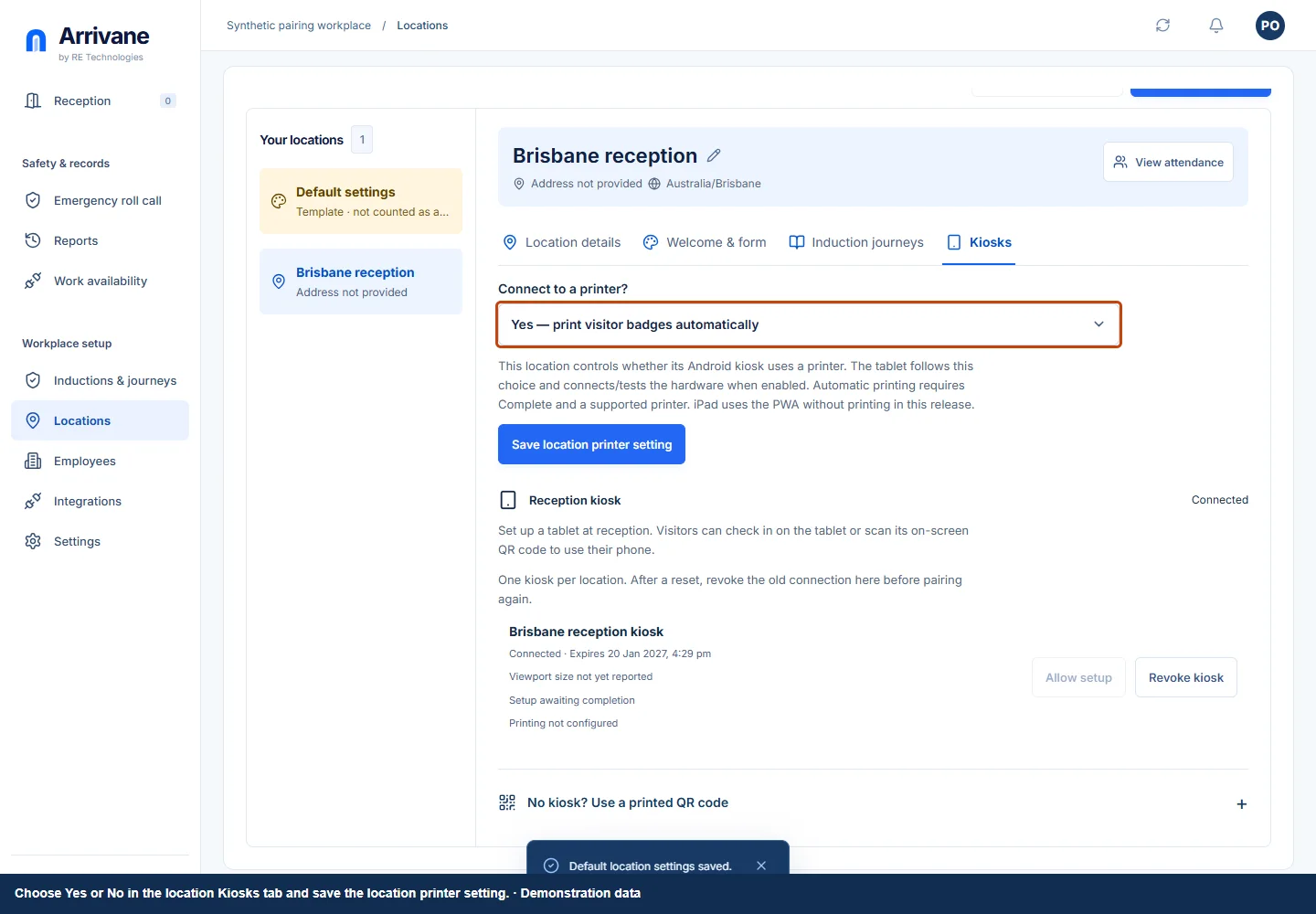
In the main app, open Locations → choose the physical location → Kiosks. Turn Print visitor badges on or off, then Save. Default settings → Kiosks controls the choice copied to new locations.
Demonstration data · Select image to enlarge. Choose the printer and label dimensions
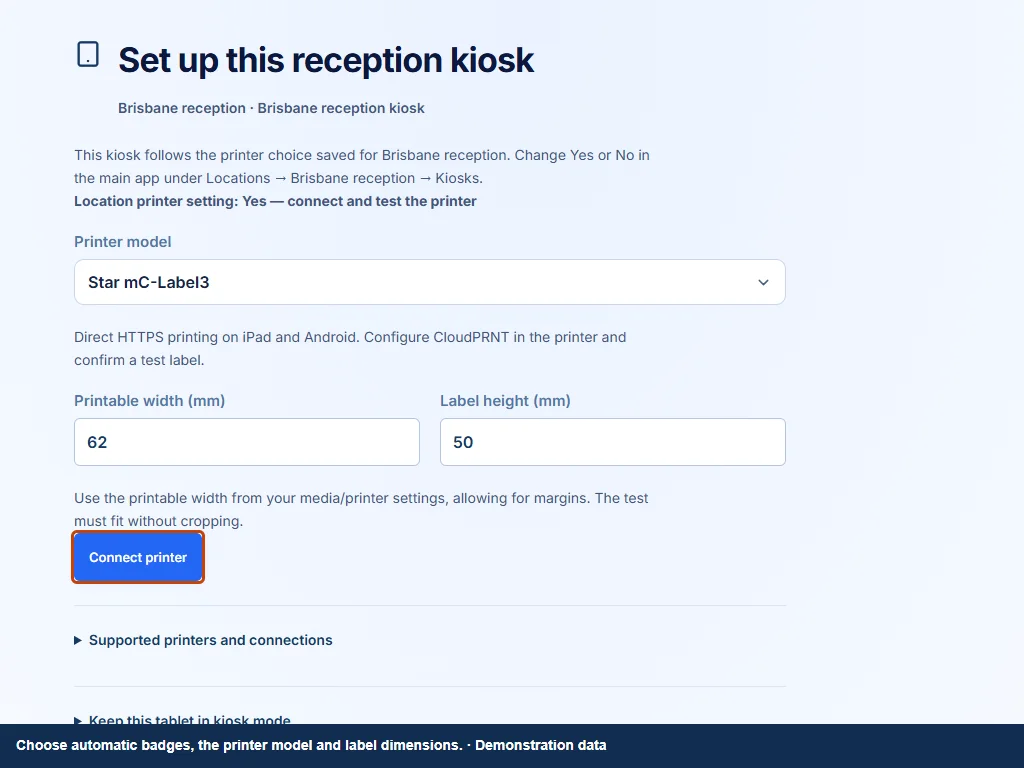
After matching-code approval, continue on the tablet. It follows the location’s saved Yes or No choice. With Yes, select Printer model, Printable width and Label height, then Connect printer. Generic tablet print drivers still use a dialog and do not provide unattended printing.
Demonstration data · Select image to enlarge. Connect the network printer
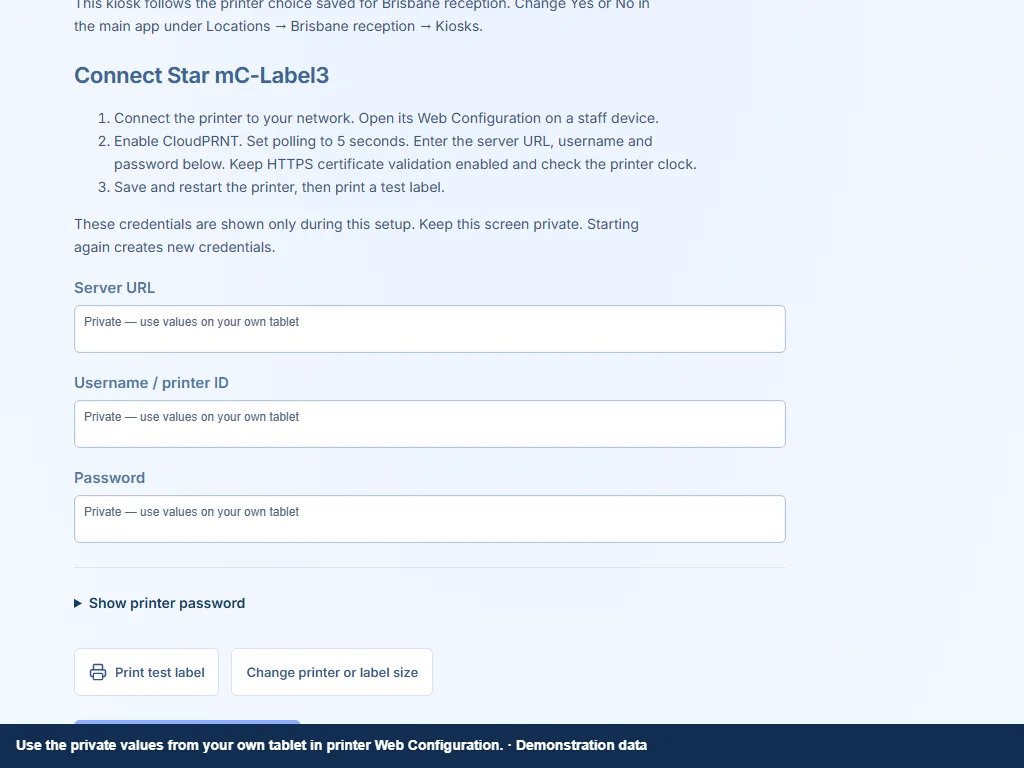
Open the printer Web Configuration on a staff device. For Star, enable CloudPRNT. For Epson TM-L100, enable Server Direct Print with Digest authentication and use the username as printer ID. Enter the private server URL and credentials, poll every 5 seconds, save and restart. For Brother/Zebra, use the installed Reception app, reserve a private IPv4 printer address, and check the TCP 9100 connection. Complete any network permissions during staff setup. Keep HTTPS certificate checks enabled and check the printer clock. Credentials are shown only during setup. Use the private values on your own tablet, not a screenshot.
Demonstration data · Select image to enlarge. Verify a real test label
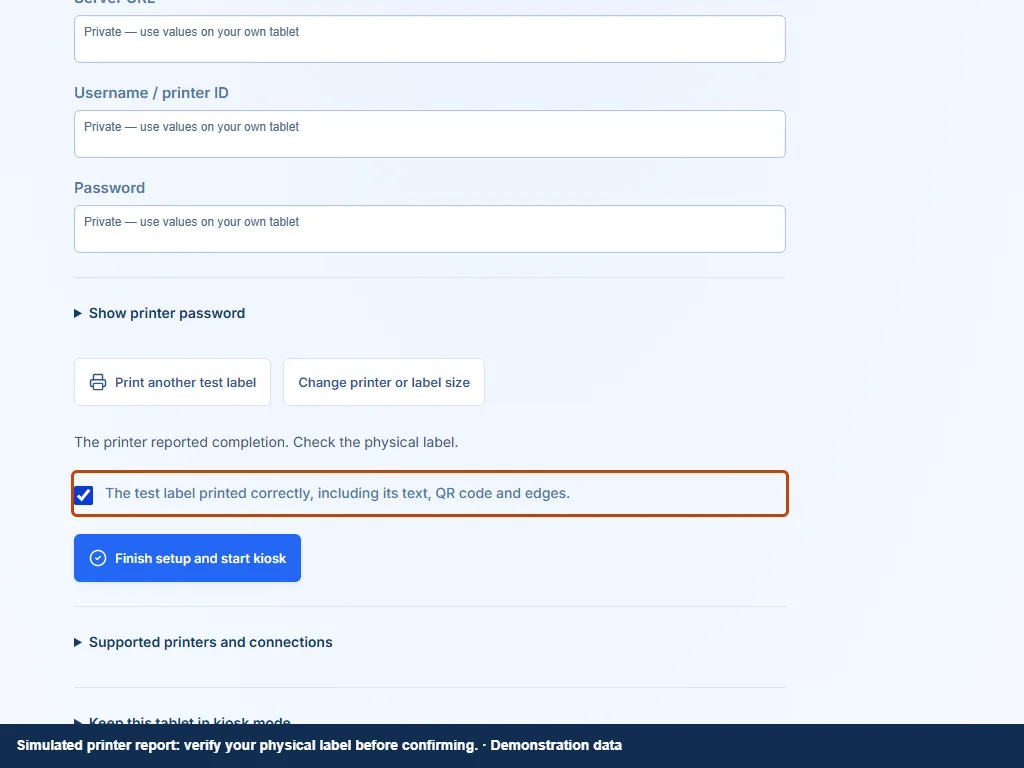
Choose Print test label. Wait for the printer result, then check the actual text, QR, margins, feed and cut. Confirm that the test printed correctly and choose Finish setup and start kiosk. Tests create no attendance. Locations → Kiosks shows the saved setup and test time. The screenshot uses a simulated printer result; verify your actual physical label.
Demonstration data · Select image to enlarge.
Check the result
The commissioned kiosk prints a badge automatically only after a confirmed arrival. The visitor does not choose a printer or see a print dialog.
If something goes wrong
Printer errors leave attendance confirmed. Reception should check the printer and any existing badge before attempting another print; an interrupted result may already have printed. Brother QL-820 uses 62 mm continuous black-on-white stock; QL-1110 uses 102 mm continuous stock. Zebra needs a network-equipped ZPL II model, matching resolution and calibrated media. Epson 40/58/80 mm stock uses 35/52.5/72 mm printable widths. Brother/Zebra require the installed Reception app; its distribution and physical hardware commissioning remain release steps. USB, Bluetooth and generic tablet drivers are outside these connections.
If a control is missing, check your organisation, location, role and plan. If a save fails, read the error, keep your draft and check the saved state before retrying.
Screenshots use example people and workplaces. Follow the written steps and test your reception tablet, printer and connected services before welcoming visitors.