
Set up a printed arrival QR sign
Offer phone-based arrival when you have no reception tablet.
Before you start
Use a location entrance sign, not a screenshot of the welcome editor’s preview QR.
Open the printed QR alternative
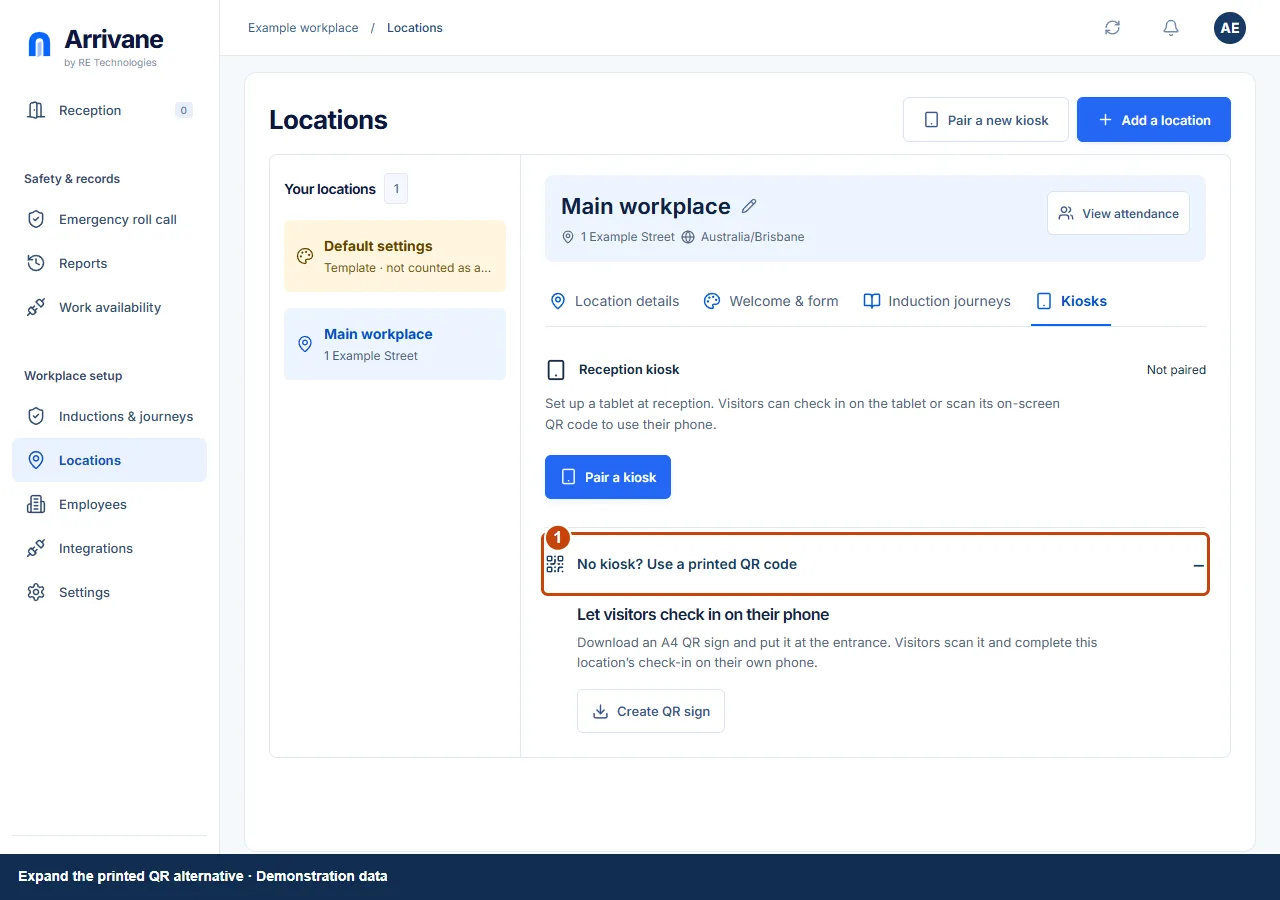
Go to Locations → Kiosks and expand No kiosk? Use a printed QR code. This is the alternative to a connected reception tablet.
Demonstration data · Select image to enlarge. Prepare the entrance sign
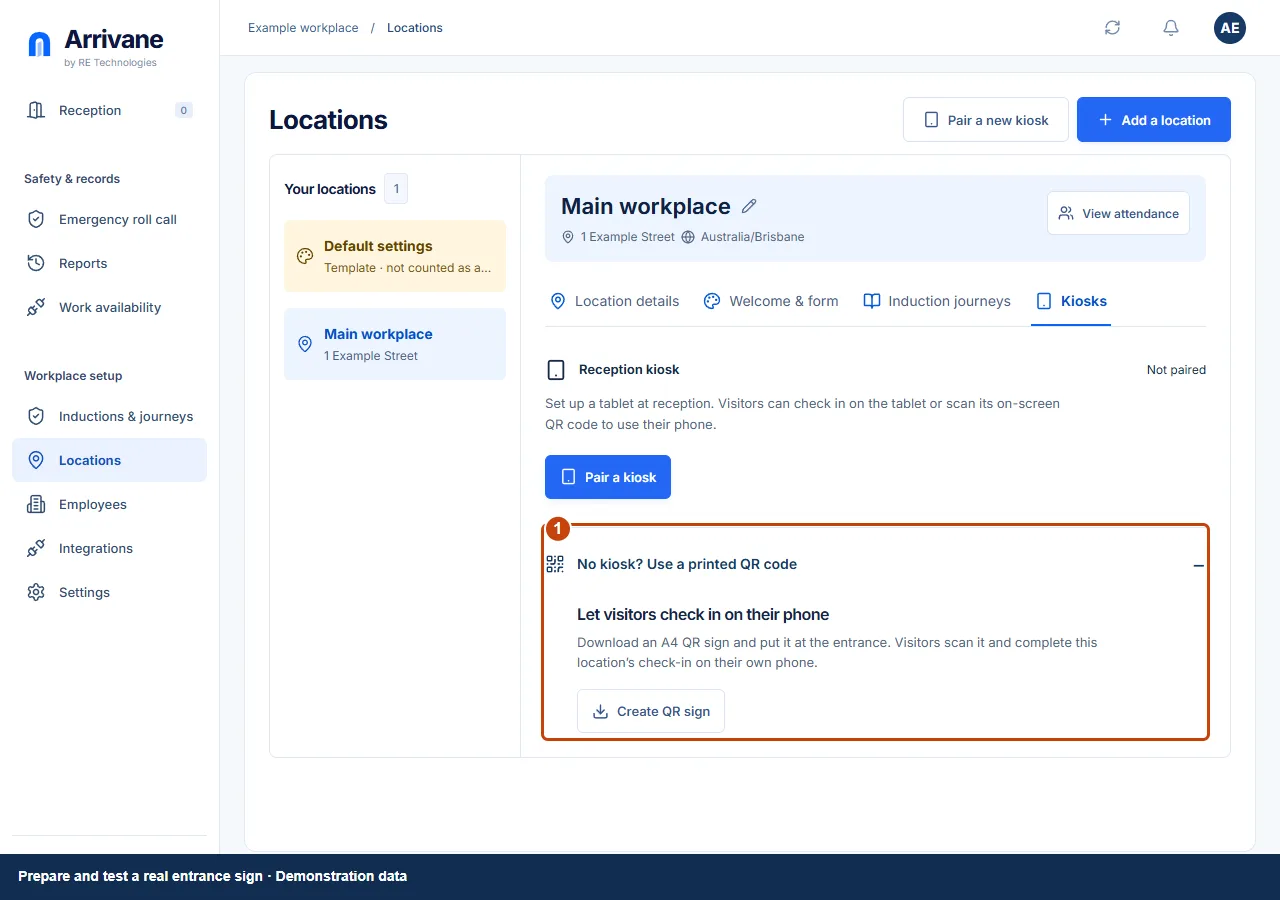
Use the available entrance creation and download controls to prepare the A4 sign for this location. Read any plan or permission blocker shown before printing.
Demonstration data · Select image to enlarge. Test before displaying it
Scan the printed sign with a phone, confirm the location and complete a test arrival. Replace or revoke an entrance QR if it is no longer appropriate to use. A scan still requires the visitor to confirm check-in.
Demonstration data · Select image to enlarge.
Check the result
The printed QR opens the intended location’s real arrival flow.
If something goes wrong
Do not print the canvas preview QR. If a revoked sign is still displayed, remove it and use a newly downloaded sign.
If a control is missing, check your organisation, location, role and plan. If a save fails, read the error, keep your draft and check the saved state before retrying.
Screenshots use example people and workplaces. Follow the written steps and test your reception tablet, printer and connected services before welcoming visitors.