
Create forms, induction pages and quizzes
Build reusable content that visitors can complete in an arrival journey.
Before you start
Prepare workplace-approved instructions. Generic starter content must be adapted to your actual workplace.
Watch the walkthrough
 Watch on YouTube ↗
Open the content library
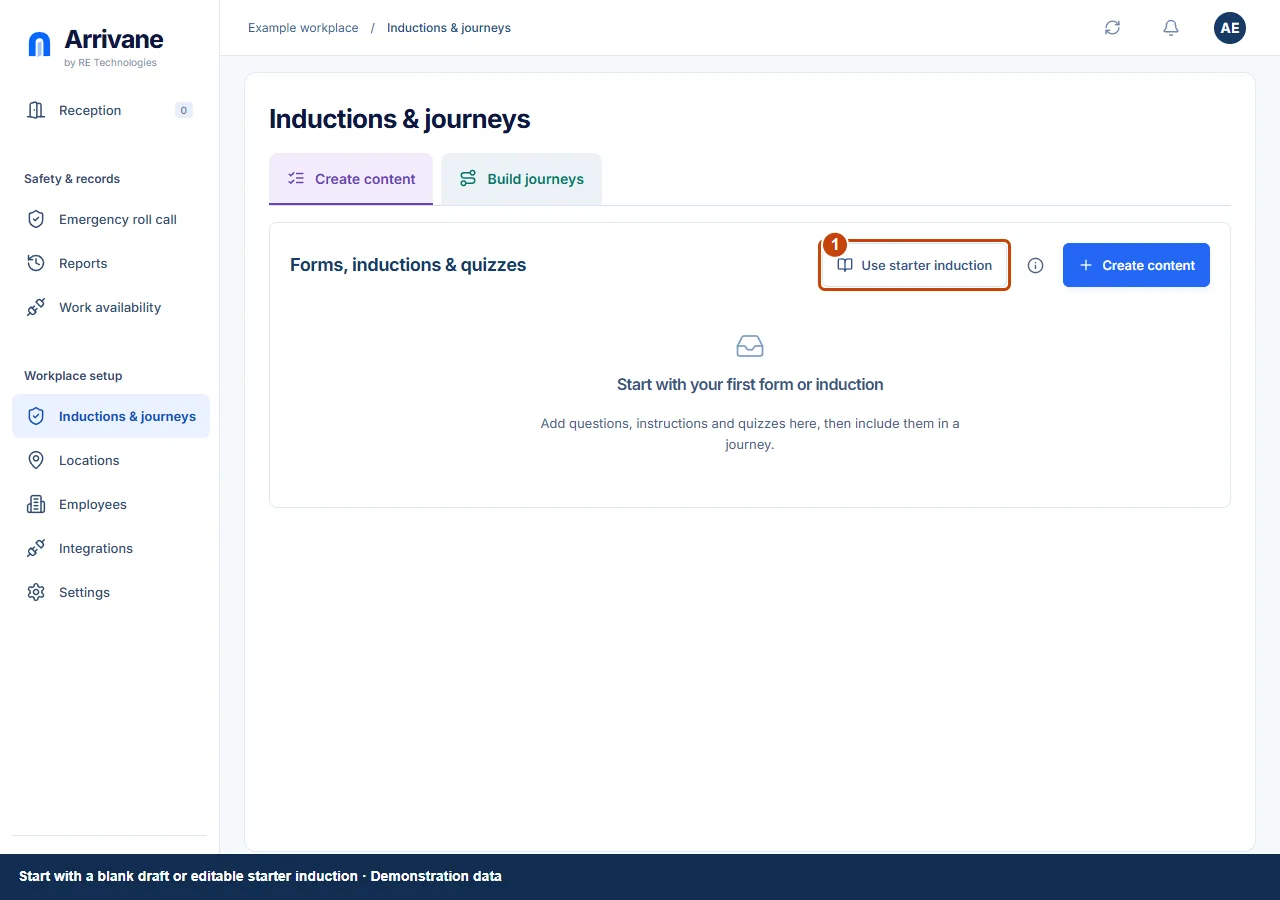
Open Inductions & journeys → Create content. Choose Create content for a blank draft or Use starter induction for editable starter pages. Creating content does not automatically assign it to arrivals.
Demonstration data · Select image to enlarge. Name and edit the content
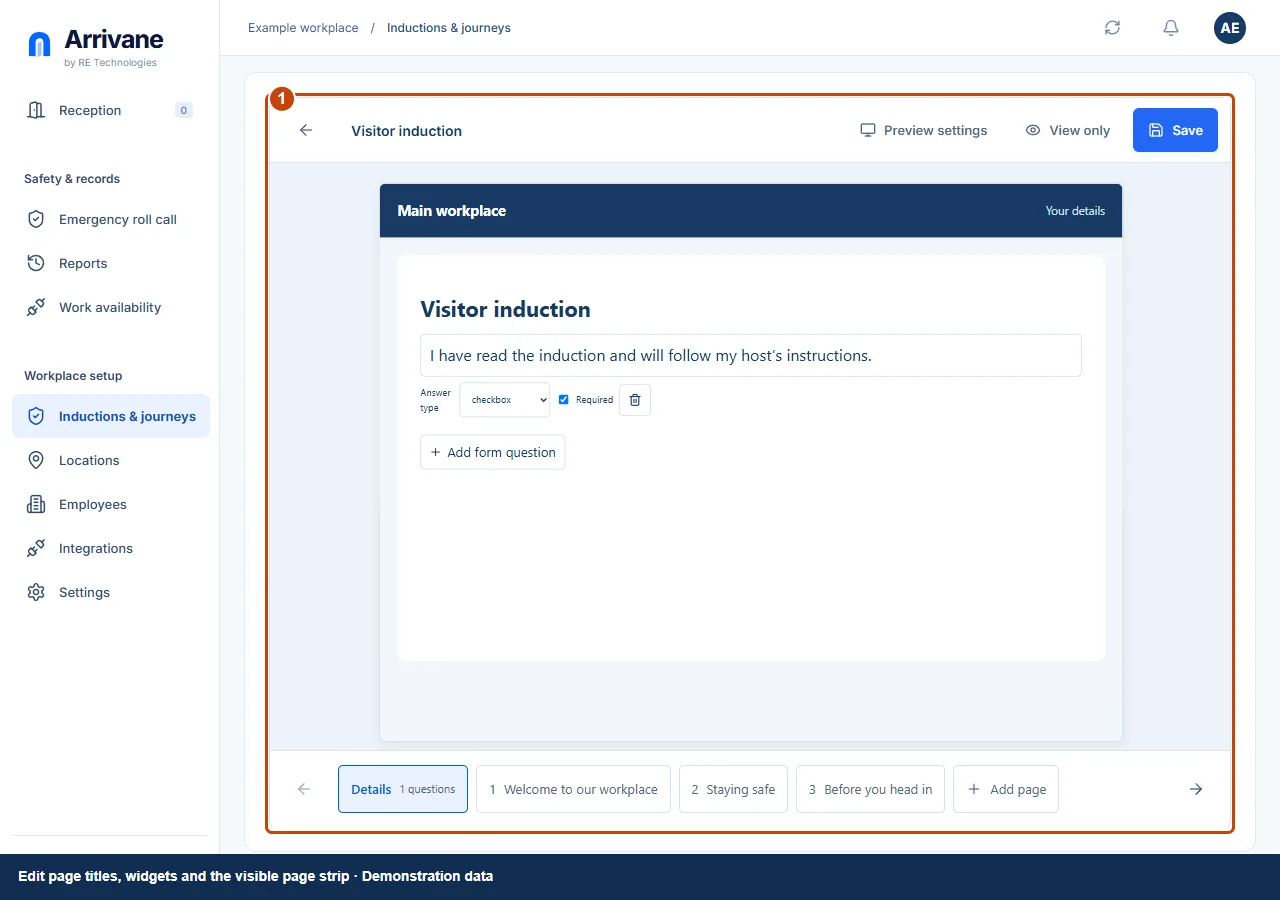
Give the content a clear name. Use the page strip to select or add pages and edit their titles. Add heading, text, image, video or quiz widgets. Supply image descriptions and video transcripts or accessible alternatives.
Demonstration data · Select image to enlarge. Add questions and preview
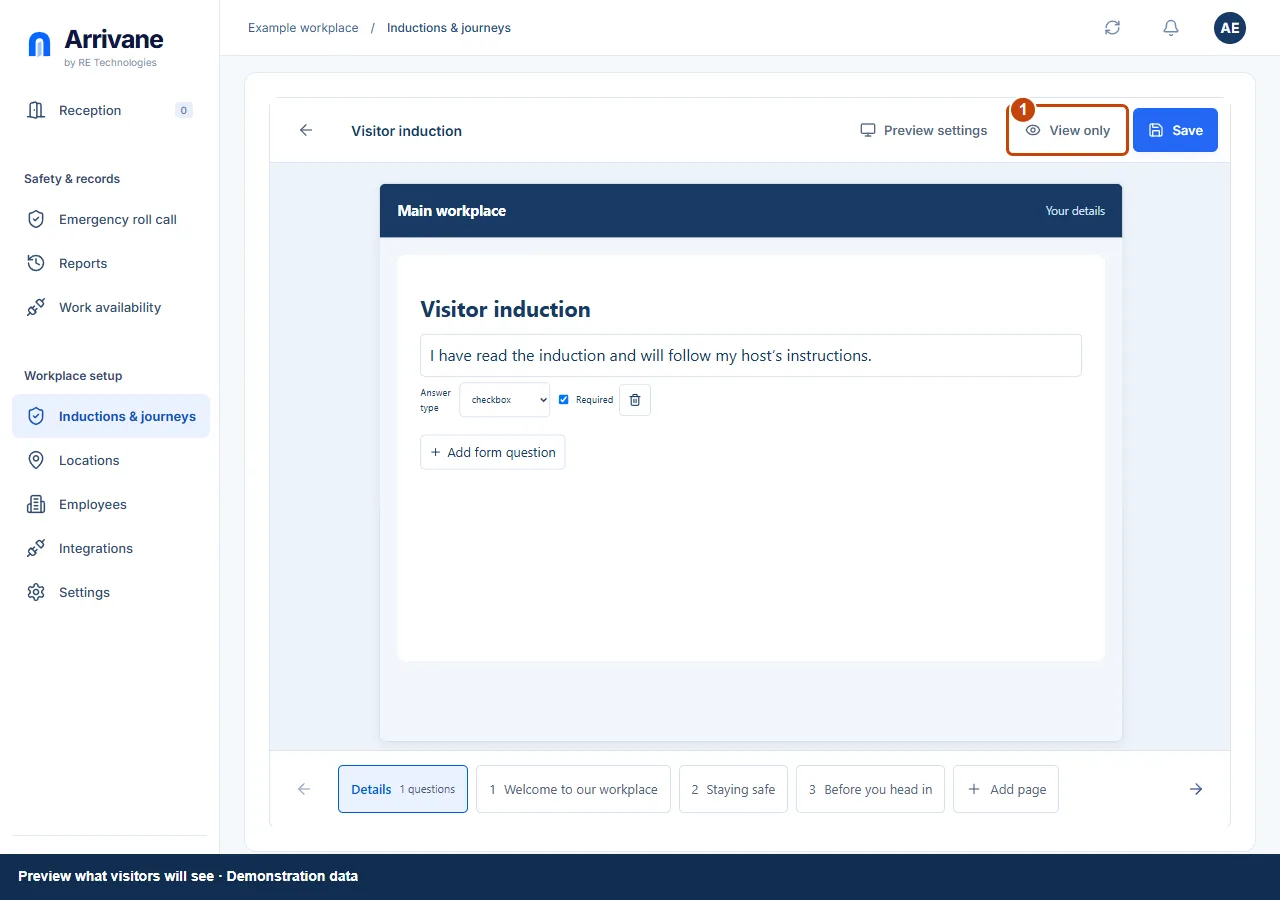
Select Form questions for additional visitor fields. Review answer types, required settings and choices. Use View only to check the visitor presentation. Layouts stack on smaller visitor screens.
Demonstration data · Select image to enlarge. Save, then build a journey
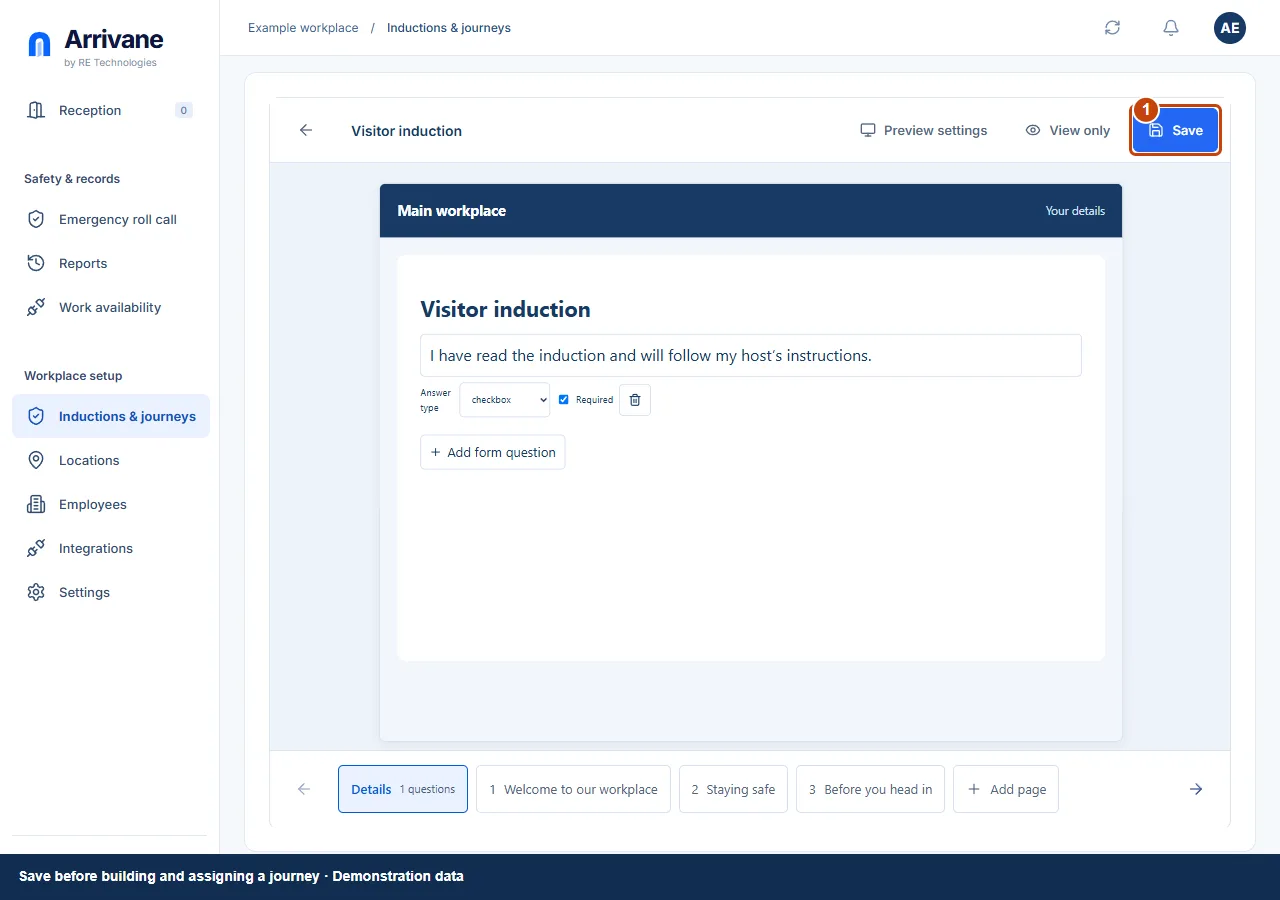
Choose Save shared content and wait for confirmation. Follow Build a journey with this, or use Build journeys, to put the saved content in an ordered path. Editing shared content affects every journey using it and can affect current completion.
Demonstration data · Select image to enlarge.
Check the result
The saved content reopens correctly and has been included in the intended journey.
If something goes wrong
The editor points to missing titles, invalid questions or missing media alternatives. Fix those errors before saving. On a phone, continue setup on desktop.
If a control is missing, check your organisation, location, role and plan. If a save fails, read the error, keep your draft and check the saved state before retrying.
Screenshots use example people and workplaces. Follow the written steps and test your reception tablet, printer and connected services before welcoming visitors.