
Set up Arrivane for your workplace
Set up your first location and hosts, test reception check-in, then confirm a visitor’s departure.
Before you start
Have your workplace address, local time zone and host details ready. Start with one location and choose staff-assisted check-in, a paired reception tablet or a printed arrival QR. A tablet and printer are optional; check your plan in Billing before adding requirements.
Follow the illustrated steps
Work through the instructions below, with screenshots for every step.
Request your verification code
Open Arrivane and choose Create your account. Enter Your name and Work email, then select Send verification code. Use an address you can access. If you already have an account, sign in instead.
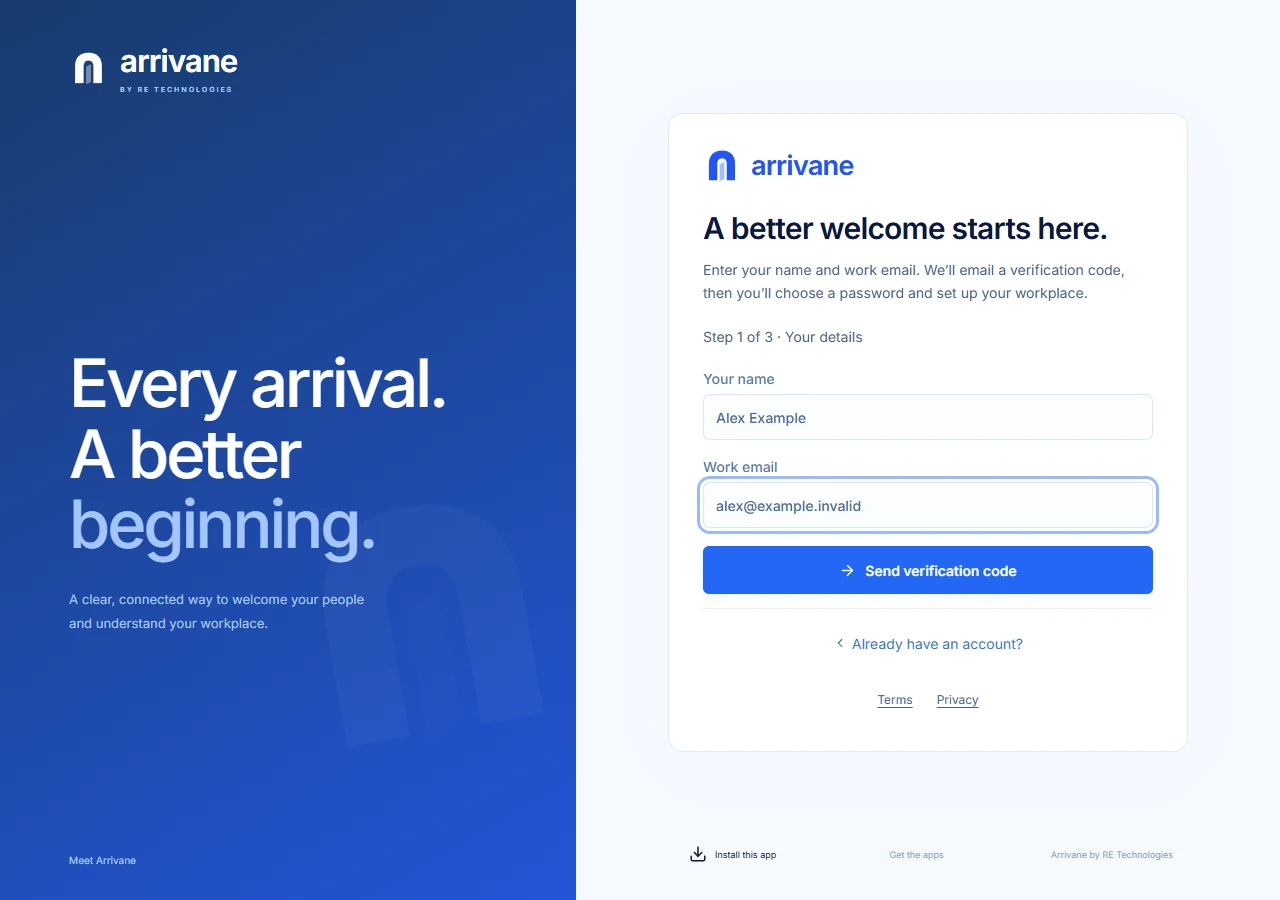
Demonstration data · Select image to enlarge. Verify your email
Open the latest Arrivane email and enter its eight-digit Verification code on Check your email, then select Continue to password. The code expires after ten minutes. Check spam if it is missing, use Resend code when available, or Change email address to correct a mistake. You can also use the secure link in the email. Never share your code or link.
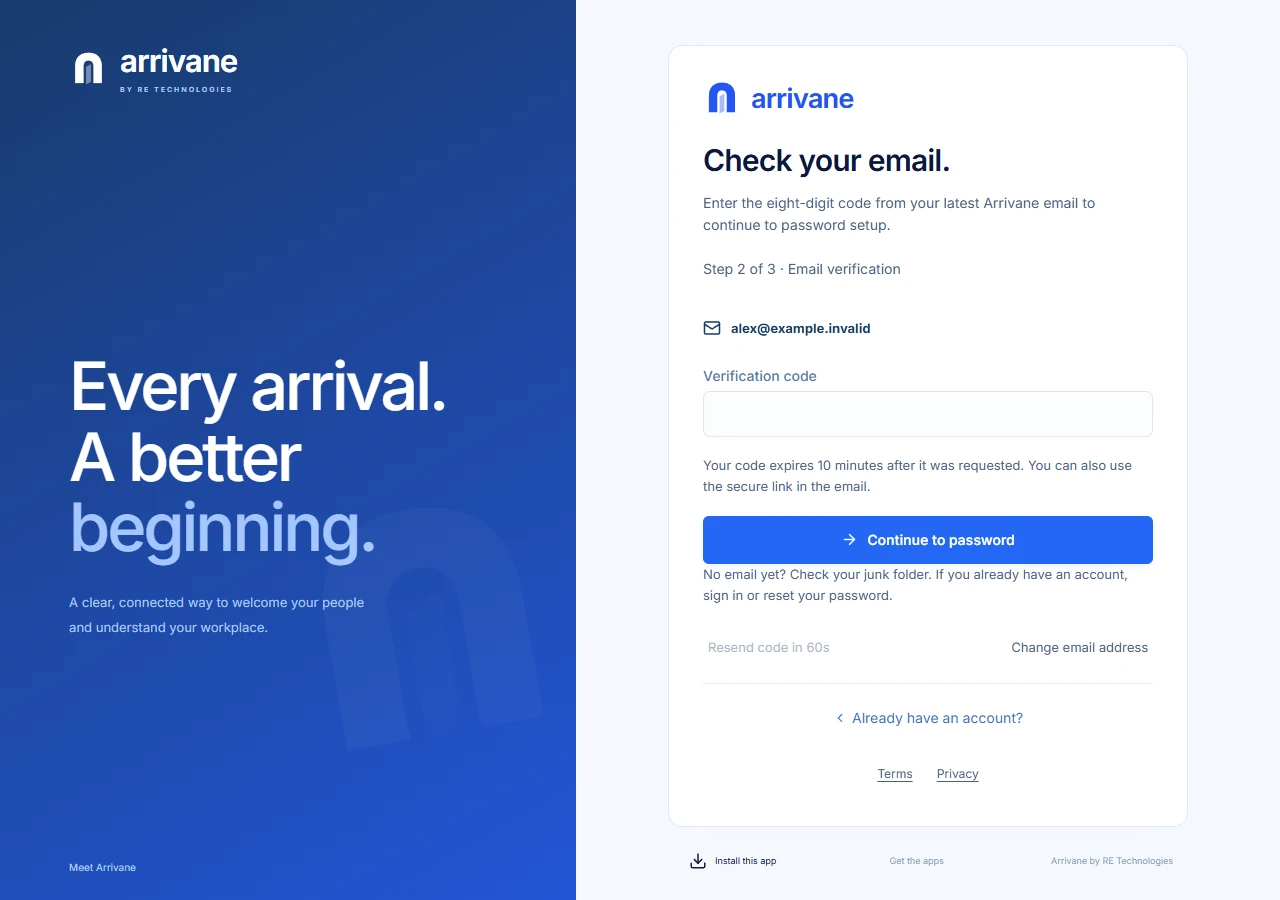
Demonstration data · Select image to enlarge. Choose and confirm your password
On Make this account yours, enter a unique password that meets the displayed guidance and repeat it in Confirm password. Select Set password & activate account. Continue only for your own email address.
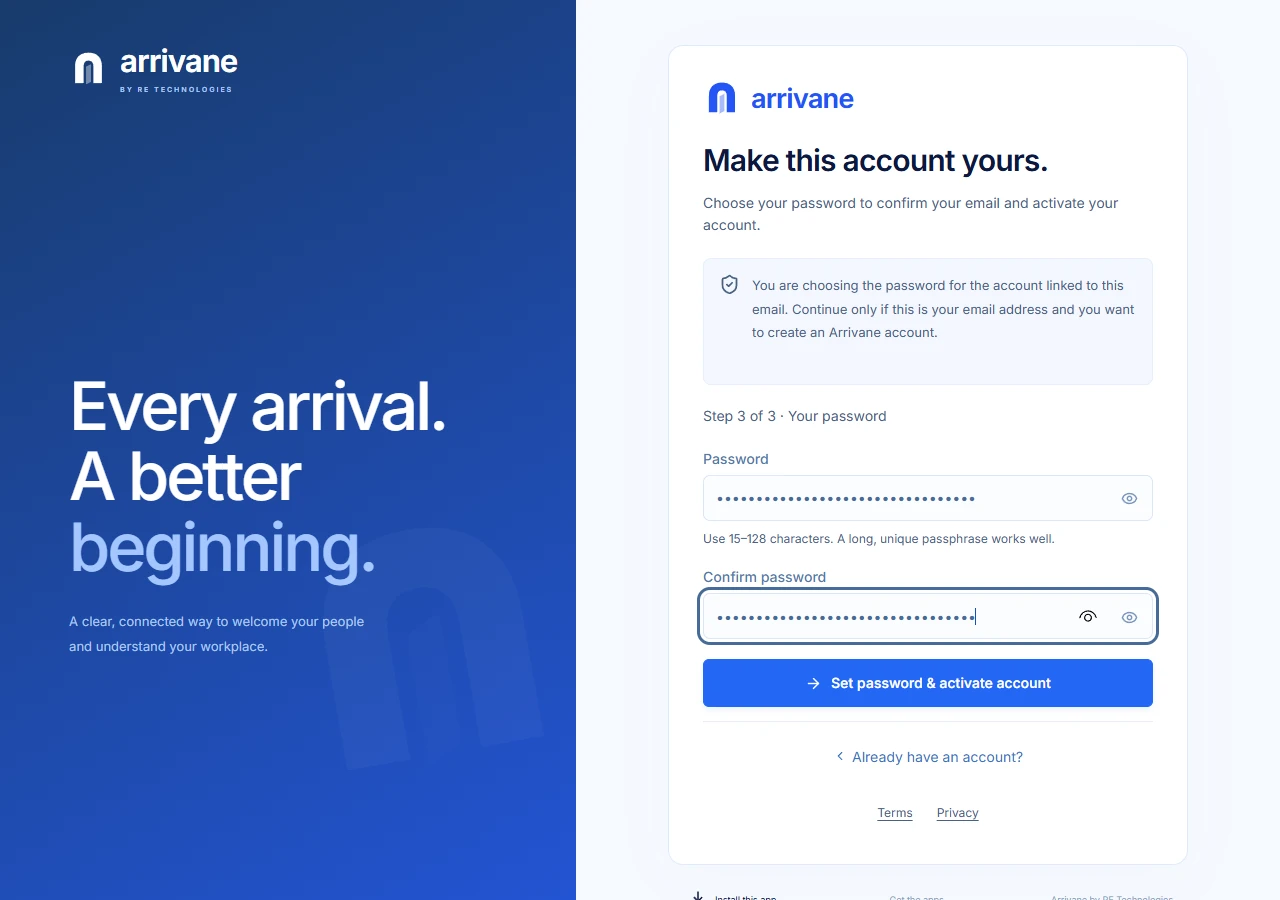
Demonstration data · Select image to enlarge. Create or join the organisation
For a new workplace, complete the organisation form shown after sign-in. Enter Organisation name and select Create organisation. To create another organisation later, open your initials → Organisations → Create organisation. If you were invited to an existing organisation, accept that invitation instead of creating a duplicate.
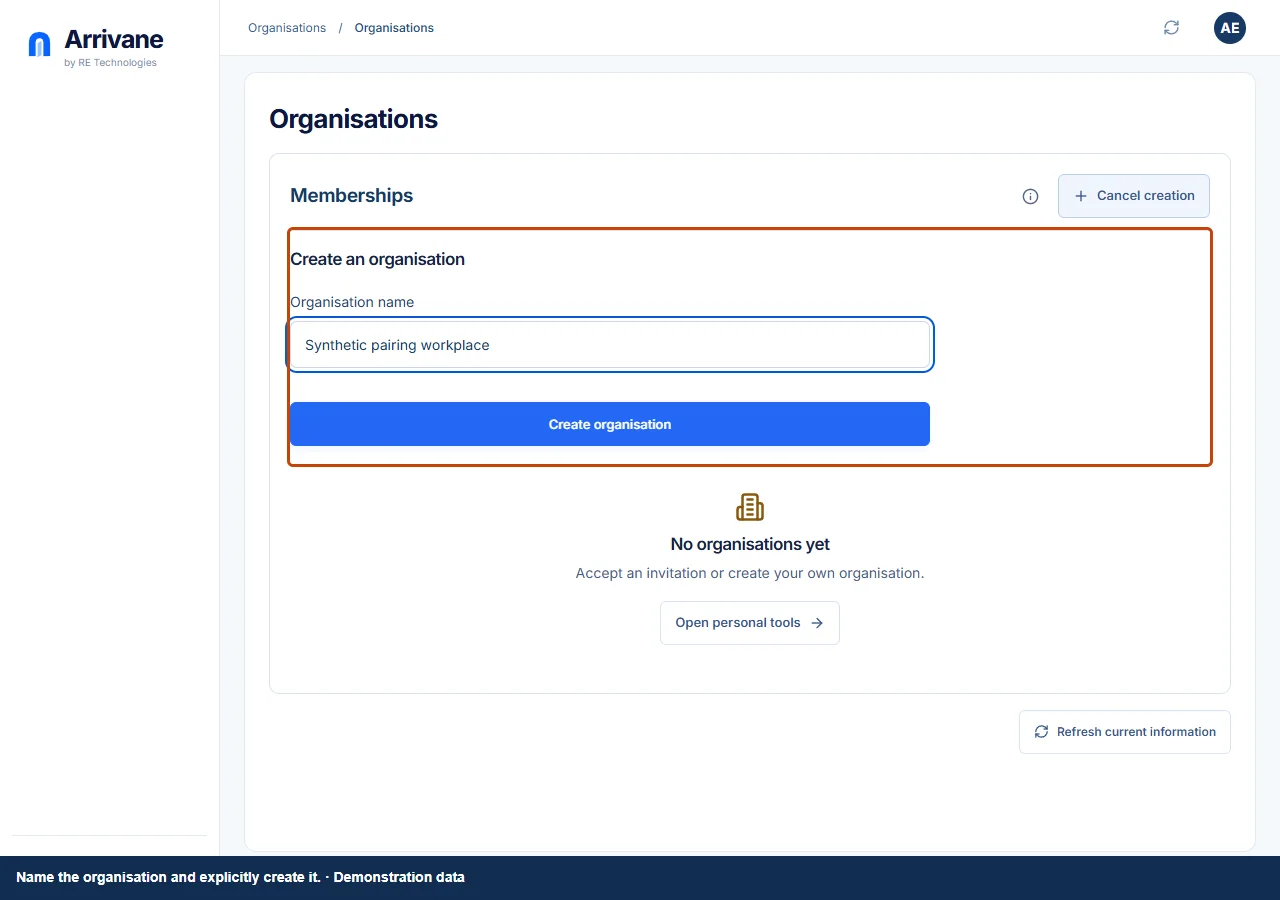
Demonstration data · Select image to enlarge. Check your first location
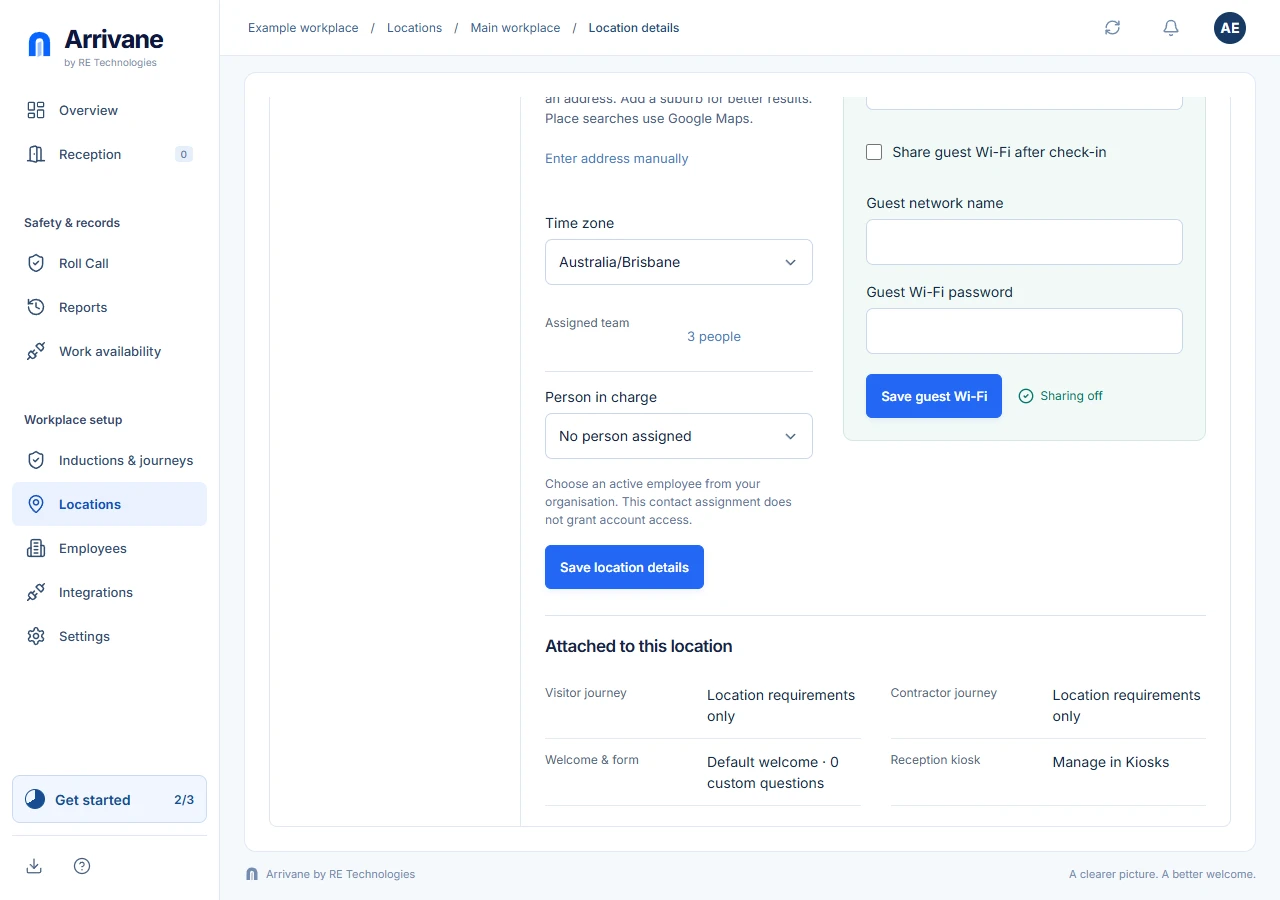
Open Locations and select the physical workplace. In Location details, enter its address, time zone and person in charge. Choose Save location details. Add required instructions through Inductions & journeys, then assign the journey to the location. Default settings is a template, not a reception location.
Demonstration data · Select image to enlarge. Add the people visitors will meet
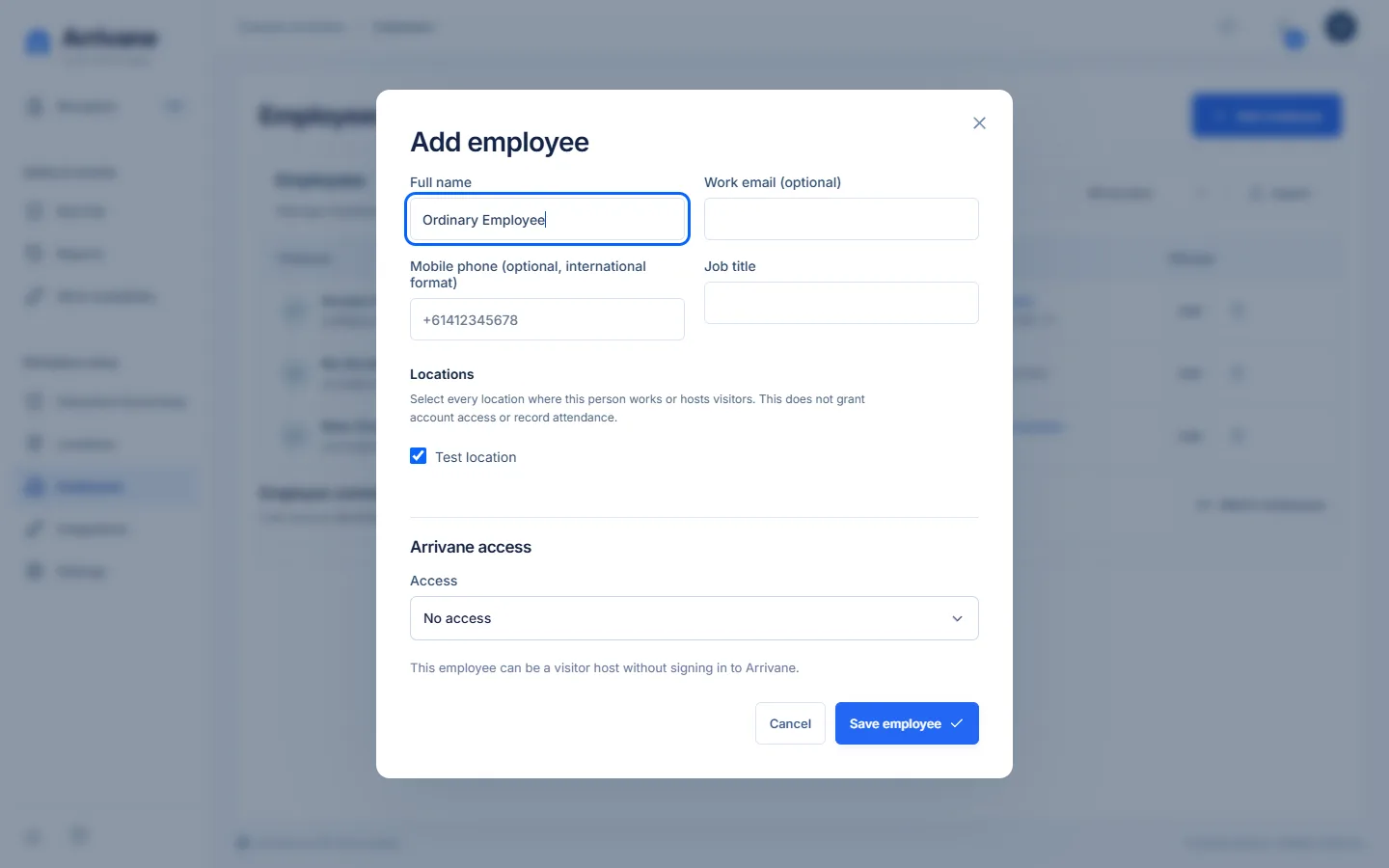
Open Employees → Add employee. Enter the host’s details and location assignments, then Save employee. New employees default to No access. In the same editor, choose an Arrivane access role and sign-in account only when the person needs to use the app.
Demonstration data · Select image to enlarge. Prepare the welcome screen
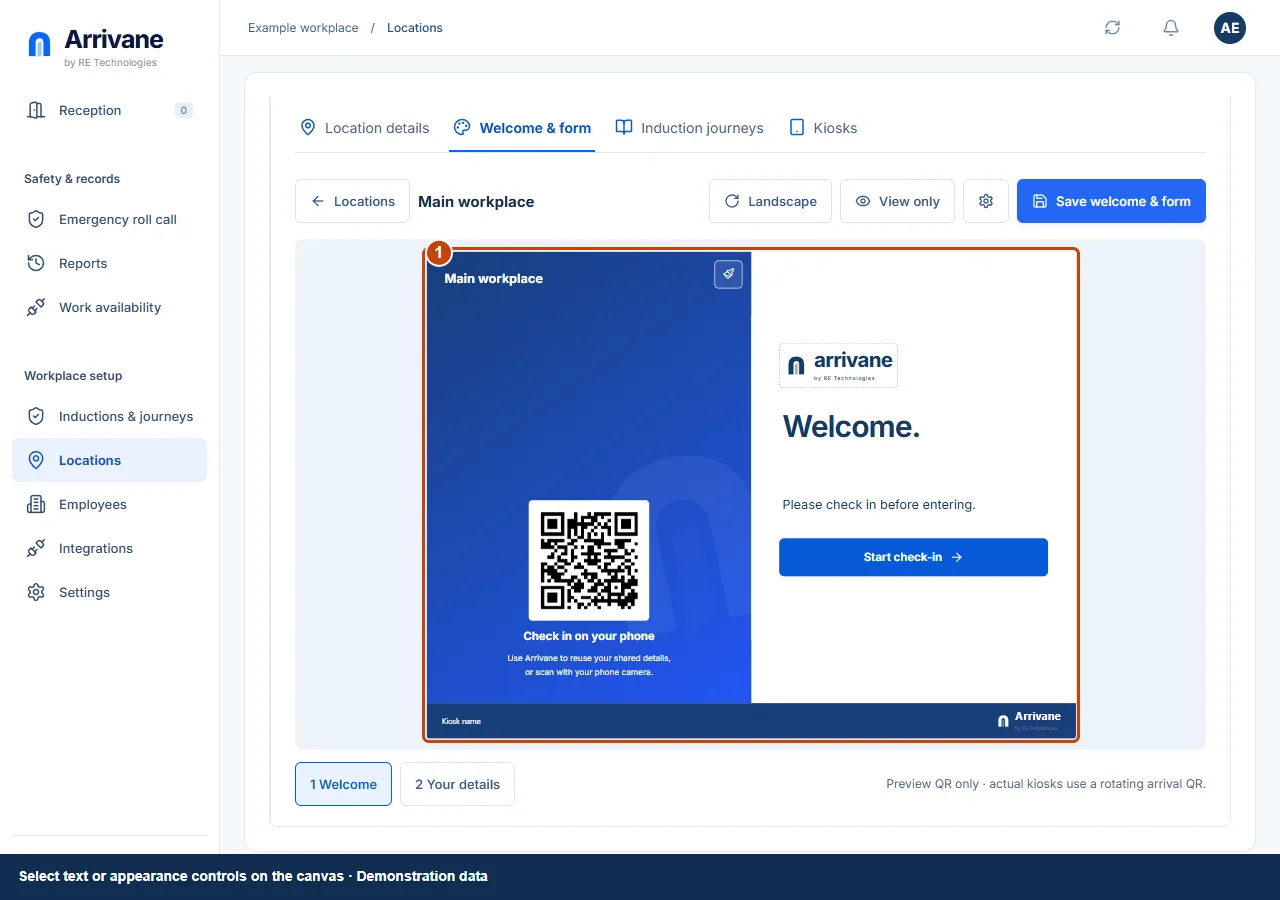
Return to Locations → Welcome & form. Select welcome text or appearance controls on the canvas, and choose the device orientation. Keep the location identity and entry instructions readable.
Demonstration data · Select image to enlarge. Choose the arrival fields and save
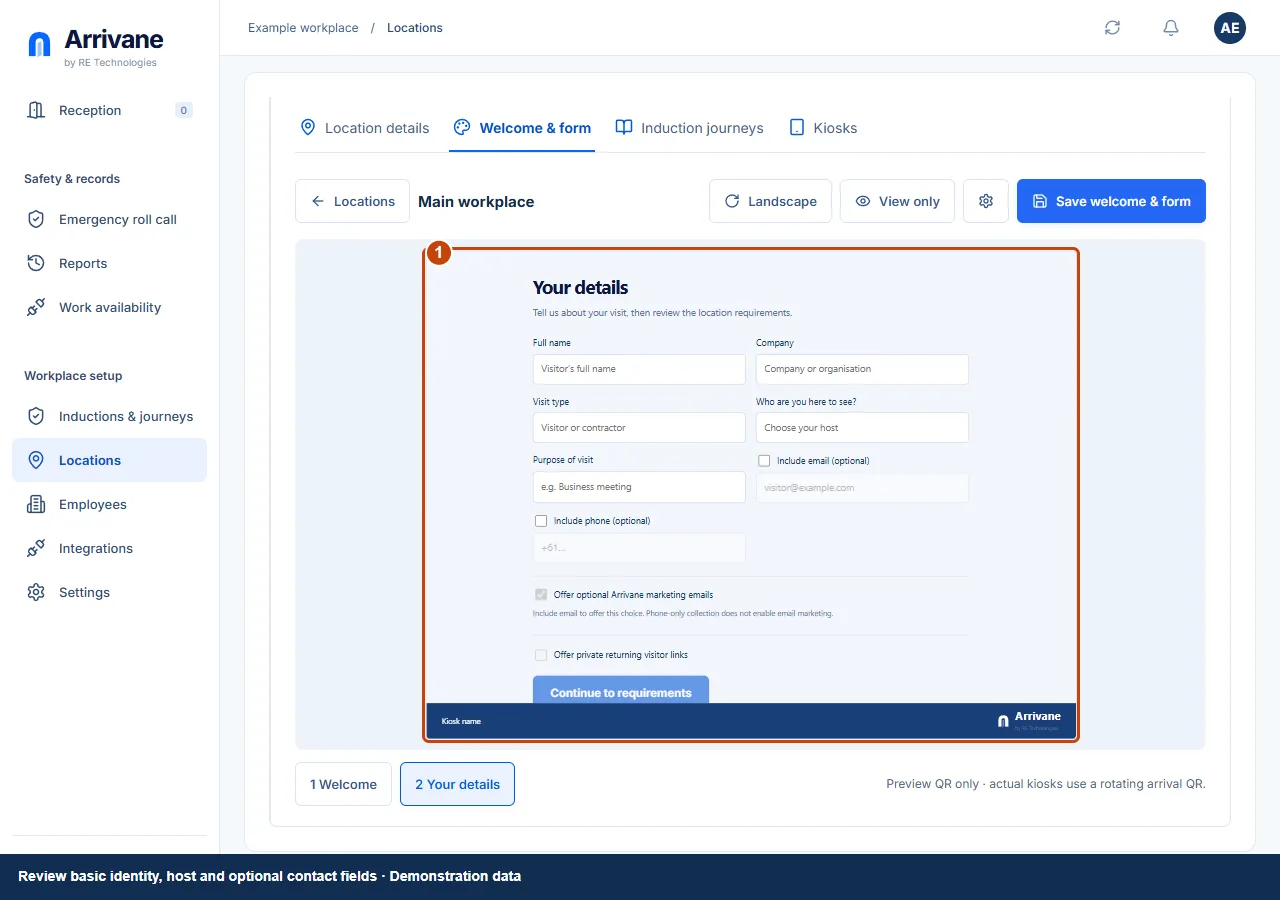
Select 2 Your details and review the identity, host and purpose fields. Use Details settings beside the preview to choose Email or mobile, Email required, Mobile required or Both required, and optional Returning visitor links. These requirements apply to future self-service arrivals. Mobile numbers need an explicit country code. Free accounts can save the contact policy under Location details, including Default settings; defaults apply to new locations. Marketing permission stays optional and separate. Switch between Edit and Preview to check the visitor presentation. Select Save welcome & form and wait for confirmation.
Demonstration data · Select image to enlarge. Add shared requirements if needed
For additional questions, induction pages or quizzes, use Inductions & journeys → Create content. Save the content, build its journey and assign it to the location and person type. Follow the linked content and journey guides for those separate tasks.
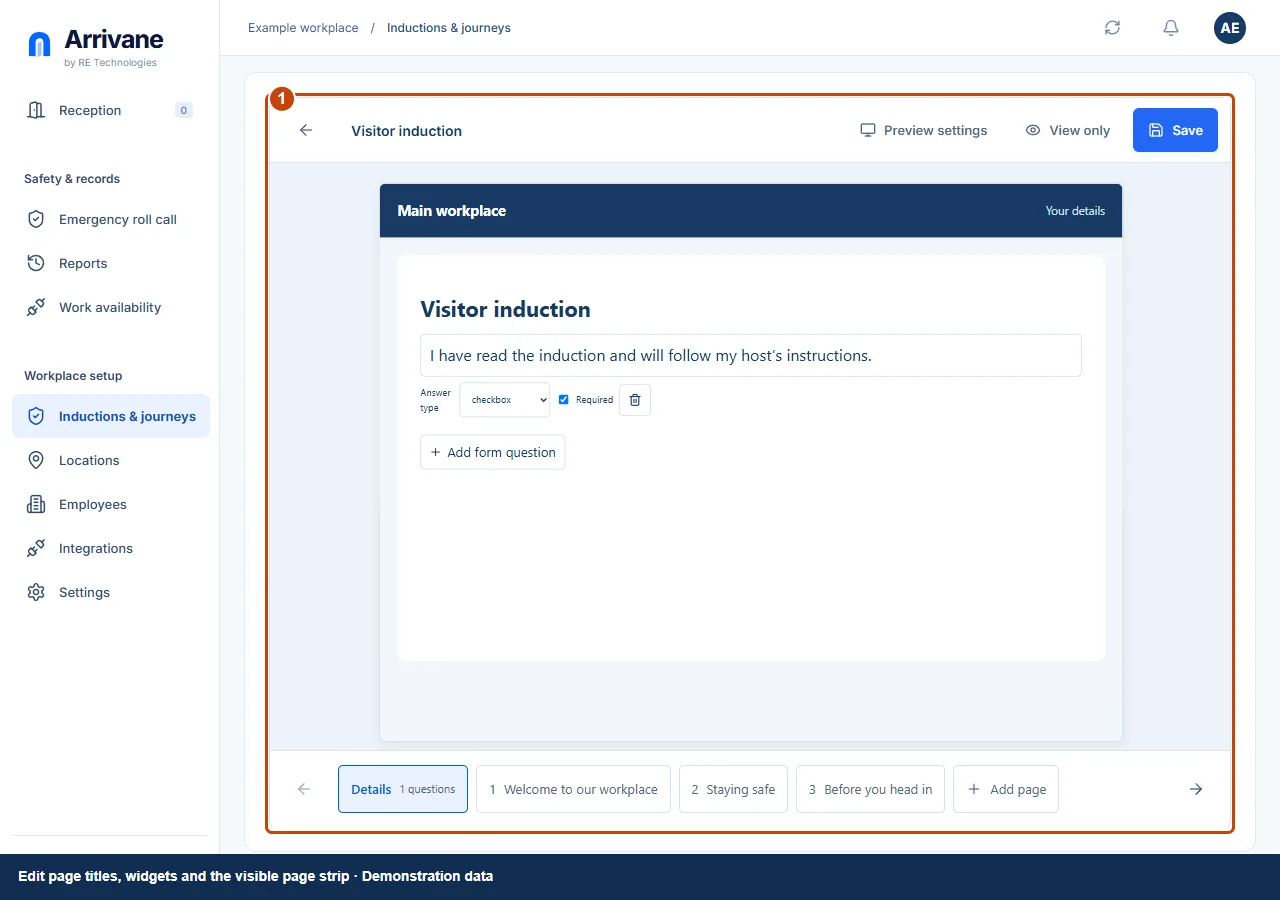
Demonstration data · Select image to enlarge. Choose your reception route
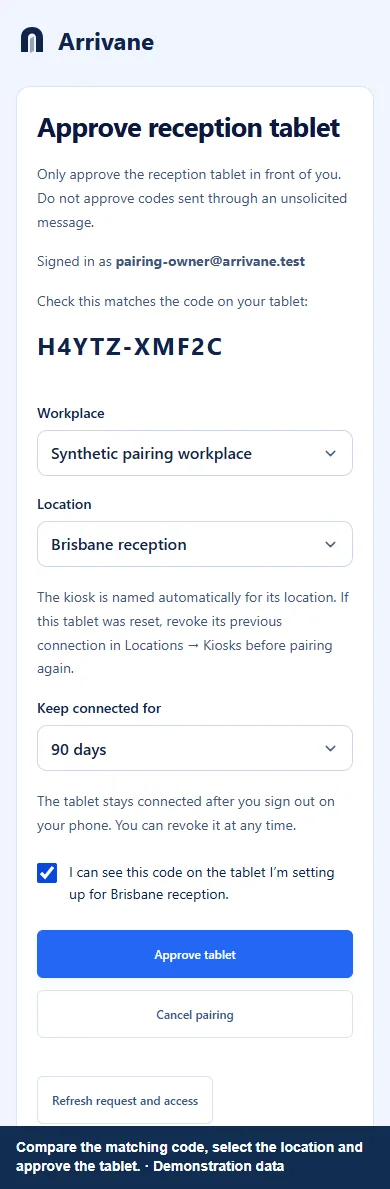
For staff-assisted arrival, use Reception and continue to the test check-in below. For a self-service tablet, open Reception on that tablet and show its pairing QR. On your signed-in staff device, open the pairing link, compare the code, select the location and approve. Review Print visitor badges in the location’s Kiosks tab, then Save; printing is optional and requires Complete. For phone-based self-service without a tablet, follow the printed arrival QR guide.
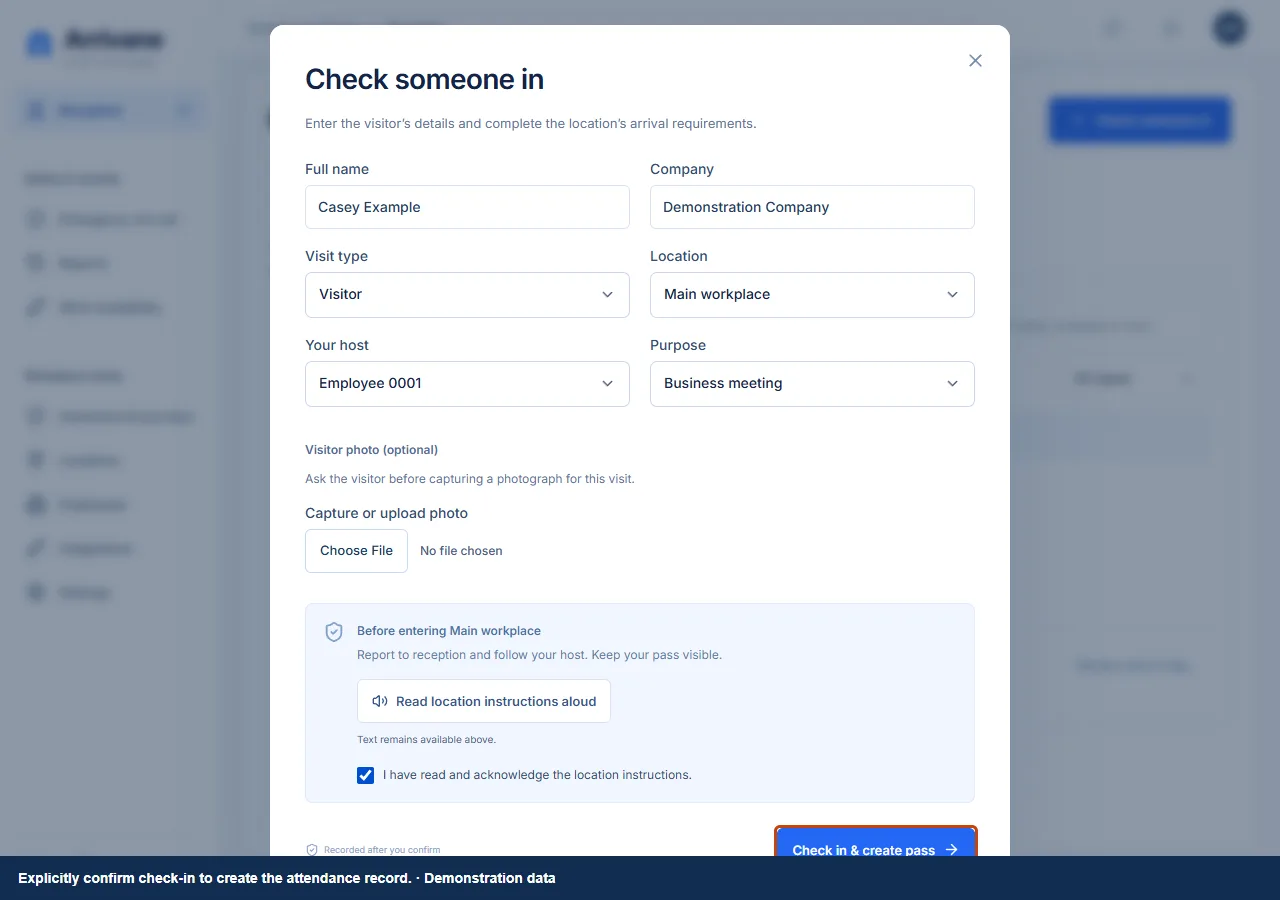
Demonstration data · Select image to enlarge. Confirm a complete test arrival
Use your own test visitor details and complete every required form and induction. Explicitly confirm check-in. A scan, shared profile or completed form alone never records attendance.
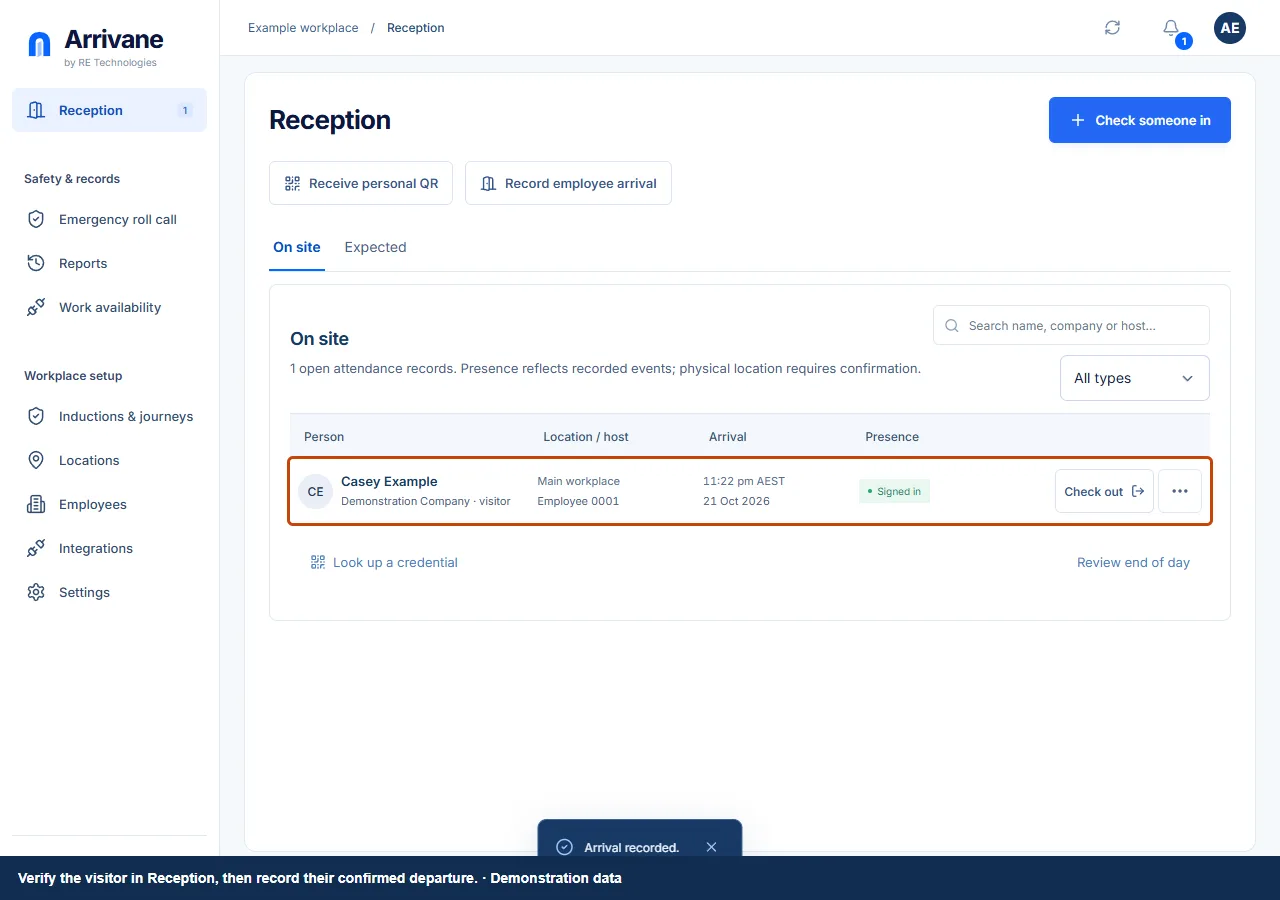
Demonstration data · Select image to enlarge. Verify the record and record departure
Find the test visitor in Reception → On site. When their departure is confirmed, choose Check out and verify the open record is gone. Follow the reception guide and its full arrival/checkout video below.
Demonstration data · Select image to enlarge.
Check the result
The correct welcome appears at reception, a test arrival reaches the On site list, and its departure is recorded.
If something goes wrong
Missing setup controls usually mean your role lacks administrator access or you are on a phone. Use a desktop browser and ask an organisation administrator to review your access.
If a control is missing, check your organisation, location, role and plan. If a save fails, read the error, keep your draft and check the saved state before retrying.
Screenshots use example people and workplaces. Follow the written steps and test your reception tablet, printer and connected services before welcoming visitors.