
Connect a personal AI assistant
Authorise a supported AI app through your own Arrivane account.
Before you start
Your AI client must support the displayed connection method. Arrivane still enforces your live role and location access.
Open AI connections
Select your initials → Personal tools → AI connections. The app centre also provides Connect your AI instructions. Personal setup is separate from organisation Integrations.
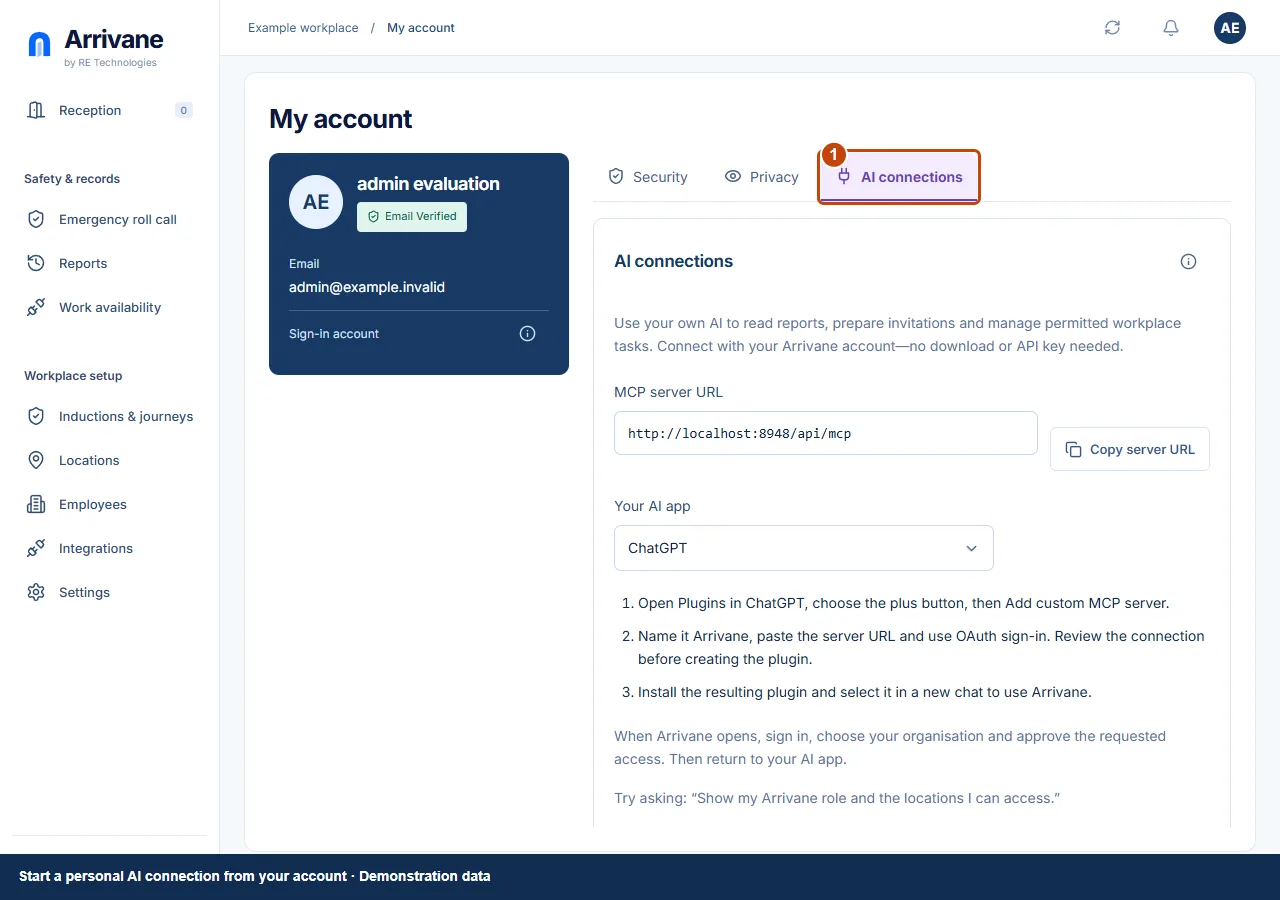
Demonstration data · Select image to enlarge. Add Arrivane in your AI app
Copy the server URL from Arrivane, follow the instructions for your AI client, then start its OAuth connection. Review the Arrivane consent screen and approve only the access you intend. Do not paste passwords or private keys into a chat.
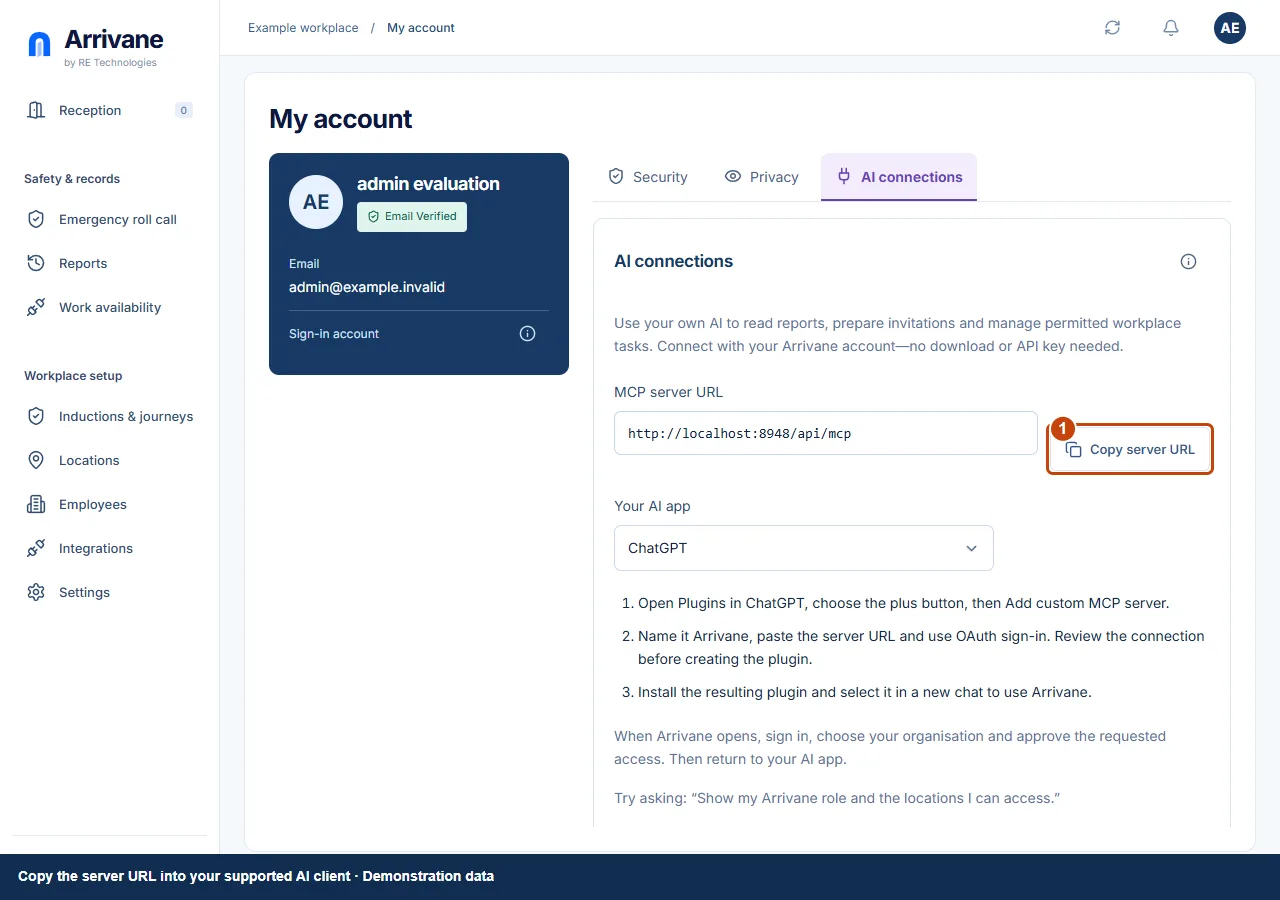
Demonstration data · Select image to enlarge. Verify access and revoke when finished
Try a small read request for records you are allowed to see. Review approved connections in Personal tools and revoke anything no longer needed. Client support and provider availability vary; a copied URL alone does not establish a working connection.
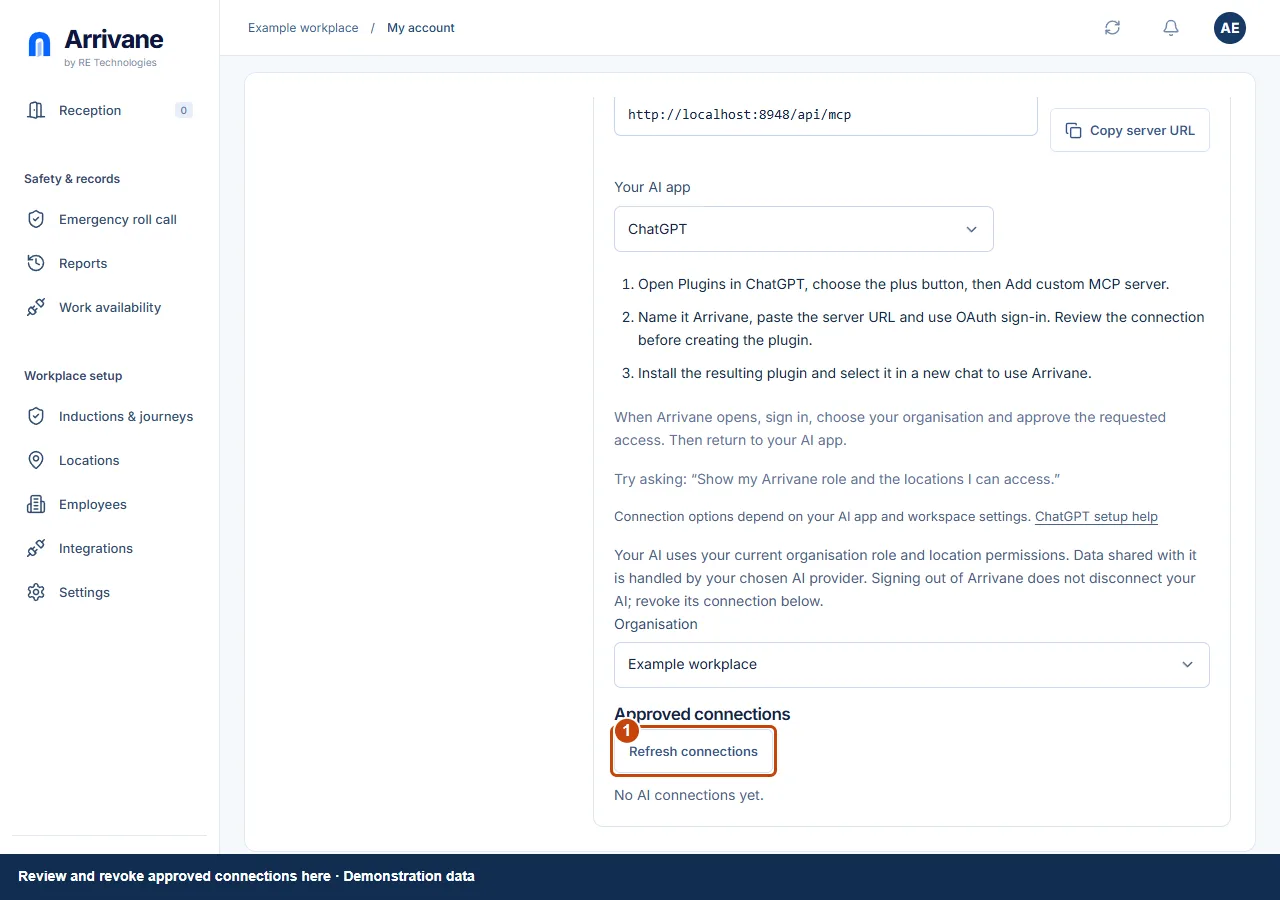
Demonstration data · Select image to enlarge.
Check the result
The AI client is authorised through your account and a permitted read succeeds.
If something goes wrong
If authorisation or a read fails, review the client’s supported remote MCP/OAuth setup and your current organisation access. Do not broaden workplace permissions as a workaround.
If a control is missing, check your organisation, location, role and plan. If a save fails, read the error, keep your draft and check the saved state before retrying.
Screenshots use example people and workplaces. Follow the written steps and test your reception tablet, printer and connected services before welcoming visitors.