
Review integrations and work availability
Find organisation connections and understand recorded availability.
Before you start
Use only workplace-approved providers and understand the permissions requested.
Open organisation Integrations
Select Integrations to review the supported connection areas and their current status. Connect your provider, then open Employees to import the directory into an Arrivane location. Google Workspace has Connection & settings and Features tabs; optional directory import in Features needs separate read-only directory approval. Microsoft features are chosen on Features. Employment Hero uses Employees & locations for mapping and Scheduled updates for ongoing imports.
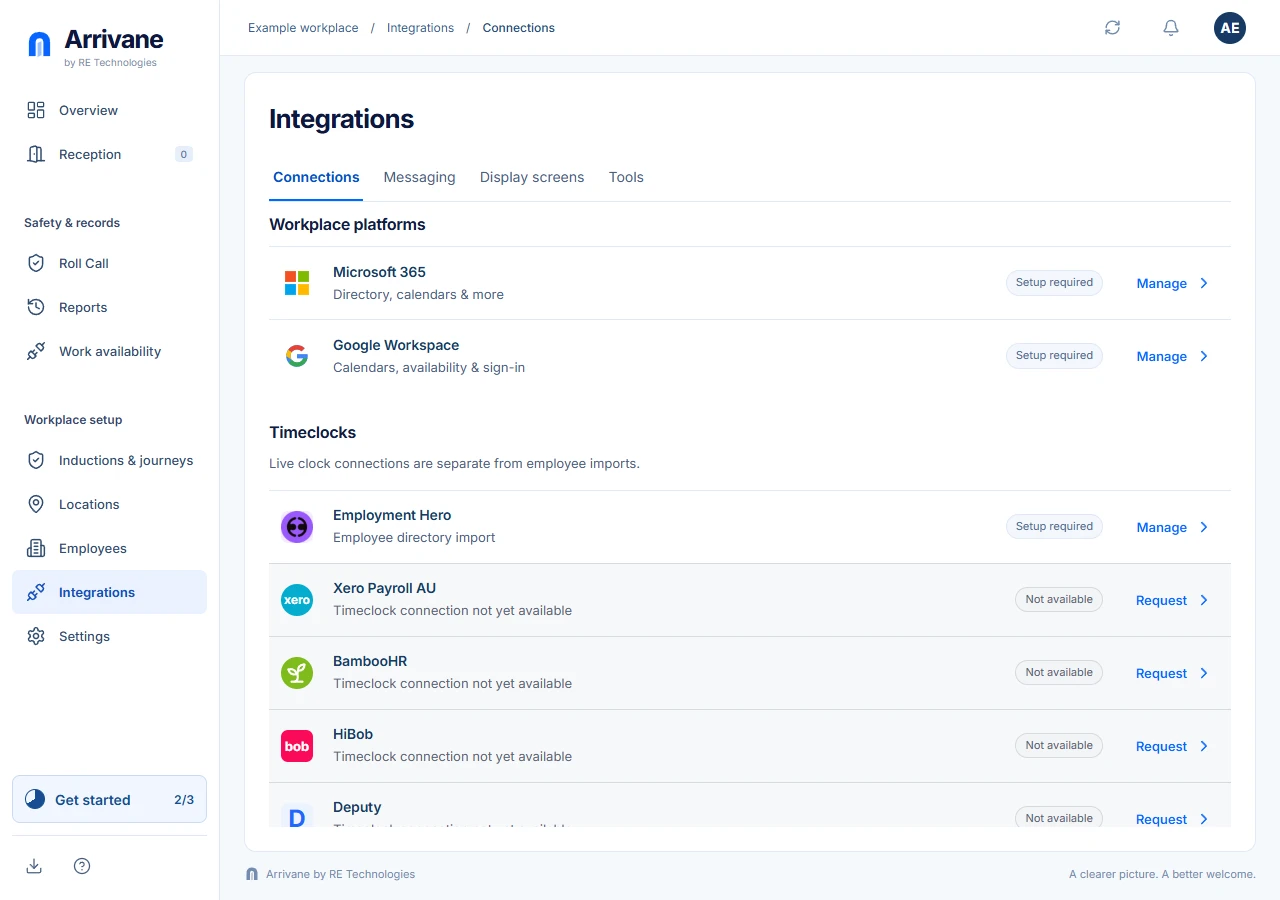
Demonstration data · Select image to enlarge. Verify the actual connection status
Read the connection’s readiness and error information. Provider credentials or authorisation may be required. A configured row does not by itself prove live delivery or synchronisation; verify the relevant provider result before relying on it.
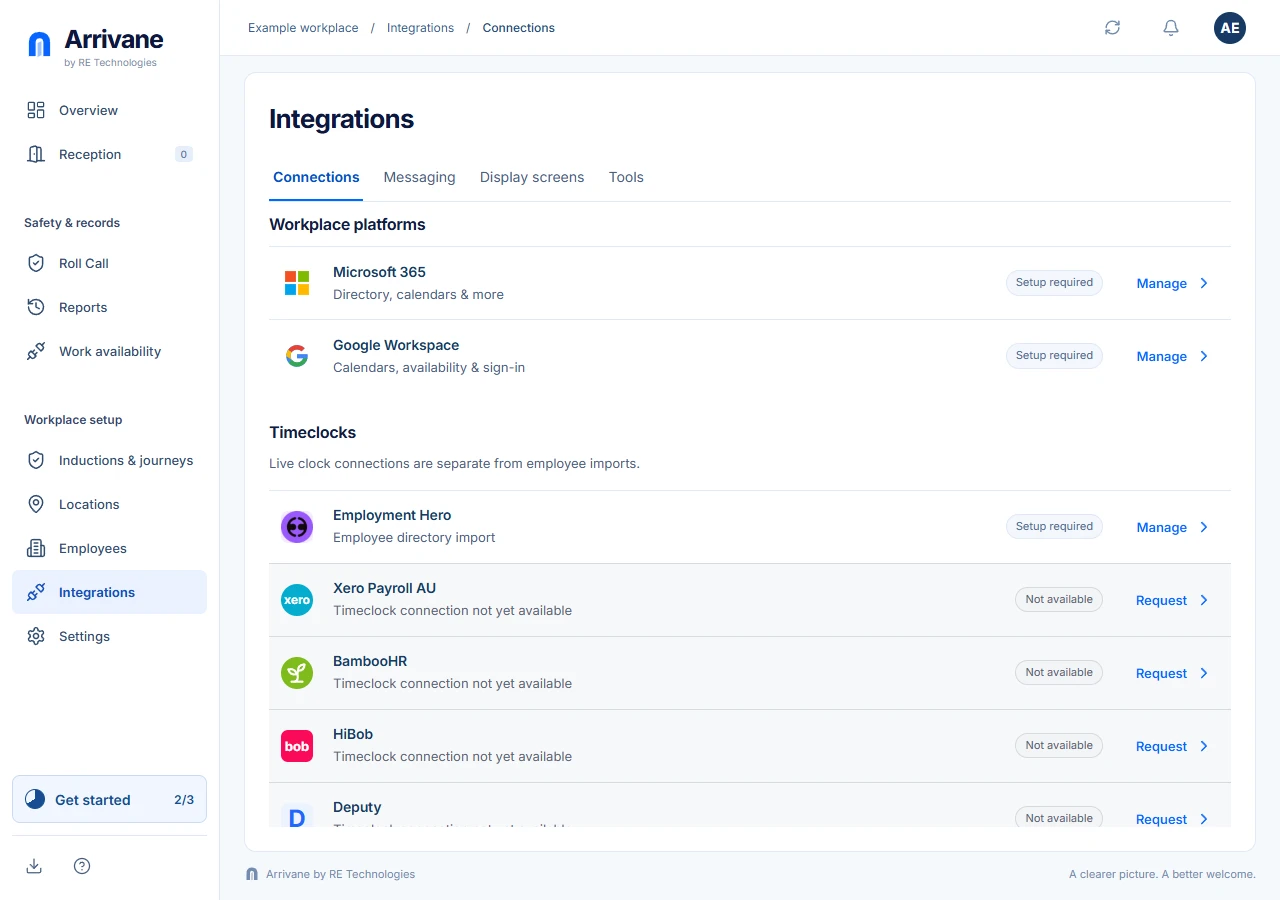
Demonstration data · Select image to enlarge. Use employee accounts automatically
Matching work emails join provider identities to the same employee. Review names or conflicting identities in Employees. Edit an employee to review connected accounts or exclude Google or Microsoft. Existing Arrivane permissions remain separate.
Demonstration data · Select image to enlarge. Connect employee calendars
In Microsoft 365, enable Calendar invitations in Features and complete any requested approval. Open Calendar invitations, choose a location and Connect all employee calendars, or select one employee. Shared access is required; at most twenty calendars can be connected. Sync a connected calendar, then review meetings before approving visitor invitations. Google calendar availability is managed separately in Google Workspace → Features, using employee work accounts and location assignments.
Demonstration data · Select image to enlarge. Review Work availability in context
Open Work availability and choose the permitted location or filters. Read status labels alongside recorded attendance and other available signals. Availability and physical presence describe different things; confirm physical location when it matters.
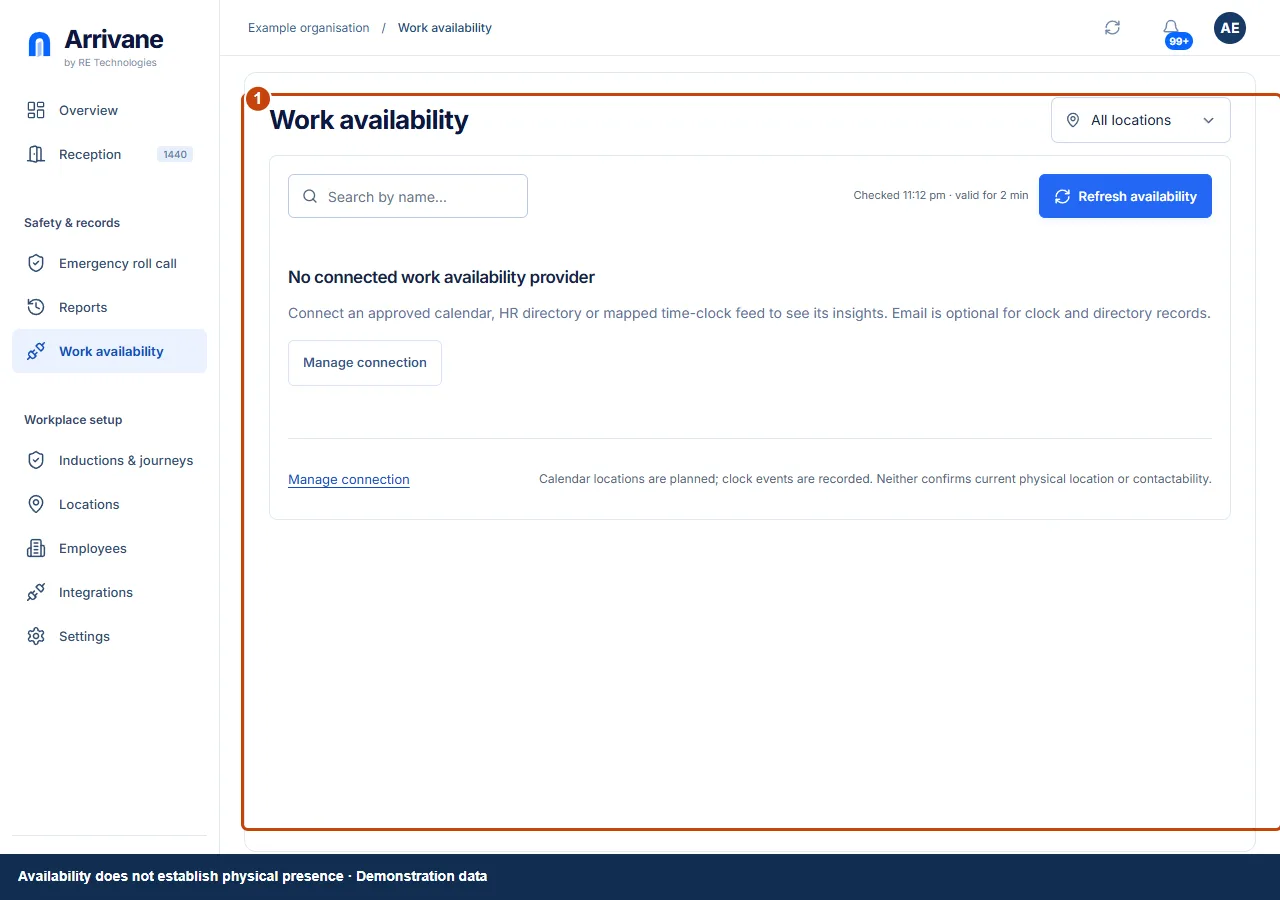
Demonstration data · Select image to enlarge.
Check the result
You understand which connections are ready and what the displayed availability actually records.
If something goes wrong
Use visible retry or reconnect controls for provider failures. Keep tokens, private keys and personal records out of screenshots sent for help.
If a control is missing, check your organisation, location, role and plan. If a save fails, read the error, keep your draft and check the saved state before retrying.
Screenshots use example people and workplaces. Follow the written steps and test your reception tablet, printer and connected services before welcoming visitors.