
Set up a meeting-room display
Create an independent room, connect its resource calendar, choose its screen and pair Arrivane Kiosk.
Before you start
Have access to an approved Microsoft or Google connection, a dedicated room resource calendar and your intended tablet. Check your room allowance in Billing. Rooms can be created without a location. Book meetings in your existing calendar; displays do not create or edit bookings.
Create your room
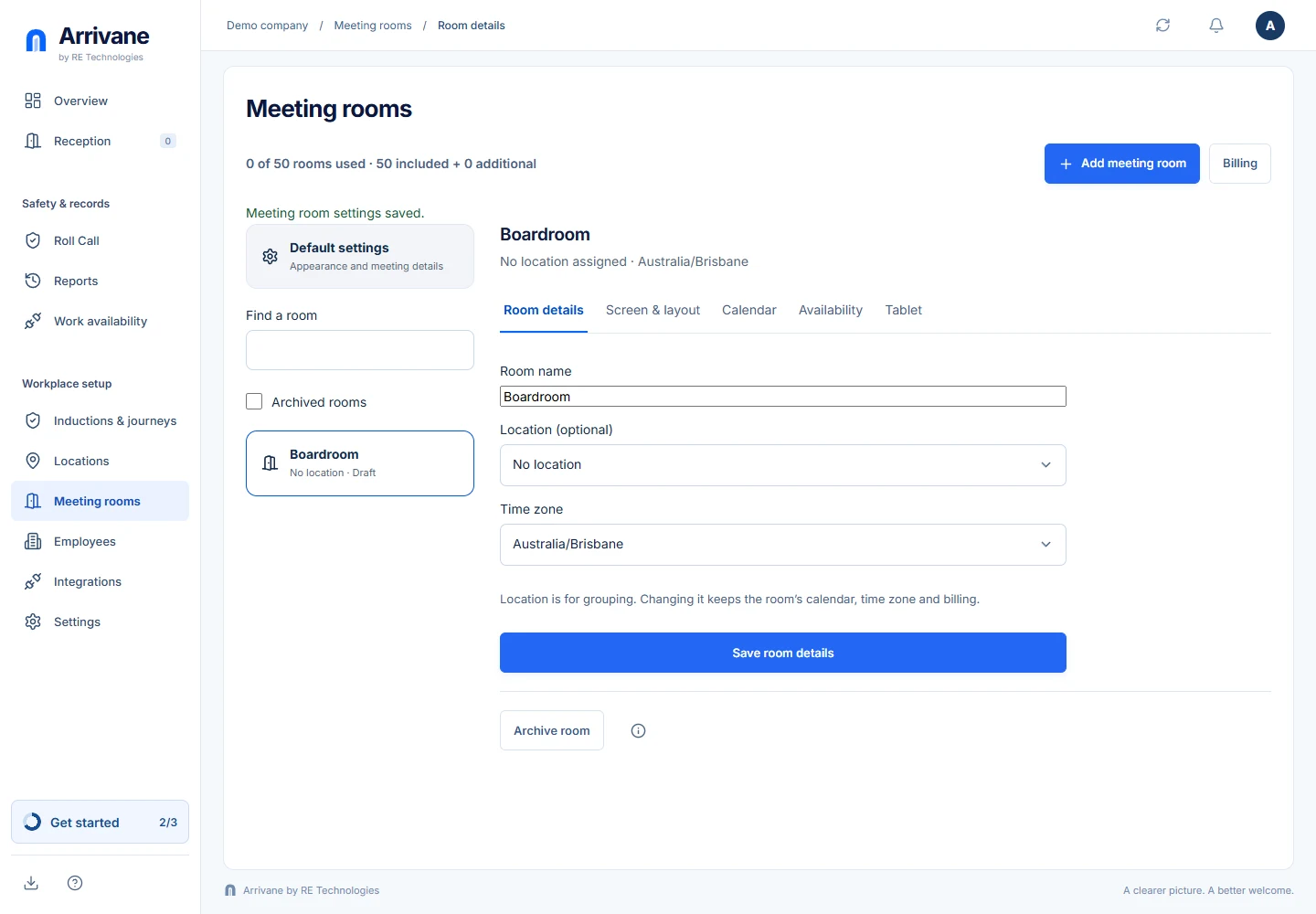
Open Meeting rooms → Add meeting room. Enter its display name and time zone. Location assignment is optional and can be changed later. A draft does not use an active room allowance.
Demonstration data · Select image to enlarge. Connect its resource calendar
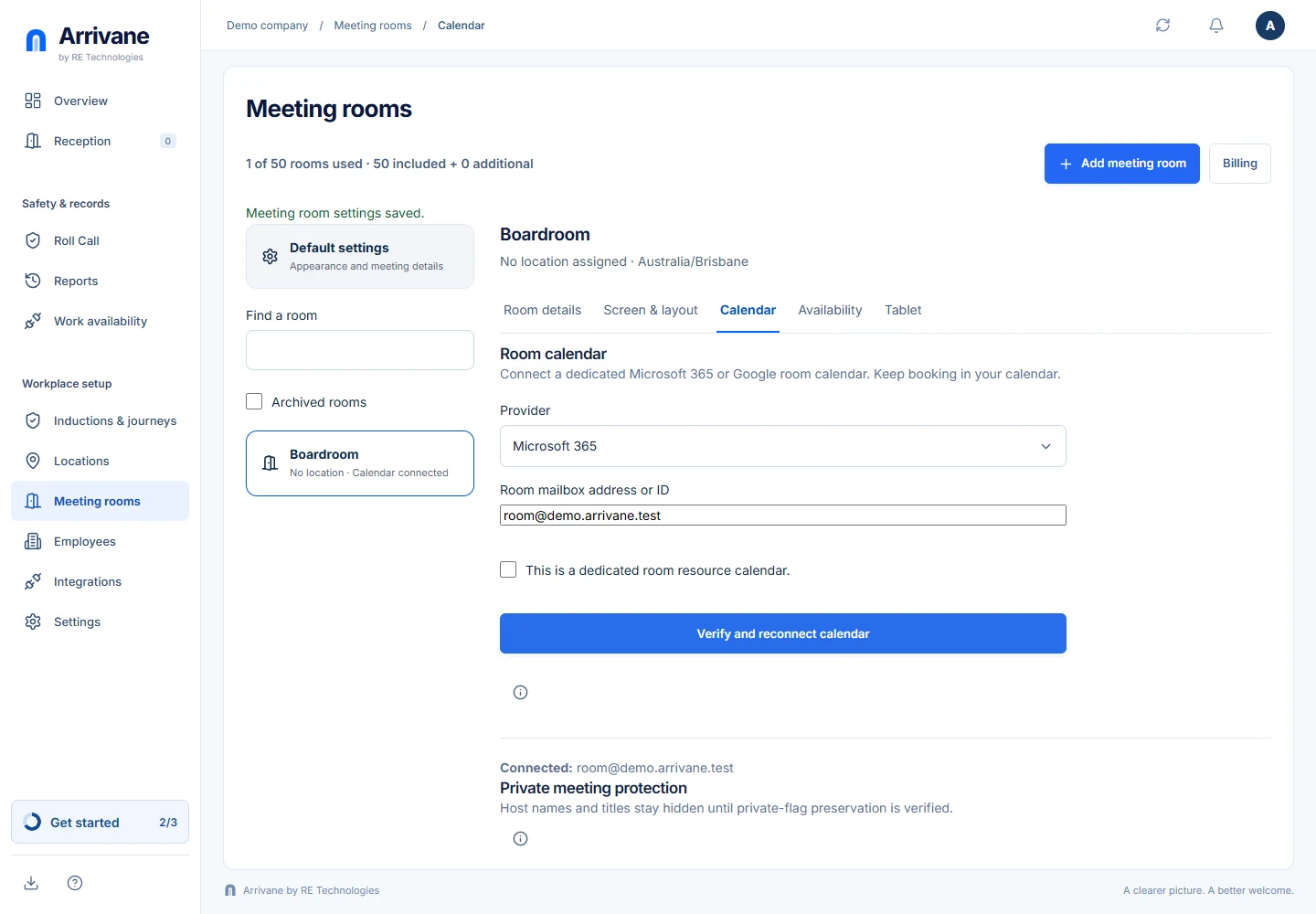
Open Calendar. Choose the provider, enter the dedicated room mailbox or resource-calendar ID, confirm it is a dedicated resource and select Connect calendar. Each active room uses its own calendar. Google availability-only access shows reserved time without event details. Microsoft details remain redacted until the administrator verifies privacy readiness; the verification only permits eligible meetings created afterwards. It does not change Exchange settings.
Demonstration data · Select image to enlarge. Choose the screen
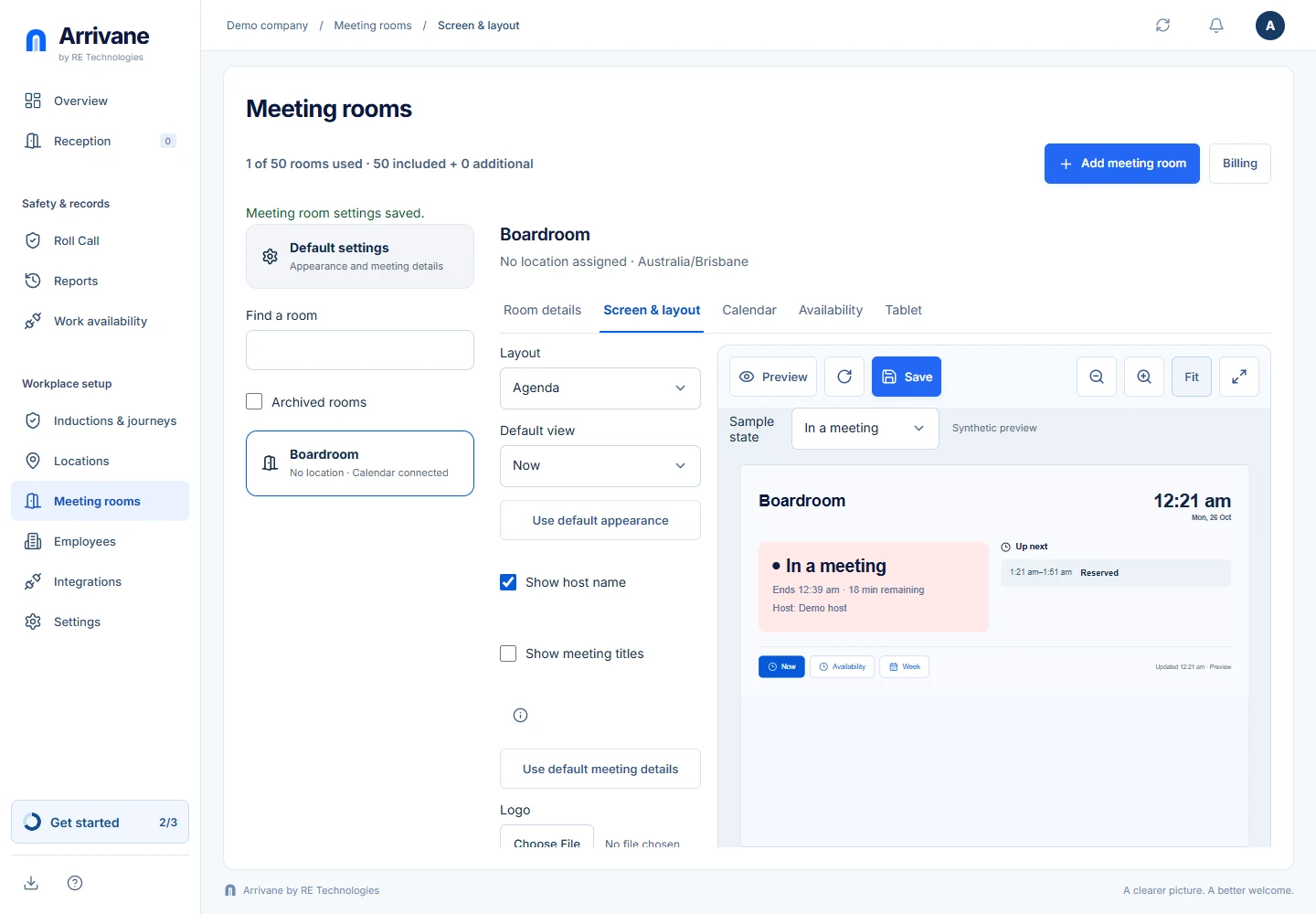
Open Screen & layout. Change the logo or image directly on the preview. Rooms use one shared layout. Set host/title preferences in Room details; defaults apply unless overridden. Save and check the available, busy and private preview states. Private titles are never displayed.
Demonstration data · Select image to enlarge. Install on the room tablet
Open Meeting rooms → your room → Tablet → Pair a kiosk. Scan the installation QR with the intended tablet. If you cannot scan, choose Can’t scan? and enter or copy the installation address. On iPad or iPhone, open in Safari, choose Share → Add to Home Screen and confirm Arrivane Kiosk. On Android, use Install Arrivane Kiosk when offered, or the browser menu → Install app. Open the installed app to continue; this room setup link already selects Meeting room. A generic kiosk install still asks its purpose. The tablet keeps its private polling secret; only share its approval link with an authorised administrator.
Demonstration data · Select image to enlarge. Approve the correct room
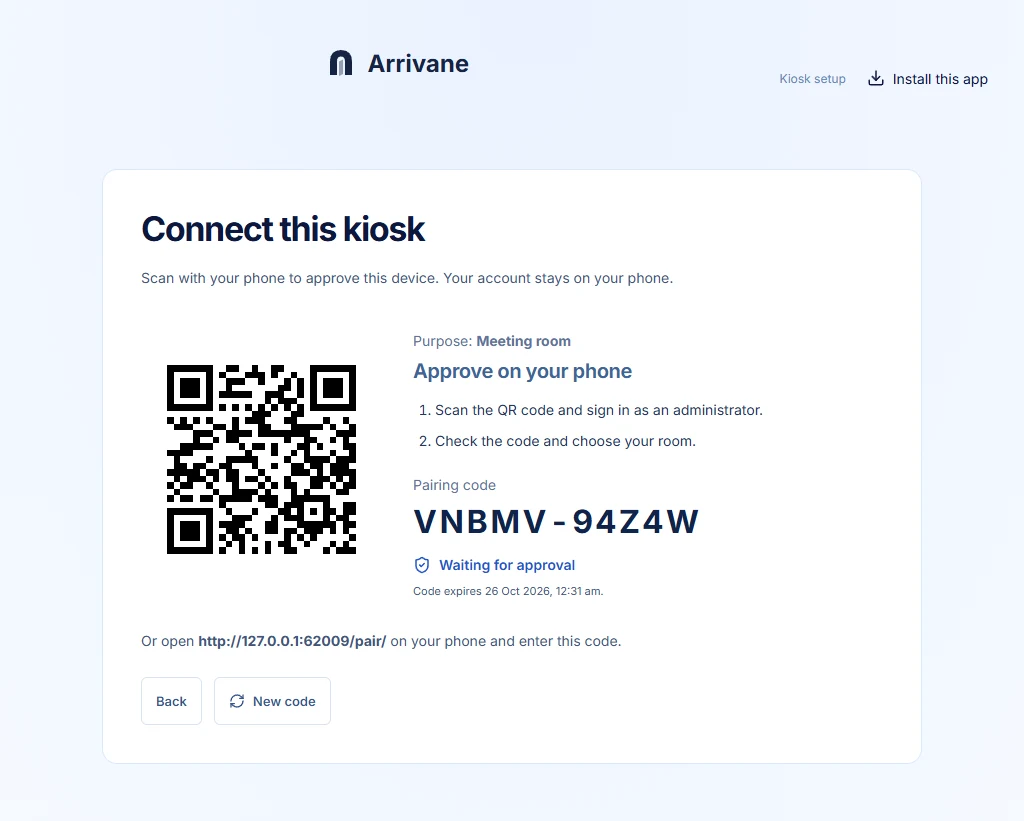
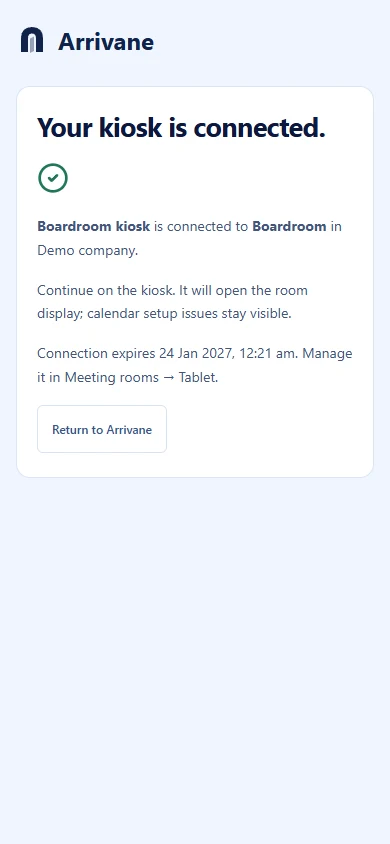
On your signed-in phone or computer, choose Enter a tablet’s code in the setup dialog, or scan the tablet’s pairing QR. Verify Meeting room, the organisation, room and displayed code. Check the selected room, choose the connection duration, then explicitly choose Approve kiosk. Installing alone never approves or connects the tablet. A room already paired to an active device must have that device revoked before replacement. The tablet needs no administrator session.
Demonstration data · Select image to enlarge. Test availability and privacy
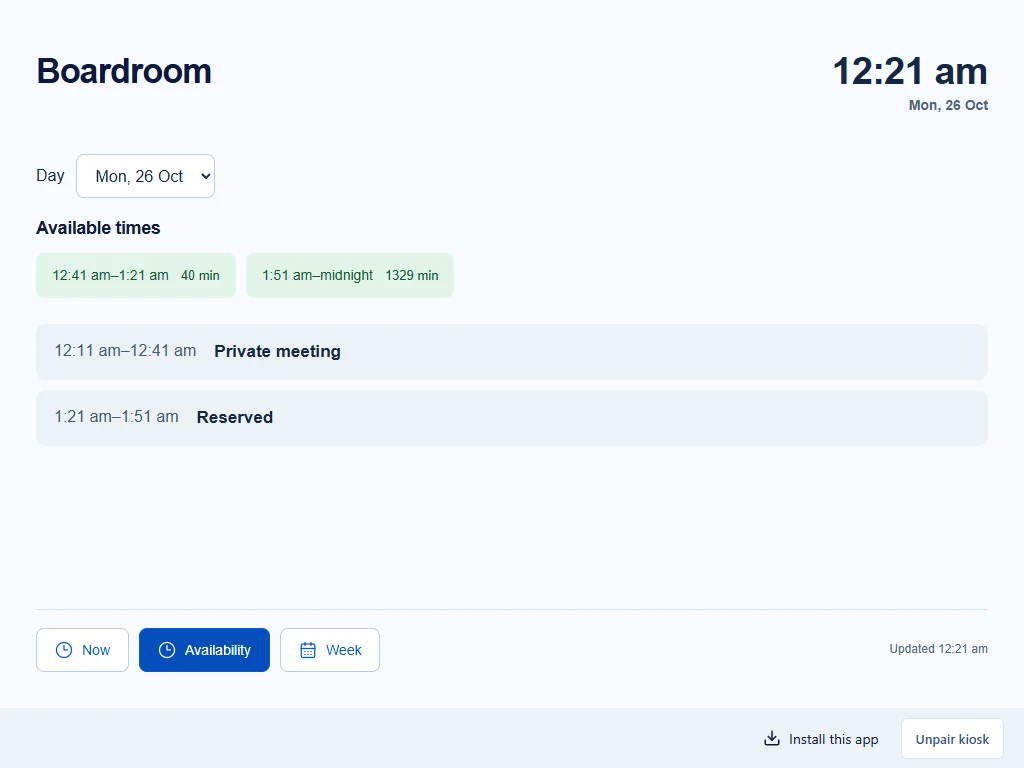
Check Now, Availability and Week on the tablet. Confirm the room name, time zone and a known reservation, including a private meeting. Disconnect the network and verify that availability becomes unconfirmed when the last successful update expires. Keep a fallback process for outages.
Demonstration data · Select image to enlarge.
Check the result
The paired room displays its own calendar, private details remain hidden, and the tablet recovers after refresh. Reception tablets continue using their location arrival workflow.
If something goes wrong
Check provider permissions, resource identity, room allowance and connection status. If information is unavailable, reconnect the calendar rather than assuming the room is free. Revoke a lost tablet under Meeting rooms → room → Tablet. An expired or revoked device needs a new pairing.
If a control is missing, check your organisation, location, role and plan. If a save fails, read the error, keep your draft and check the saved state before retrying.
Screenshots use example people and workplaces. Follow the written steps and test your reception tablet, printer and connected services before welcoming visitors.